
Workflow overview
Organize knowledge, assets, and manuscripts
Use folders, selection, file operations, and source links while distinguishing categories, asset copies, and original computer files.
Reviewed on 2026-10-08 for Beav desktop 2.8.14 and later. Source review is complete; Mac and Windows file operations, clipboard behavior, and restart persistence still need device verification. Older installers do not gain these features automatically.
The Knowledge Base sidebar group (previously Mine) contains personal folders, local sources, Eagle, Obsidian, and subscriptions. Click the Knowledge Base row, including its label or arrow, to expand or collapse the group. Clicking the label also returns to the root; the + menu remains separate. The former top-level import menu now sits at + beside Knowledge Base, keeping file, folder, and linked-source imports. Account profile → 稿件 (Manuscripts) shows manuscripts for the current space without filtering by an individual account. This navigation update ships with Beav desktop 2.8.14; desktop and narrow-window navigation still require verification.
Title-bar tools and chat shortcut
The desktop title bar shows the actions available for the current page. The Knowledge Base, Asset Library, and Manuscripts share a tile-size slider; search, view, refresh, and folder actions vary by page. When the chat composer is focused, press ⌘K on Mac or Ctrl+K on Windows/Linux to toggle the Knowledge Base sidebar. It does not select an item automatically. # is ordinary text; open the Knowledge Base and choose or drag in content when you want to add a reference.
These updates require Beav desktop 2.8.13 or later. Real Mac/Windows title-bar and shortcut behavior still needs device verification.
Choose what to organize
| View | Contents | What organizing changes |
|---|---|---|
| Knowledge Base | Original captured content, including text and media | Categories and display titles; captured directories and original links stay in place |
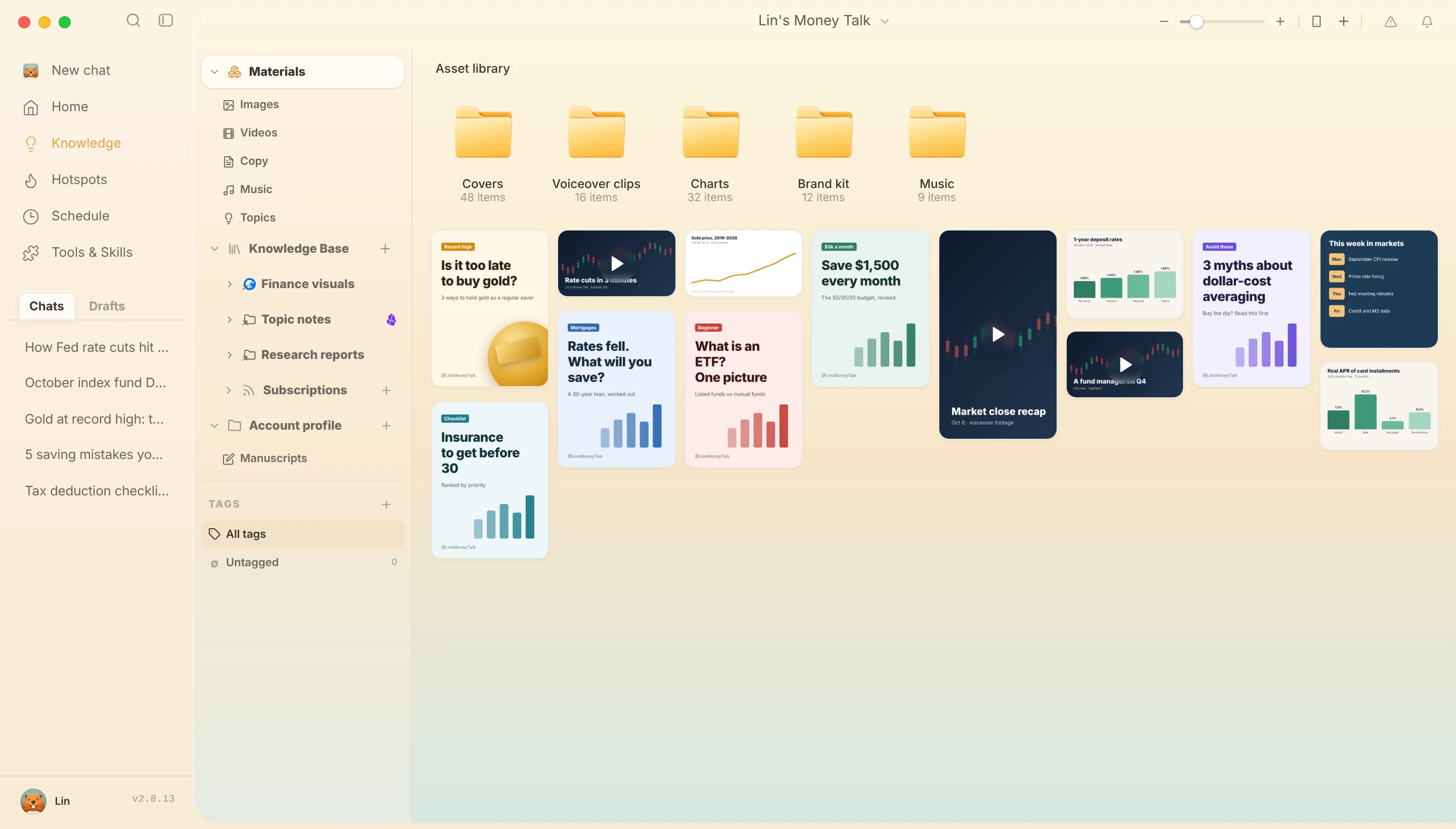
| Asset library, formerly Content Assets | Copies of images, video, audio, and other production files | Ordinary folders correspond to asset directories; moves change file locations |
| Account profile → 稿件 (Manuscripts) (also available in the right workspace) | Source manuscripts and their platform versions | The entire manuscript belongs to one category; versions follow it without changing review or publication status |
| Linked local folders / Obsidian | Directories on your computer | Internal moves, renames, and trash operations affect the original files |
Existing directories and historical data are retained without automatic migration, extraction, or reclassification. Eagle and account-profile internals retain their existing read-only or managed boundaries.
Preview audio in the music gallery
Development builds containing the October 7, 2026 update show wide track cards under Asset Library → 配乐 (Music). When an audio file has a recorded Knowledge Base source in the same space, its original cover becomes the album image. Cards show available source titles, authors, source clip ranges, format, size, and audio duration loaded as cards enter view. Historical files without provenance are not assigned guessed sources. Missing covers use a music placeholder. Shared spaces retain file information and playback without reading local knowledge covers.
Click the cover to play or pause. Only one track plays at a time, with a seek bar on the active card. Click the title or double-click the card for existing preview details, including source links where available locally. Opening details, leaving the page, or changing category or space stops gallery playback. Selection, dragging, menus, renaming, and phone sharing remain available; the size slider adjusts covers and card width.
This section follows the built-in guide's music gallery instructions. Source and TypeScript checks are complete; native desktop playback, covers, and narrow-window layout still need verification. The updated gallery ships with Beav desktop 2.8.14.
Subscription accounts and content views
The generated 订阅 (Subscriptions) folder image at the knowledge root opens a grid of subscribed accounts with avatars and names. Account archives remain in the sidebar and no longer appear as duplicate root cards. Click an account to select it; double-click or press Enter to view its content. The subscription breadcrumb returns to the account grid, and Knowledge Base returns to the root. Manage Subscriptions opens the existing management screen.
Knowledge content and subscribed-account content offer 画廊 (Gallery) and 时间轴 (Timeline) controls at the top right, defaulting to gallery and timeline respectively. Switching views does not collect content again. Linked sources keep their existing views. Account archive content also offers Gallery and Timeline, defaulting to Gallery; Timeline sorts by publication time, falling back to capture time. Account name, view controls, and recent-post sync share one row, with type filters and phone upload removed from this page. These account-page and view updates ship with Beav desktop 2.8.14; native desktop interaction and layout verification are pending.
Add multiple account profiles to one space
Beav desktop 2.8.14 lets you expand Account Profiles to see each account name in the current space. Select a name to browse its parsed posts, or use the group's + button to enter a supported homepage URL and confirm creation. The list updates after creation, and you can add more accounts without replacing the existing primary account or creating another space. Capture support and counts follow the dialog's prompts; shared spaces do not offer local creation. Creation, switching between accounts, and restart persistence still need desktop verification.
WeChat article gallery cards show a wide cover above a left-aligned title and author/source. They use the saved cover or the first available image; missing or failed images leave a light-gray placeholder with a gray Official Accounts icon. Subscription rows also retain this placeholder. This update ships with Beav desktop 2.8.14; native desktop light/dark themes and cover loading still need verification.
Create folders and organize selections
- Enter the destination and create a folder from its add menu or empty-area context menu.
- Type its name inline. Enter saves and Escape cancels; renaming also happens inline.
- Click to select and double-click to open. Command/Ctrl toggles multiple selections, Shift selects a range, and dragging from empty space draws a selection box. Select All covers displayed items only.
- Use the selection's move menu or drag it onto an available folder. Move knowledge items and category folders separately if both types are selected.
To group subscribed creators, create a folder under My Knowledge, then use the creator's move-to-folder menu. Grouping does not stop subscriptions or delete their content.
The asset add menu and empty-area menus in knowledge and manuscripts offer name or modification-time sorting, saved per space and view. Returning to a directory restores selection and scroll position for loaded items. Asset search results can open their containing folder.
Selection can start from any blank part of the scrolling content area, including below the cards. Drag near an edge to scroll, release to keep the selection, or press Escape or leave the window to cancel the gesture. Knowledge categories, subscription accounts and content, account archives, and local/Obsidian/Eagle directories offer selection and context menus; assets and manuscripts use the same gestures. Right-clicking an unselected item selects it first. Empty-area menus show the actions available in that view; the main knowledge area offers Refresh and Select All, with create, add, and paste actions for writable directories.
Click account archive content to select it and double-click to open it. Subscription accounts can copy homepage links, and archive content can copy original post links. Eagle and archive internals do not offer original-file modifications. This full-area selection update ships with Beav desktop 2.8.14. TypeScript checks passed; native Mac/Windows gesture and menu-position verification are pending.
File drops and clipboard operations
Drop files or folders from Finder or File Explorer into an ordinary local asset directory, or copy and paste them. Imports create copies, preserve subfolders and empty folders, and rename collisions without overwriting existing files. Product and character collections retain their organizing steps; manuscripts open from Account profile → 稿件 (Manuscripts) or the independent right-workspace tab and do not appear in the asset library. Start the import again after switching spaces or destinations.
Dragging within the asset library moves items by default. Hold Option on macOS or Ctrl on Windows to copy. Folders and breadcrumbs can receive drops; dragging near an edge scrolls, and Escape or losing window focus cancels the gesture. See Share assets and drop files into Beav.
| Action | macOS | Windows |
|---|---|---|
| Open selection | Command+Down | Enter |
| Rename | Return | F2 |
| New folder | Command+Shift+N | Ctrl+Shift+N |
| Delete selection | Command+Delete | Delete |
| Copy and paste files | Command+C, Command+V | Ctrl+C, Ctrl+V |
| Move files | Command+C, Command+Option+V | Ctrl+X, Ctrl+V |
Shortcuts apply only in lists supporting that action; text inputs and previews do not trigger list deletion. Moves stay within the permitted space or linked source; use copying across sources. Copying a knowledge reference does not clone its text. Dropping, pasting, or adding files, videos, and folders in the knowledge content area saves actual copies, preserving folder contents and leaving originals in place. The explicit linked-source entry still links the original directory. This fix ships with Beav desktop 2.8.14 and requires the updated host; Windows native drops and the new knowledge directory-copy flow still require device verification.
Asset categories and decomposition outputs
Beav desktop 2.8.14 adds expandable image, video, text, and audio categories across the asset library. Topics read directly from the topic center and are hidden in shared spaces. Categories retain their last successful result while refreshing. Decomposition copies are saved under 拆解/<title>; see decomposition and its pending checks.
Save media from knowledge and return to its source
Open a knowledge note's details and use the add-as-asset action to select locally saved media and a destination asset folder. This saves a complete media copy and leaves the original intact. The action is unavailable for remote-only URLs and does not download or trim media automatically.
Where relationships exist, the extracted-assets section locates assets. Asset previews and text details opened within Knowledge Base can return to the original note through their source links; a separate asset window displays source titles. Identical content can retain multiple sources. Deleting the knowledge original keeps asset copies by default; the confirmation dialog can also delete related assets. Unavailable sources retain minimal title attribution. Editing asset bytes externally does not transfer old attribution to the changed content.
Existing assets are not automatically backfilled with sources. Automatic extraction tasks and source time-range clipping are outside this update.
Deletion and partial failures
The knowledge deletion dialog includes a “Delete related assets” checkbox, unchecked each time. Selecting it also removes asset-library files with recorded provenance, including decomposition outputs. Assets shared with another source are retained with a notice. Older assets without provenance are not matched by file name. If some assets cannot be deleted, the knowledge item and failed selection remain; assets already removed are not automatically moved back.
This ships with Beav desktop 2.8.14 and requires the updated host. Native UI, persistence reload, deletion timing, and Windows remain unverified. Related assets use the existing application recycle area; knowledge files go to the system Trash or Recycle Bin. One-click recovery of the complete item and relationships is not promised. Removing a linked source only disconnects its entry; deleting files inside it sends originals to the system Trash or Recycle Bin. Failure never falls back to permanent deletion.
Batch asset or linked-directory operations can partially succeed. Read the result and retry only the failed items left selected. A parent selected with its children is operated on once. Resolve name conflicts before retrying moves. If a composite asset still references a child file, update the reference or move the entire composite. Restoring assets with name conflicts keeps both copies.
For missing actions, check the build, space, and source capabilities first, then see Troubleshooting.
Manuscript views and folders
The manuscript toolbar combines navigation, search, refresh, view selection, and new folder in one row. The magnifying glass opens search; an active query highlights the button and can be cleared from the popover. Folders use the same artwork as Knowledge and Assets and appear above content. A new folder appears first with inline naming: Enter or blur saves, Escape cancels, and failures retain the input. Click selection, double-click opening, multiple selection, marquee selection, and dragging into folders follow the file-management interaction.
Gallery preserves full covers; Timeline sorts by update time without reloading the list. Organization applies to a manuscript and its versions without moving source files or changing publication state. This applies to Account Profiles manuscripts and the right workspace list; Current Session keeps its resource view. Ships with Beav desktop 2.8.14; native desktop verification is pending.