
Docs
Get to know the workspace
Learn about account spaces, first-time setup, left navigation, account profiles, interface language, and model selection, and find where each feature lives.
Checked 2026-10-08. Unless noted otherwise, this page applies to Beav desktop 2.8.14.
Everything in Beav, including sources, chats, manuscripts, and generated results, belongs to an account space. A space usually corresponds to one social media account, one client, or one long-term project. If you cannot find something, check the current space first.
Create a space and run first-time setup
When you first use Beav and have no space yet, click New account, enter a space name, and create it. Beav goes straight to the main interface and opens a setup chat for that space.
- You already have an account: Enter the account's homepage link in the chat, confirm the account details Beav reads, and continue. You can click Paste on the right of the input box, press
Ctrl+V(Command+Von macOS), or paste from the right-click menu. Links inside shared text are extracted automatically. Bilibilib23.tvshort share links are also recognized. - You do not have an account yet: Choose a personal or organization account, then fill in the content direction and positioning questionnaire.
Setup saves the selected content, downloads images and videos, and transcribes videos, then learns the account profile, writing style, and image style. Downloads and transcription wait up to 30 minutes in total. After that, setup continues with whatever was obtained and does not treat missing content as learned. You can use other features during setup, such as a new chat or browser extension capture.
If setup pauses because you ran out of points or your sign-in expired, a Setup paused notice and the reason appear at the bottom. After you sort out the points or sign-in, return to the original setup chat and click Resume setup. Saved sources are reused, so you do not need to create the space again.
You can rename the space later. The space directory uses a fixed ID, so renaming does not move existing files.
Tasks keep running when you switch spaces
Switching spaces only changes what you see. AI tasks, image and video generation, voiceover, transcription, and edit exports that have already started keep using the original space's sources and save their results back to that space. Switch back to the original space and open the original chat to see progress and results.
Left navigation
| Entry | Purpose |
|---|---|
| New chat / Home | Pinned at the top of the sidebar. Home contains today's plan, review cards, the daily report, the topic pool, and recent output. See Daily report and today's plan |
| Chats / Drafts | Switch between chat history and manuscripts in the same list |
| Knowledge | Saved notes, web pages, documents, subscriptions, and linked local folders. The top of the category bar opens Assets |
| Account profile | Each account profile in the current space. The first item is the space-level Manuscripts page |
| Hotspots | After authorizing NewsBing, view overall and platform trends. See Explore trends |
| Schedule | Scheduling for account operations |
| Tools & Skills | Shows the mini-tool catalog by default, plus the skill marketplace and plugins. See Built-in mini tools and Skills, plugins, and MCP |
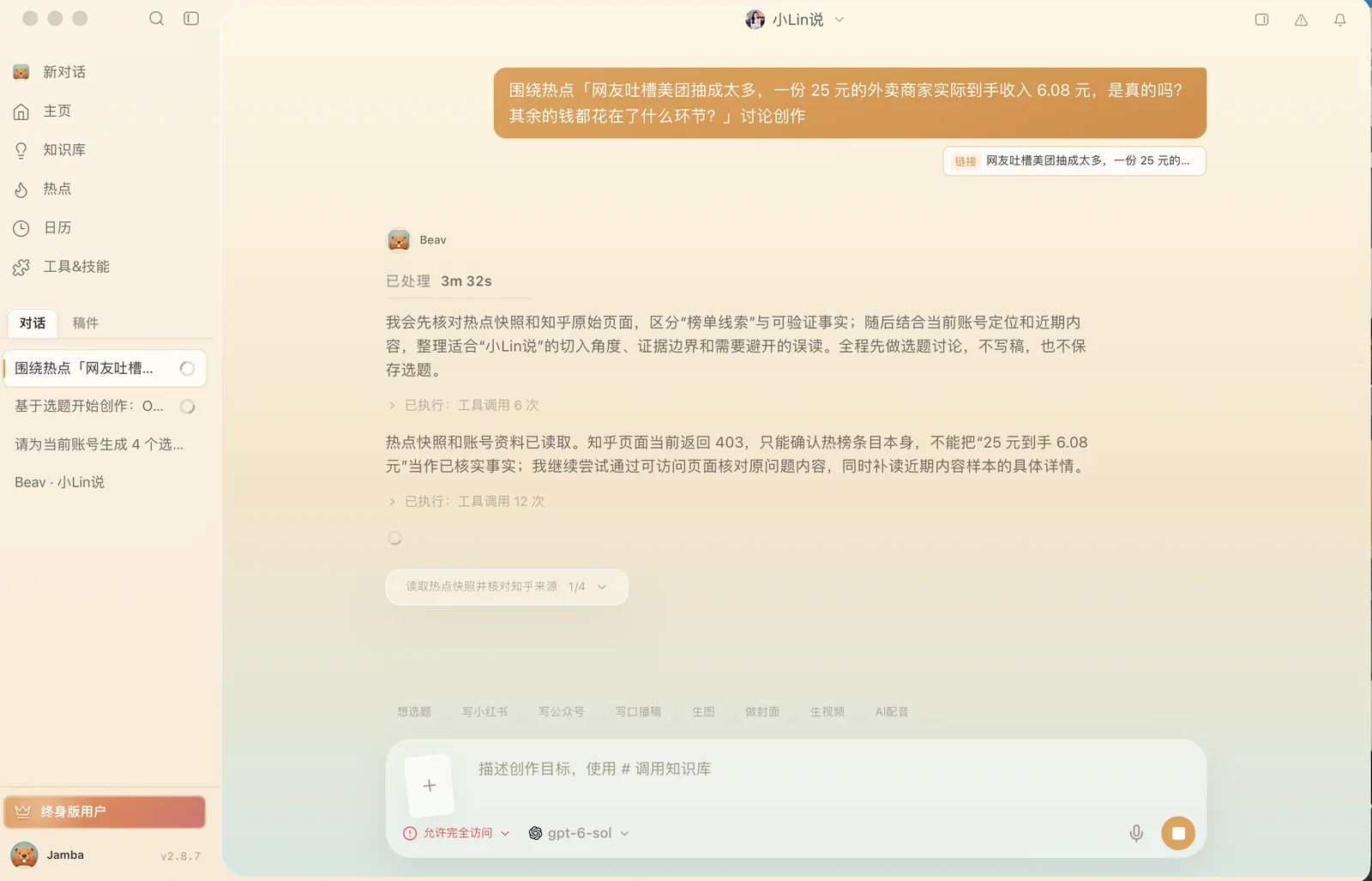
Click your avatar at the bottom left to open the account menu, where you can open Settings, membership, Use a redemption code, and Help and feedback. Drag the sidebar's right edge to resize it, or collapse it.
Account profiles
When you expand Account profile on the left, the first item is the current space's Manuscripts entry, followed by each profile with its avatar, listed by account. A space can hold several account profiles: click + to the right of Account profile and enter the homepage link of an account on a supported platform. Adding a profile does not replace the space's original primary account or create a new space.
For profile sync, daily refresh, and data history, see Enter links, subscriptions, and account profiles.
Interface language
Switch between 中文 and English in Settings → General → Language. On first use, Beav picks the system language; if there is no match, it uses Chinese.
- Switching languages does not translate your existing articles, chat content, file names, or the names of mini tools you created.
- Beav desktop 2.8.14 brings all fixed text across the desktop app into the English interface, including Knowledge, manuscripts and publishing, the video editor, settings, membership top-up, and built-in mini tools. AI replies, progress notes, and summaries also default to the current interface language. If you explicitly ask for another language in a chat, your request takes precedence. A switch takes effect from the next reply.
- Original content returned by platforms, raw server error messages, and data you saved may still appear in Chinese.
Choose a model
You can choose a chat model in the new chat input box. Beav's official models show the output price as a multiplier of the official list price to the right of their names (for example, ×0.60). Non-members see both the standard multiplier and the discounted member multiplier; members see only their discounted multiplier. Actual point consumption follows the price list and usage records. The bottom of each reply shows the points it used.
The picker lists only the models of the provider that Chat and agents currently uses. If you route chat to a third-party provider in the model settings, the picker shows that provider’s models instead of the official models and their multipliers.
To connect your own model service, see Account, points, and model settings.