
Get to know the workspace
Manuscripts, packages, and publishing
Tell master drafts apart from per-platform packages, edit text, save to your computer, pick up images and copy by scanning with your phone, and manage published marks.
Checked 2026-10-07. Applies to Beav desktop 2.8.13.
Master drafts and packages
- Master draft: the body of a piece of content (Markdown), which you can keep revising.
- Package: a ready-to-publish deliverable for one platform, such as a Xiaohongshu (RedNote) image post package (title, caption, tags, and all images), a WeChat Official Account article package, or a voiceover production package. One master draft can have packages for several platforms.
When you ask AI to "write a Xiaohongshu post" or "make it a Xiaohongshu image post", you get a complete image post package by default. If you only want to see the copy, a plan, or two trial images first, just say so. Packages have no image limit; Xiaohongshu post text is limited to 1,000 characters.
Where to find manuscripts
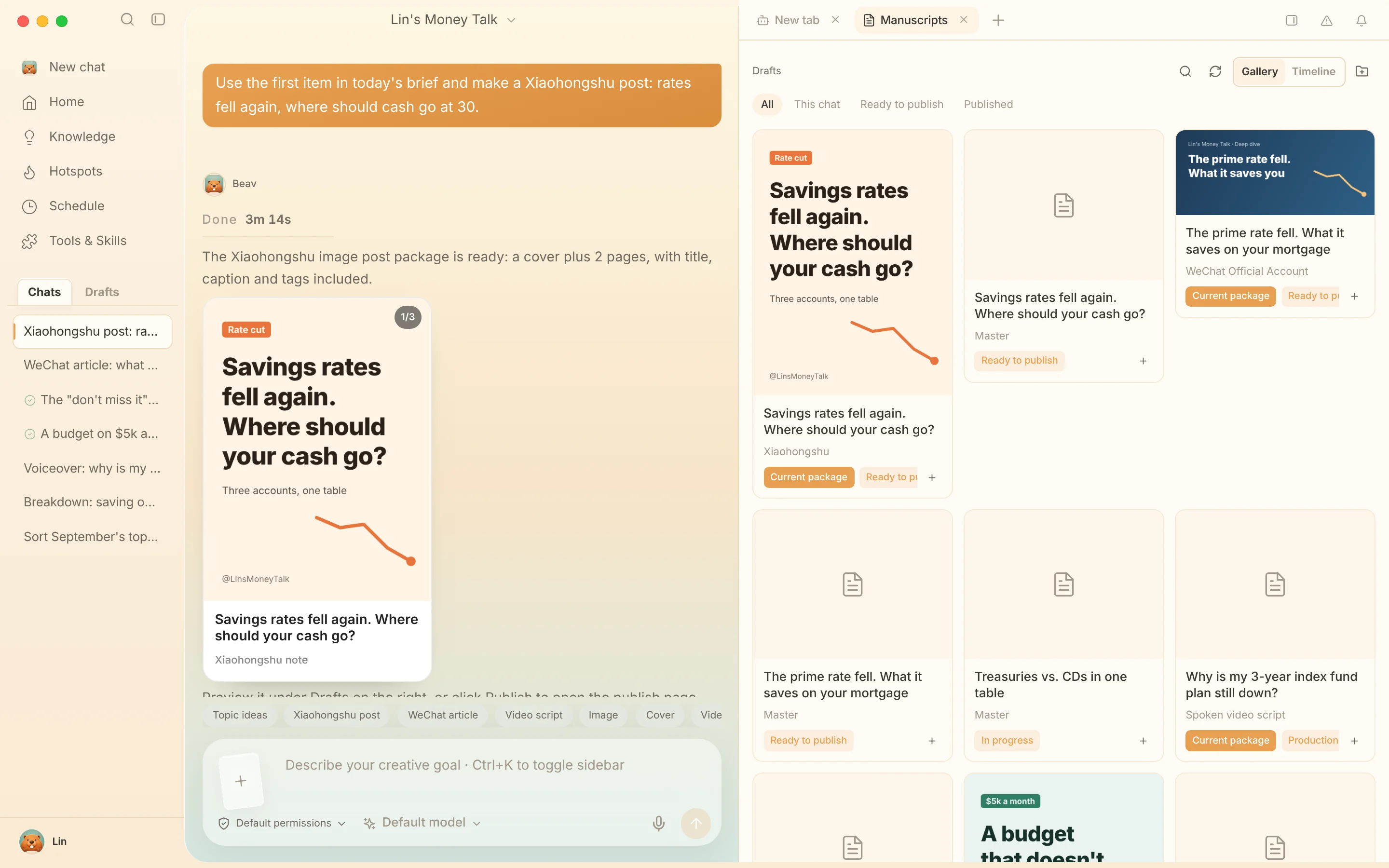
- Account profile → Manuscripts on the left: the manuscripts in the current space. A master draft that already has packages is shown through its packages.
- The Manuscripts tab in the workspace on the right side of a chat: shows Ready to publish by default, with This chat, Published, and All also available. Master drafts appear only under All, labeled Master.
- Recent output on the home page: packages that have been packaged and are ready to publish.
On the manuscripts page you can search, switch between Gallery and Timeline, and create folders to sort them. For how to organize folders, see Organize knowledge, assets, and manuscripts.
Edit manuscripts and packages
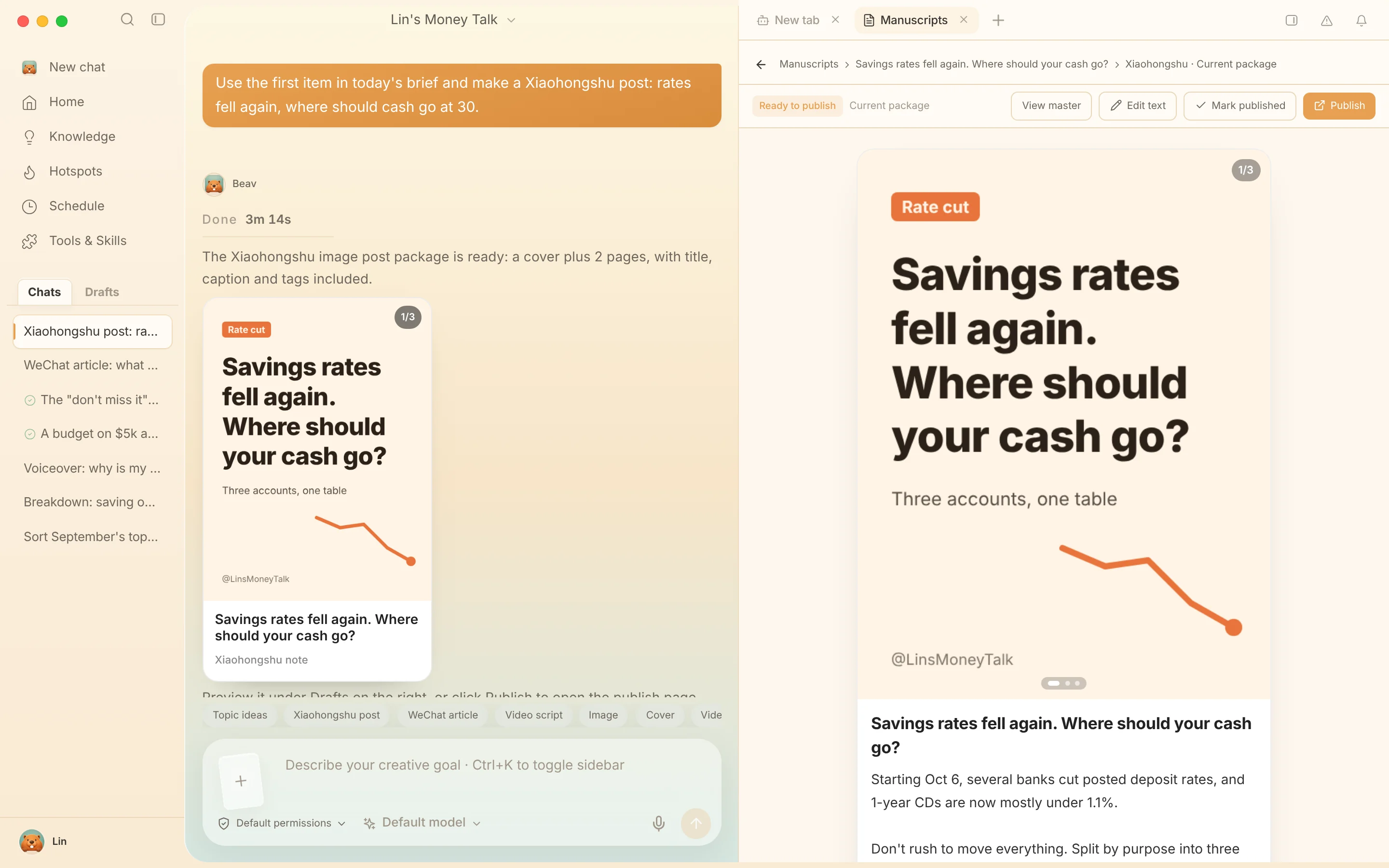
Open a master draft on the right and click Edit manuscript to change and save the original. Open a package and click Edit text to change its title and platform text: for Xiaohongshu you can also edit tags, and WeChat Official Account text uses a rich-text editor. Saving updates the current package; it does not create a separate version.
You can also keep asking for changes in the chat, for example "only change page two", "swap the order of these two pages", or "keep the existing images and continue with the remaining pages". AI edits the same package, and images that have not changed are not regenerated.
Save to your computer
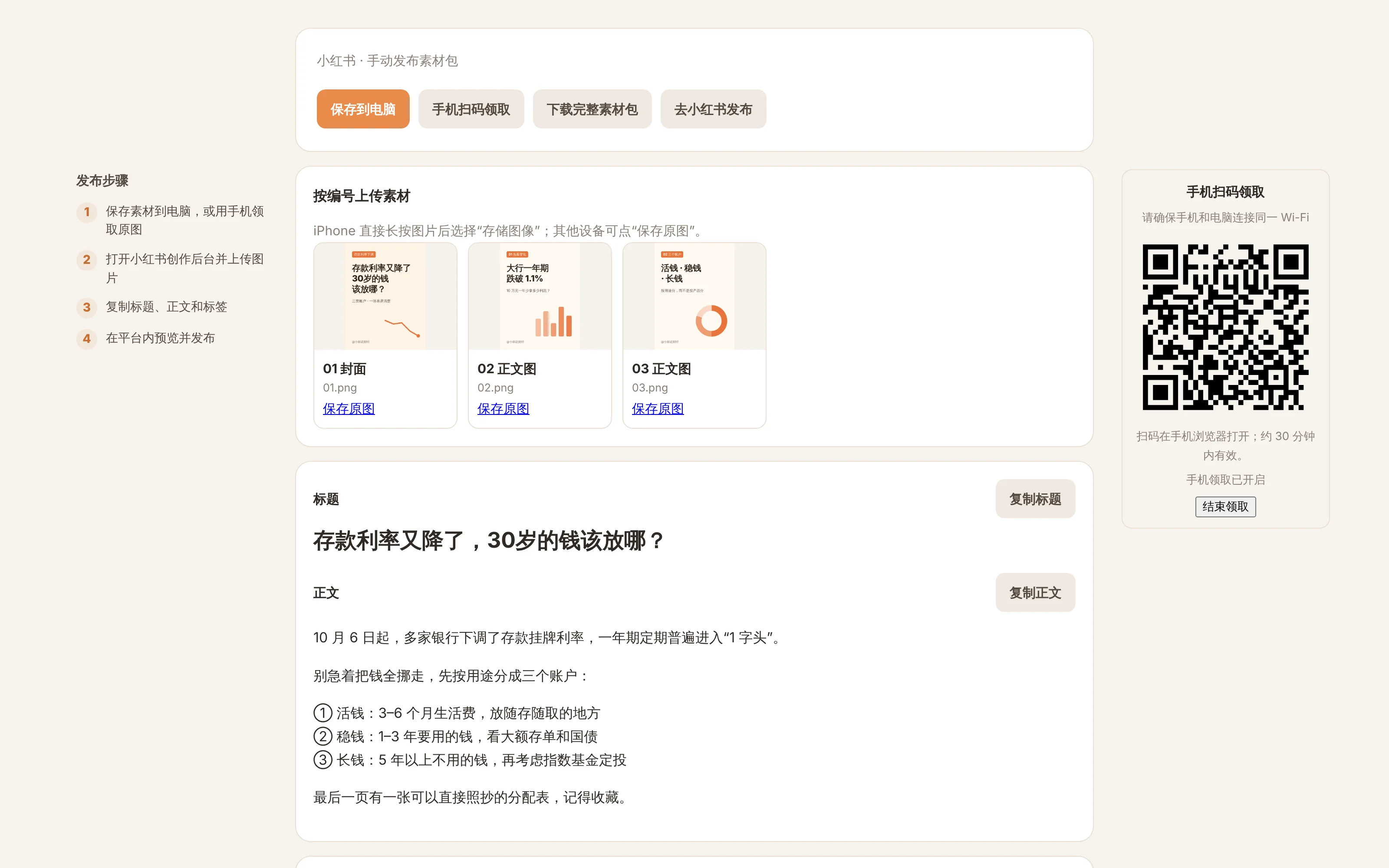
Open the publish page from a package card in the chat or from a manuscript preview, click Save to computer, and choose your desktop or downloads folder. Beav creates a folder named after the article title and saves the numbered original images, 文案.txt, and 发布.html. You can also Save original for each image individually; the full ZIP is for handing off or archiving.
Pick up on your phone by scanning
Clicking Publish on a package opens the publish page in your default browser, and a QR code is prepared automatically on the right:
- Connect your phone and computer to the same Wi-Fi.
- Scan the code with your phone to open the pickup page, and copy the title and body.
- On iPhone, long-press an image and choose Save to Photos to save it to your photo library; on Android, use Save original to download it.
- Open the target platform, upload the images, and paste the text.
Pickup transfers only the images and copy of the current package and does not go through the cloud. It stays valid for up to 30 minutes from when you open the publish page, and you can click End pickup at any time. After changing networks, if the computer sleeps, or if Beav quits, open the publish page again. Pickup over a phone's cellular network is not supported, and images in a single package are limited to 100 MB.
Publish on Xiaohongshu opens the Xiaohongshu creator publishing web page. You need to upload the images manually and paste the title and body; Beav does not post for you.
Published marks
At the top of a package's details, click Mark published. The package moves to Published, and the Unpublished list on the home page updates accordingly.
- The mark is recorded only in the manuscript on this computer. It does not post to the platform or delete content you already published.
- Opening the publish page does not mark it automatically; you can Unmark published.
- A published mark is tied to the content at that time. If you edit and save the package, it returns to Ready to publish, and the original publishing record is kept.
- Each platform is marked separately: marking Xiaohongshu as published does not mark the WeChat Official Account version as published. Master draft cards summarize all platforms as Published, Partly published, Ready to publish, or In progress.