
Get to know the workspace
Memory and creative style
Have Beav remember long-term preferences, maintain several writing styles, and view, turn off, or reset memory in settings.
Checked 2026-10-07. Applies to Beav desktop 2.8.13.
Within each space, Beav builds up an understanding of you: long-term preferences, account positioning, writing style, and project decisions. These help the AI ask fewer repeated questions in later tasks.
Have the AI remember long-term preferences
In a chat, say explicitly "do this by default from now on" and state the scope: all creation in the current space, all accounts on a given platform, or only the current account. For example:
From now on, use emoji in moderation in Xiaohongshu (RedNote) post bodies, but no emoji for this account.
When the AI decides something should be saved and the write succeeds, the chat shows Remembered or Already remembered, and if something changed you can click Undo. Something is only truly remembered when you see this save receipt; the AI saying "got it" in its text does not count.
- Temporary requirements for the current task take precedence over long-term defaults. "Write it differently this time" does not change future preferences.
- Platform-specific preferences apply only to that platform. When the same preference exists at a more specific scope, the more specific one wins.
- Directions you are still considering stay as candidates and are not promoted directly to long-term rules.
Memory is separated by space
All memory, including general preferences, is used only within the space it belongs to. If the same account is linked to different spaces, its memory is stored separately in each.
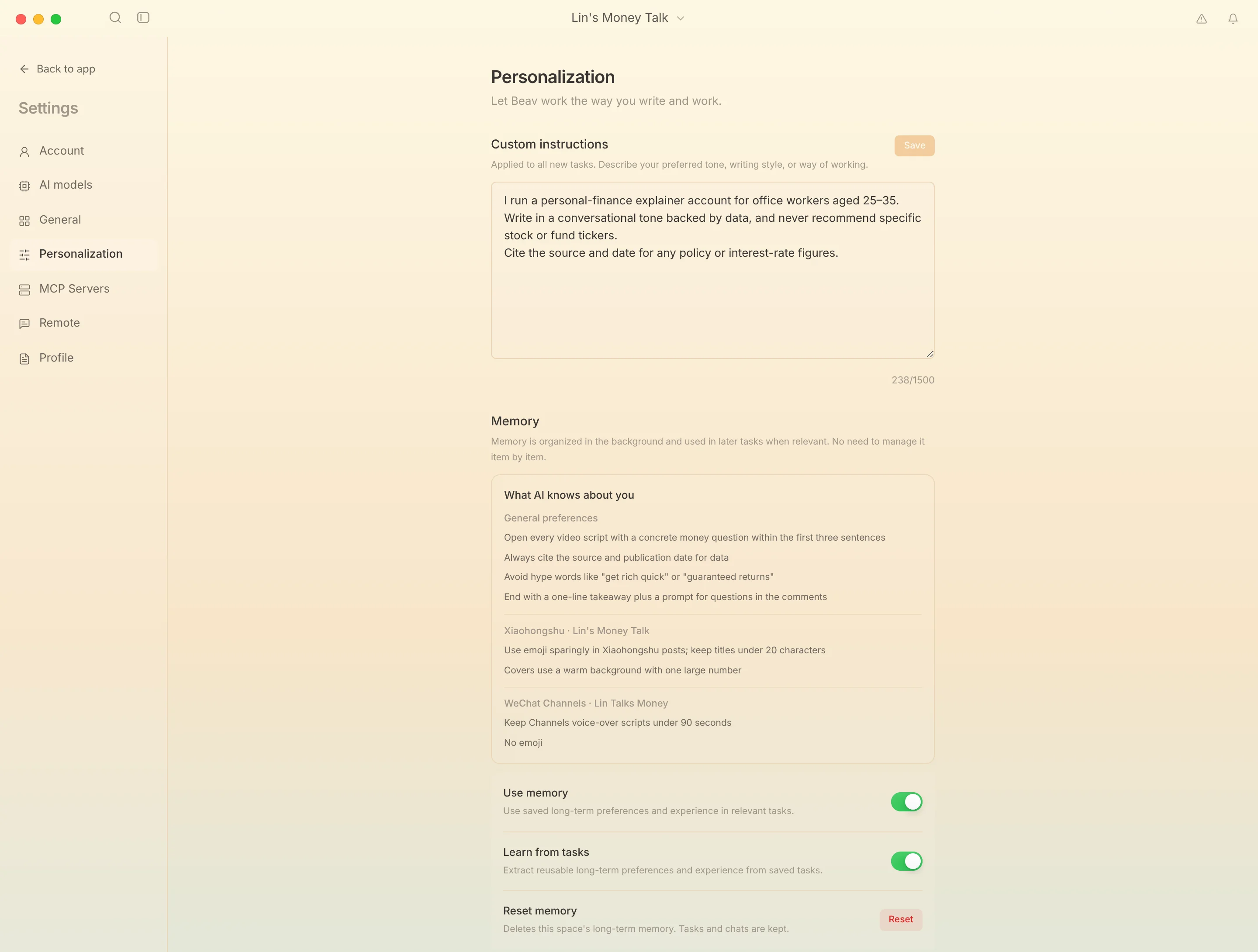
In the Memory section of Settings → Personalization (What AI knows about you and the switches below it) you can:
- View the current space's memory; switching spaces reloads it.
- Turn Use memory on or off (whether existing preferences are used).
- Turn Learn from tasks on or off (whether new preferences are extracted in the background from saved tasks).
- Reset memory, which clears memory only for the space you are in when you confirm.
Custom instructions at the top of the same page apply to all new tasks. Describe your preferred tone, writing approach, or way of working (up to 1,500 characters) and click Save.
Background learning does not happen immediately after every message, and it does not guarantee that every task yields reusable memory.
Multiple creative styles
Each space's writing style can hold several approaches: shared principles, separate rules for different series or content formats, and examples you approve. When creating, the AI picks the relevant style based on the current request, series, and content format, instead of forcing everything into one way of writing.
You can describe the narrative stance, sentence rhythm, rhetoric, openings, and endings you like, or provide a manuscript you approve. You do not need a high-performing article first. For example:
- "Write talking-head scripts in this style from now on."
- "Use this piece as a long-term reference example."
- "This kind of opening sounds too much like an ad. Don't do it again."
Asking only to "try this for this piece" does not automatically become a long-term style. Existing custom styles are not overwritten by upgrades.
Account planning and daily report focus
An account's series direction, posting frequency, and goals are saved in the account operations plan. The daily focus directions, sourcing requirements, and information sources are saved in the daily report's focus settings. When you explicitly state a long-term direction or correction in an ordinary chat, the AI saves it in the corresponding place and tells you which item it updated. For how to use the daily report focus, see Daily report and today's plan.