
Workflow overview
Links, subscriptions, and account profiles
Paste a link to save a single post, have AI read and file content in a chat, subscribe to benchmark creators, and sync your own account's notes and data.
Checked 2026-10-08. Unless noted, this page applies to Beav desktop 2.8.14.
Besides the browser extension and uploading links from your phone, you can add material to the knowledge base in the following ways.
Add a link to save a single post
This entry ships with Beav desktop 2.8.14.
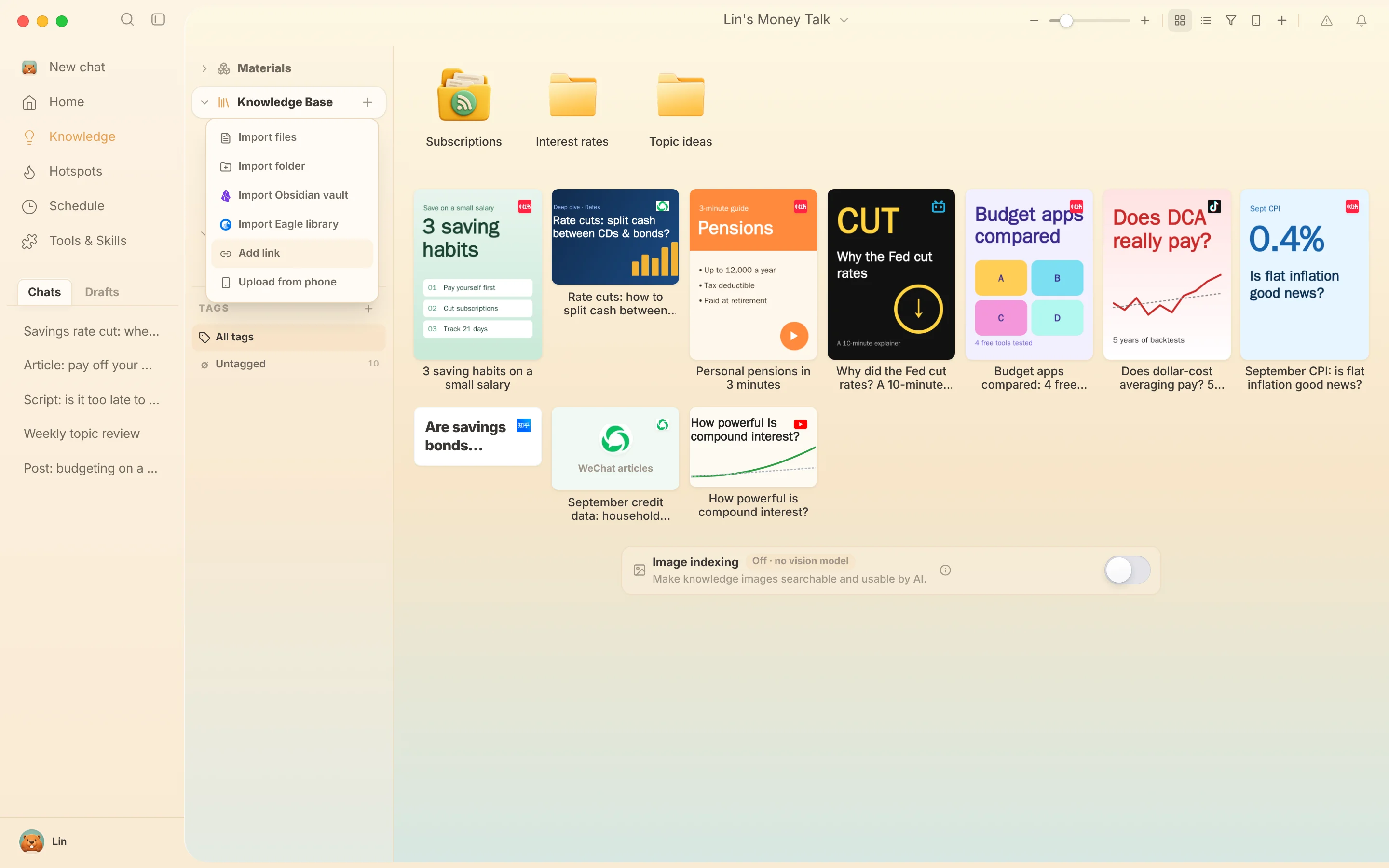
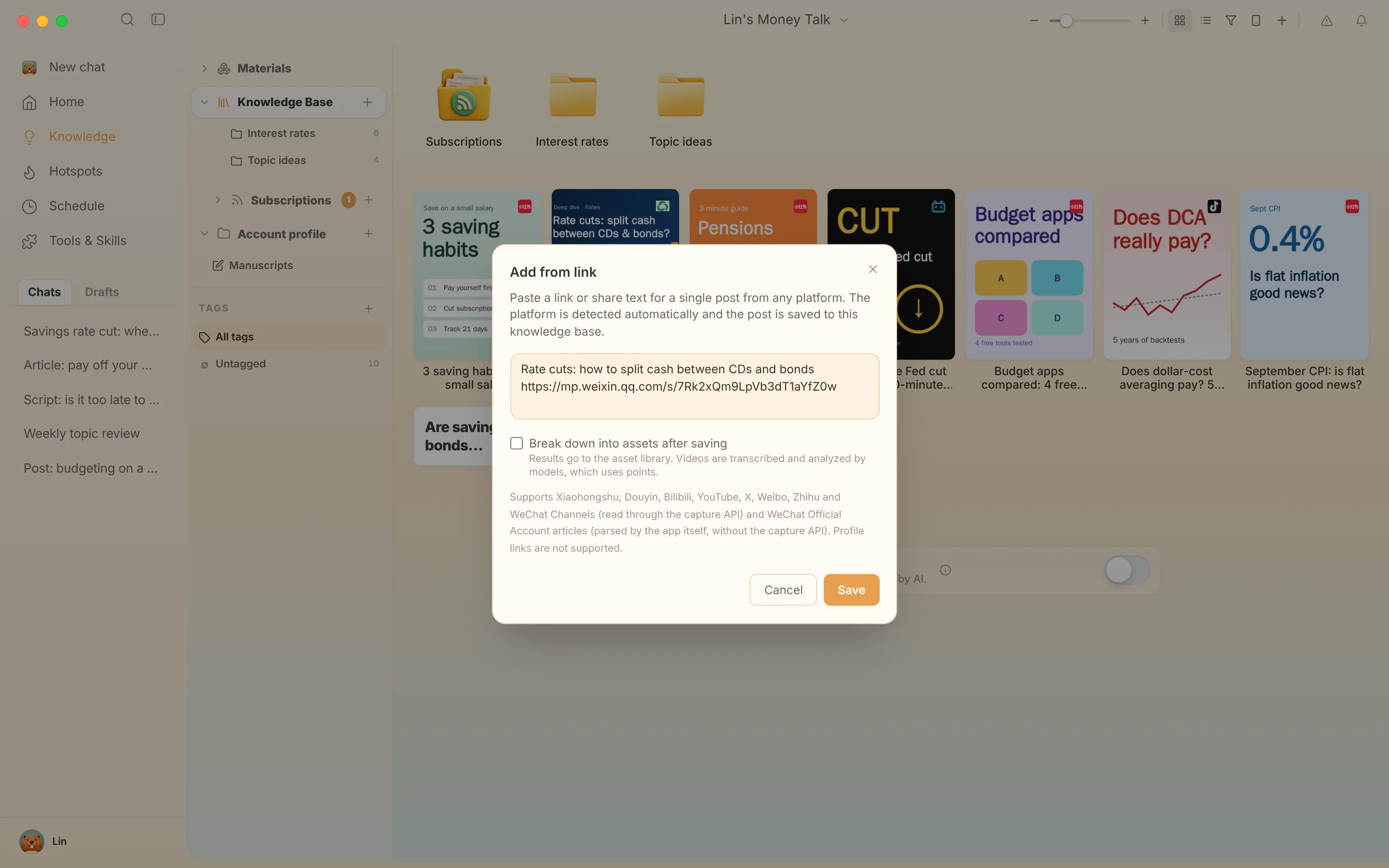
At the root of the knowledge base or in a personal folder, click the + in the title bar or next to Knowledge Base on the left, and choose Add link. Paste the link to a single post (you can paste it together with its share text, and you do not need to choose a platform), then click Save or press Enter. Beav resolves short links, identifies the platform, and saves the post to the root of the current space's knowledge base. On success, the dialog shows the detected platform and clears the input so you can paste the next link; links are saved one at a time.
- WeChat Official Account articles (
mp.weixin.qq.com): the app's built-in parser reads the body, layout, and inline images. No capture API or sign-in is needed. If an article requires verification or is not publicly accessible, you are told that parsing failed. - Xiaohongshu (RedNote), Douyin, Bilibili, YouTube, X, Weibo, Zhihu, and recognizable WeChat Channels links: read through the capture service, which requires sign-in or a configured capture API and consumes quota according to its rules. Account profile links and unsupported URLs are reported immediately.
- Check Break down into assets after saving to add the post to the decomposition queue automatically after saving. It is unchecked by default.
- Content already in the knowledge base is not saved again. If saving fails, the dialog keeps the link and shows the reason; fix the problem and save again.
This entry is not shown in shared spaces, account profiles, subscription views, or local source folders.
Have AI read and save in a chat
Send a note link in a chat and say "save to the knowledge base". AI reads the body and media and files them, without you opening a browser first.
- Reading a specific single link does not ask you to confirm points. Research such as searching and then reading posts in depth one by one, or sampling an account in bulk, tells you the points cost before the first batch call.
- Exact links to Zhihu questions, answers, and columns and to single Weibo posts can be read directly, with public comments read when needed; Weibo trending terms can be used to search for related posts.
- Public WeChat Official Account articles are read by the local parser, including body and images.
- After a successful read, a reading card for the platform appears in the chat, and you can open a preview of the saved content.
Douyin videos
Douyin videos are saved through the browser extension (image galleries are not supported). Keep Beav connected to the extension, open the target post on Douyin and play it, then click Save Douyin video to knowledge base in the extension popup or side panel. This works on detail pages, the home feed, and video pop-ups in featured lists; do not scroll to another video while saving. If you are told the full video was not obtained, refresh the page, play the video, and try again.
Items still downloading
After an item captured from the browser enters the knowledge base, its media keeps downloading in the background. The card shows Downloading; if the cover finishes first, it is shown first. On failure, the card shows Download failed, and you can save the original post again.
Comment insights
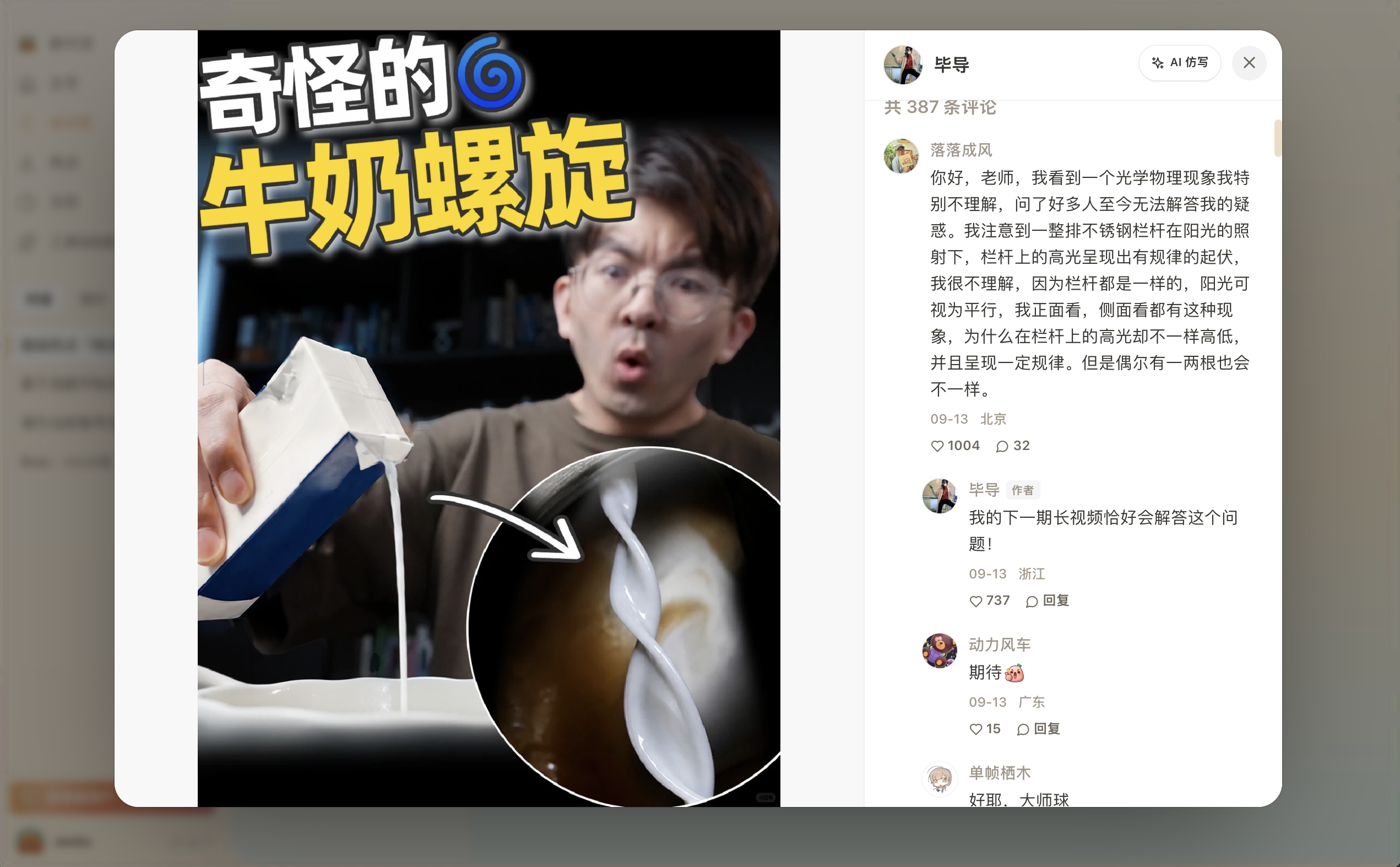
Open a saved Xiaohongshu note. If comments were actually saved, Comment insights appears to the right of the comment count ("N comments"). Click it to start a new chat in which AI analyzes follow-up questions, disputes, sentiment, and content opportunities in the comments, using the note as context. The analysis covers only comments that were actually captured, which may be fewer than the total the platform shows. To capture comments, check Save comments in the extension when you save the note.
Subscribe to benchmark creators
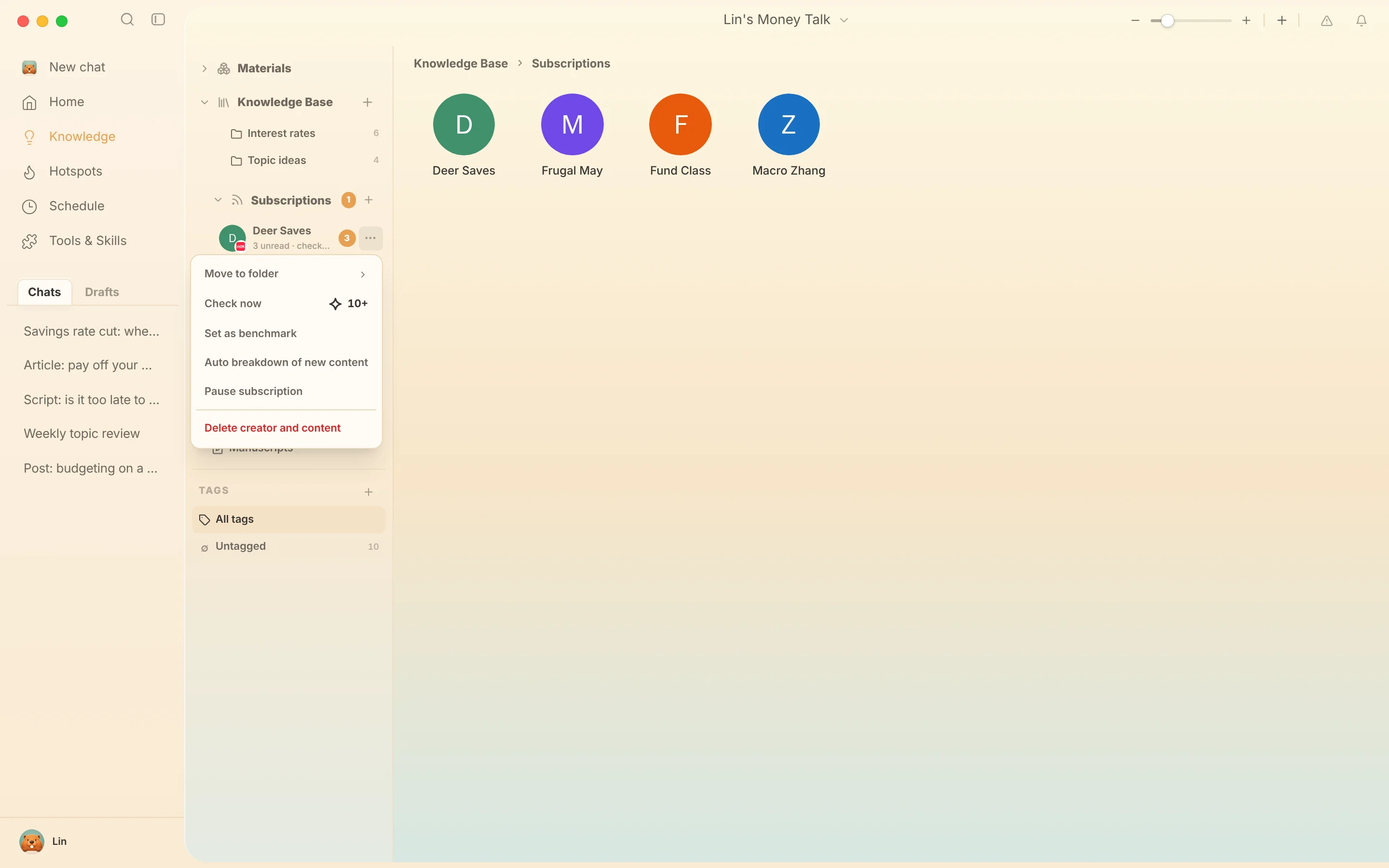
The Subscriptions folder at the root of the knowledge base shows the avatars and names of subscribed accounts; double-click one to open its content. Subscription content is shown on a timeline by default, and you can switch to the gallery in the title bar. Use the plus on the right of the title bar to add a subscription.
When you add a subscription, Beav reminds you based on how many the current space already has:
| Existing subscriptions | Reminder |
|---|---|
| 3, adding a 4th | Subscribed creators consume a lot of points every day; you can continue after confirming |
| 5, adding a 6th | Following 5 benchmark accounts continuously is already plenty; you can continue after confirming |
| 10 or more | You cannot add more; delete a subscription first |
The count includes paused subscriptions. In the subscription list on the left, click the … to the right of an account or right-click the account to:
- Move to folder: files the account under a folder in Subscriptions, or moves it back to Uncategorized.
- Check now: checks the account for new content right away instead of waiting for the automatic check. This uses points (from about 10).
- Set as benchmark / Remove benchmark: marks the account with a Benchmark tag next to its name.
- Pause subscription / Resume subscription: once paused, the account is no longer checked automatically; the account and saved content are kept.
- Auto breakdown of new content / Turn off auto breakdown: decomposes only new content published after you turn it on. For the rules and daily allowance, see subscribed creator auto-decomposition.
- Delete creator and content: removes the subscribed account and clears its subscription content. This cannot be undone.
Account profile sync
Account profiles hold your own account's notes. Open an account under Account profile on the left, click Sync recent posts on the right of the title row, set 1–10 pages (about 20 posts per page), read the points reminder, and click Sync.
- Sync reads the platform's recent content list, which may include pinned posts. Existing notes only have their engagement data updated, and only new notes have their details read, so the number synced is not the number added.
- Progress is shown while syncing; if it fails, content already written is kept.
- The bottom of each note card shows likes and saves; when the platform does not return a like count, "—" is shown.
- On the content page you can switch between gallery and timeline in the title bar; the timeline is sorted by publish time, newest first.
You can also tell AI "refresh the current account's data", "sync the last two pages of notes", or "read a few dozen more posts from the current account and categorize them"; it runs after you confirm the points. To look at someone else's account, use social media research instead of adding it as your own account profile.
Daily automatic refresh
Manage this in Settings › General › Scheduled account archive refresh. It is on by default, with about 20 posts (1 page) per account per day; you can set 20–200 posts (1–10 pages) or turn it off. While Beav is running, it checks accounts with existing profiles in all spaces and refreshes each account automatically at most once every 24 hours, without you opening the profile page or switching spaces. It does not run while Beav is fully quit; this is not a cloud scheduled task.
Each refresh records a snapshot of likes and other data, so you can ask AI to "show the like growth history of this note". Snapshots accumulate from when refresh is enabled; past data is not fabricated. The Yesterday's data review in the daily brief also uses this history.