
Workflow overview
Import and use an Eagle library
Connect the library currently open in Eagle, find images, and reference them in Beav chats.
Start Eagle on the same computer and open the library you want to use. Beav requires Eagle 4.0 Build 21 or later and its local Web API.
Connect the current library
- In Beav, open Knowledge and click the + (Import document source) beside the Knowledge group in the sidebar.
- Choose Import Eagle library. Beav registers the library currently open in Eagle; you do not need to select or copy the whole library folder.
- Open the source marked with the Eagle icon. Expand folders on the left and browse images on the right.
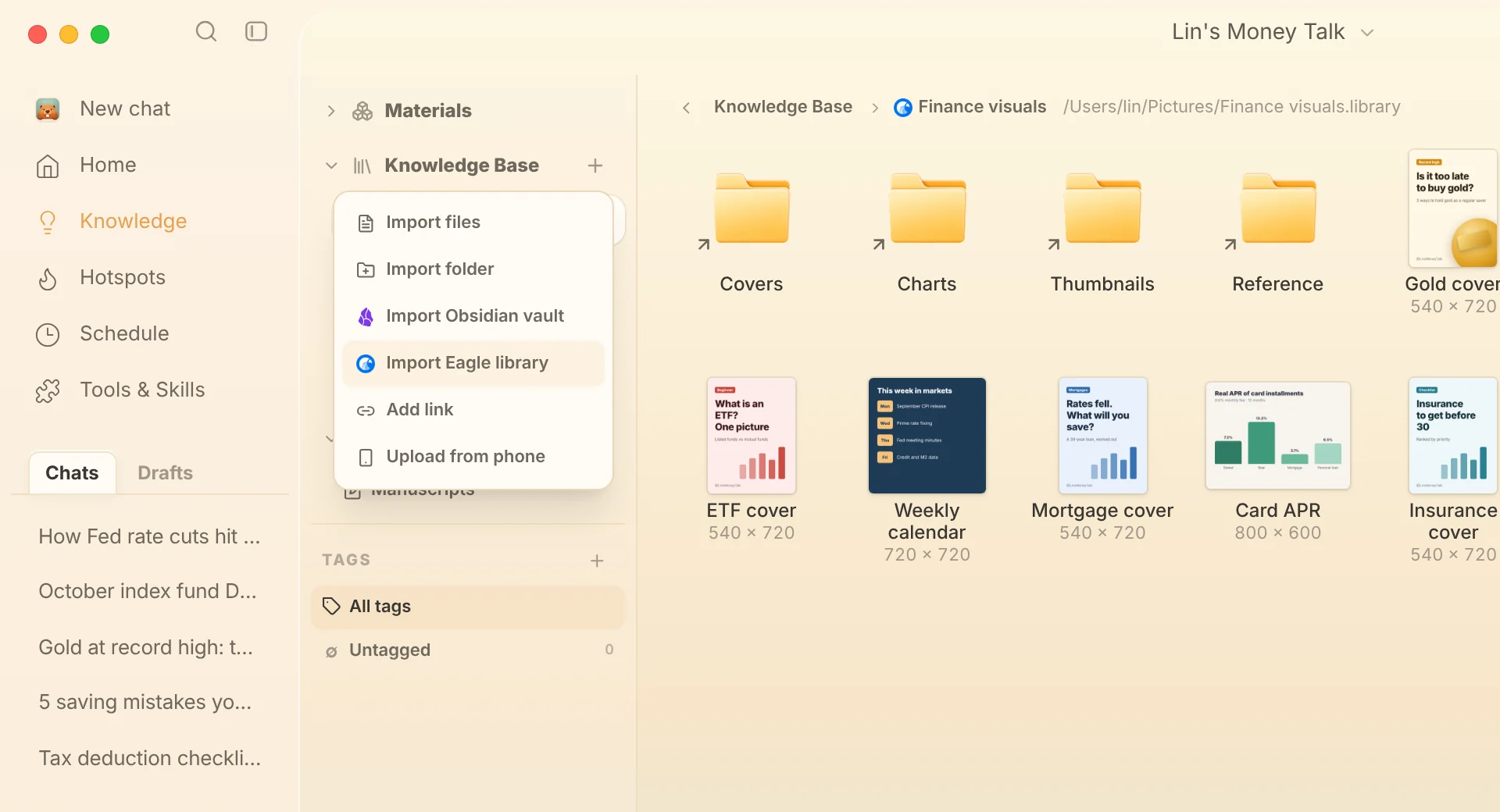
Browsing is read only: connecting a library does not copy or modify its Eagle items. Reopening the source loads its latest folders. Keep Eagle running with the connected library open while you browse.
October 6, 2026 development update (after 2.8.12, not released): in the standalone Knowledge page, the Add plus button moves to the right side of the window titlebar. In the root and personal folders, the menu offers Eagle, Obsidian, file and folder imports, and phone upload. Local source directories keep file operations that write to the current directory. Embedded views and hosts without a custom titlebar keep the inline entry. The titlebar slider shares its size preference across Knowledge, the Asset Library, and Manuscripts; see Browse and filter content. Native Mac/Windows titlebars and dark mode still need manual acceptance.
Find and reference images
Click the search icon at the top right to search Eagle items by keyword. Each image shows its dimensions. If Eagle's AI Search plugin is installed and enabled, switch the search box to AI image search to describe the image you need, and image cards also offer Find similar assets. Eagle provides these search results.
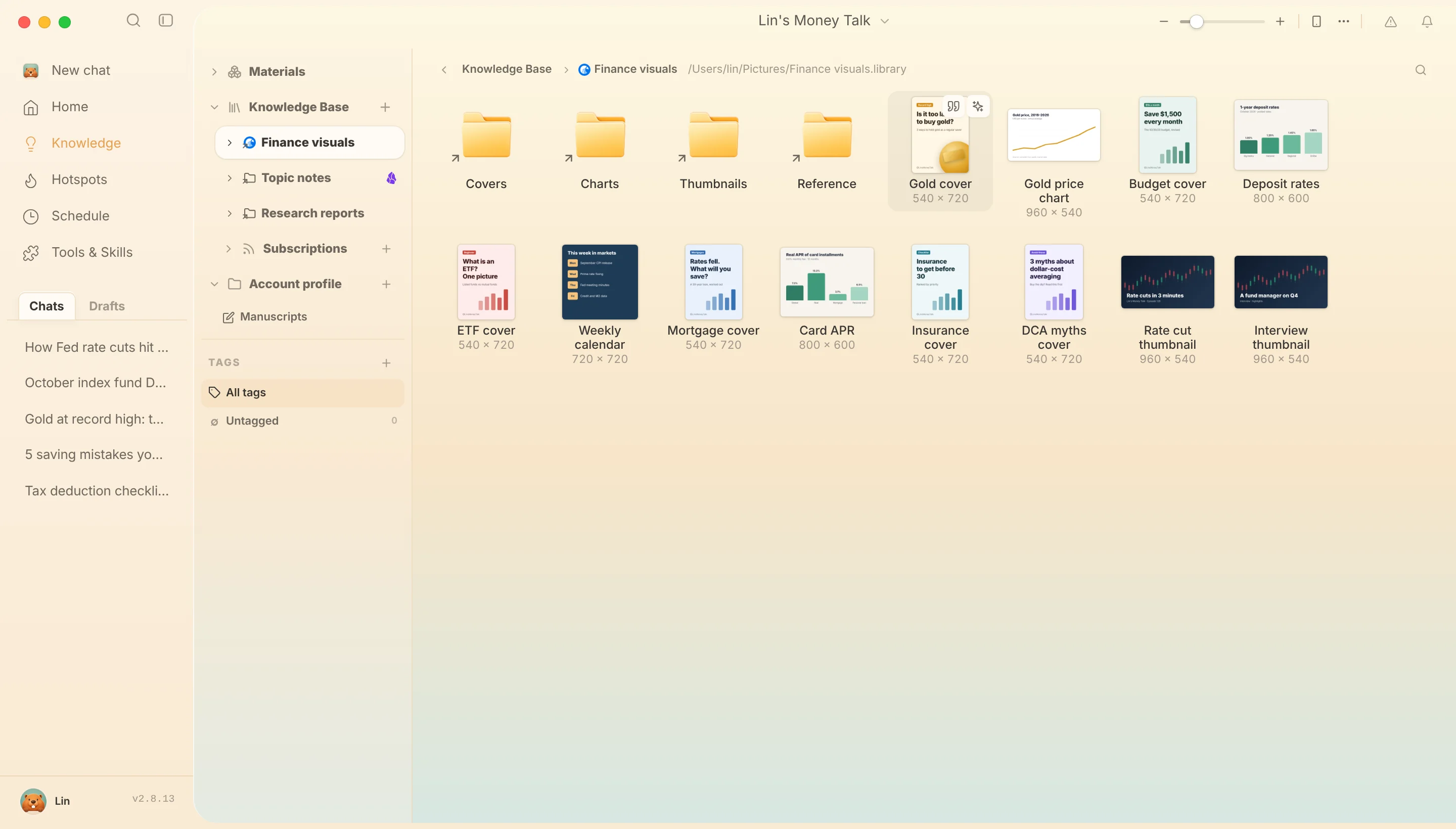
Hover over an image and use Quote in chat to add the original image to your current draft. Connected libraries appear in the right workspace's new-tab view as well; you can drag an item into the chat box. Adding a reference does not send the message or index the entire library for image understanding.
Save a generated image to Eagle
For a local image under This Session in the right workspace, click the Eagle icon. Choose an imported library that is currently open in Eagle, select a folder, and enter a name and tags. This adds a new item in Eagle and keeps the original output. If the save fails or times out, check Eagle for the item before retrying.
If a library cannot be read, confirm that Eagle is running and has the connected library open, then click Retry. Beav may show the last available contents during an error; that view may be out of date.