
Frequently asked questions
Account, credits, and model settings
Sign-in and membership entry points, redemption codes, top-up orders, credit usage display, and how to connect third-party or local models.
Checked 2026-10-07. Applies to Beav desktop 2.8.13.
Sign in
The Beav desktop app signs in with a China-region account and supports WeChat QR code scanning. After you confirm the scan on your phone, sign-in succeeds only once the desktop app finishes signing in; if the QR code expires, get a new one. Connections may fail while you use a VPN or system proxy. Switch networks and try again; if it keeps failing, report it through Help and feedback and note your VPN mode and when it happened.
Membership and credits
Click your avatar in the lower-left corner to open the account menu. Below your account information is the membership entry (Personal Free, Personal Lifetime, Founding Sponsor, or Team), then your points balance with Recharge, the appearance switch (light / dark), and Use a redemption code, Environment & secrets, Settings, Help and feedback, and Check for updates. If you qualify for a new-user offer, the same row shows the original price, the discounted price, and a countdown.
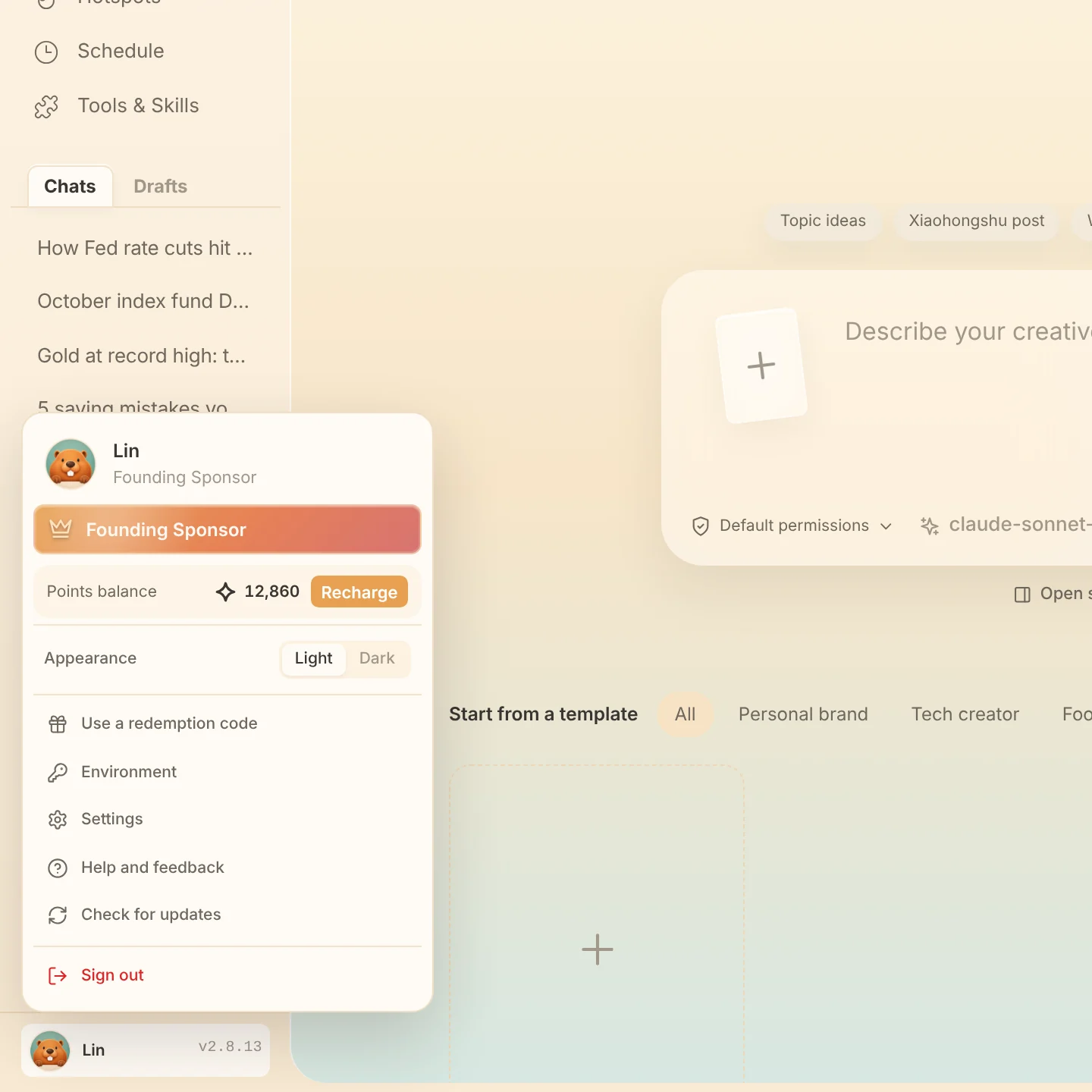
The bottom of every AI reply shows the credits used for that reply. For non-members, once credits are settled, the discounted member price appears next to it as Members pay. For the multipliers shown next to official models in the model picker, see Get to know the workspace. Actual prices, quotas, and benefits are whatever the current interface shows.
Use a redemption code
Click your avatar in the lower-left corner, choose Use a redemption code, enter it, and click Redeem. On success, a dialog shows the credits, membership type, and validity period you received; on failure, your input stays and the reason is shown. Product redemption codes are not the same as the invite code on the account page.
Top-up orders
A top-up order must be paid within 30 minutes. While an order is unfinished, the bottom of the sidebar shows Awaiting payment, a countdown, and Continue payment; clicking top-up again does not create another order. Once payment succeeds, the reminder disappears and your credits refresh; after it expires, you can place a new order. If you close the dialog or restart Beav, sign in to the same account to recover an unexpired order.
Connect third-party or local models
After signing in, go to Settings → AI models:
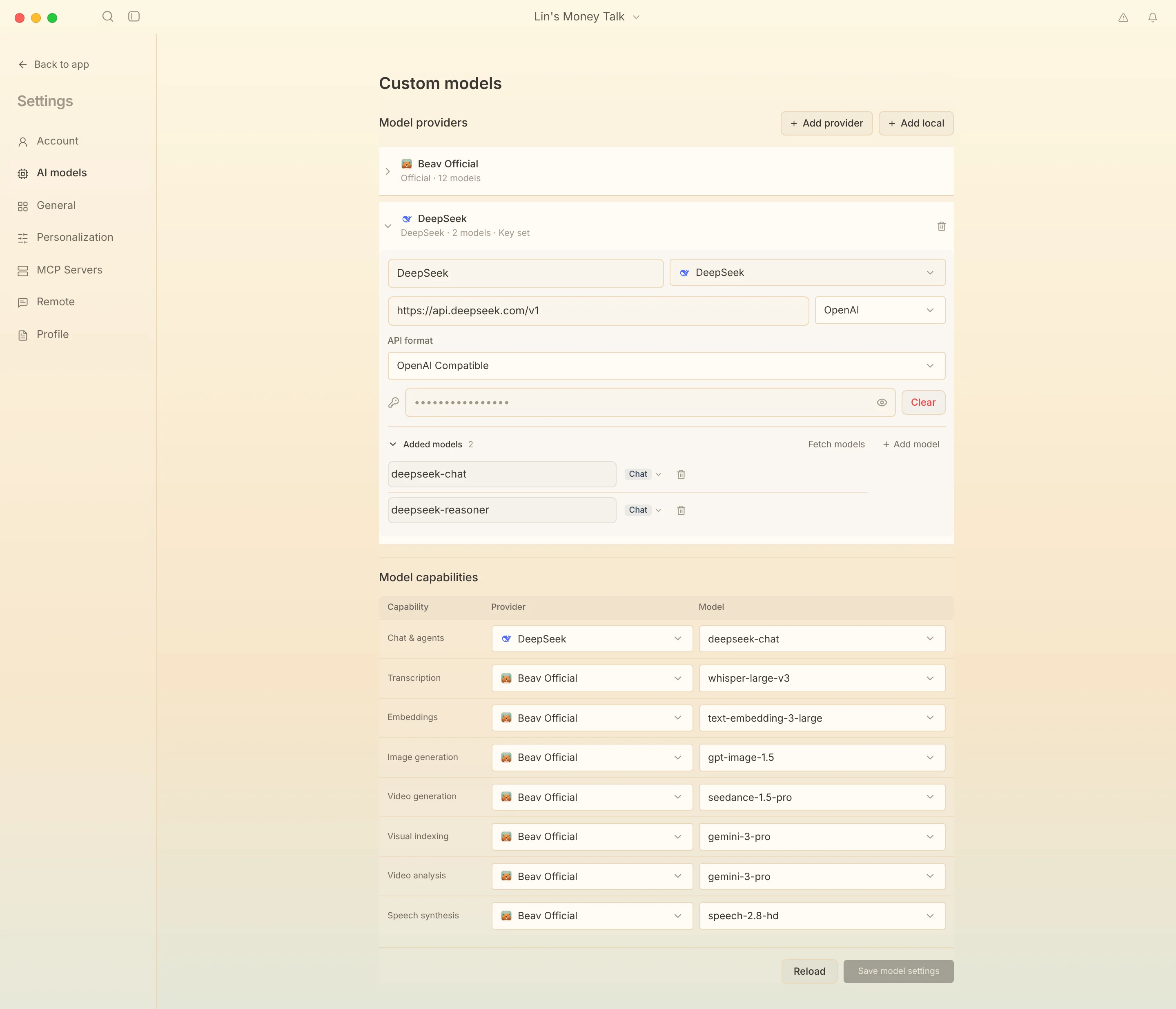
- Click Add provider to connect a third-party API, or Add local to connect a model on your computer or local network.
- Under the provider's Added models, enter a model ID manually or click Fetch models.
- In Model capabilities, choose a provider and model for each use, such as chat and image generation.
- Click Save model settings. The settings take effect only after you see that they saved successfully.
Notes:
- Enter the API root path as the API URL, and enter the API Key separately; do not put it in the URL.
- OpenAI Chat Completions, Responses, Anthropic Messages, and the native Gemini protocol are supported. Choose the protocol the upstream service actually provides.
- A regular API, a Coding / Token Plan, and China versus international regions may use different URLs, keys, and model IDs. Fill them in according to the instructions for the service you bought.
- Chat models and image or video generation models are configured separately. Changing only the chat model does not change the image model, and a working chat connection does not mean the upstream service supports tool calls or image generation.
- Switching models within the same chat keeps the text and tool results. If a provider cannot continue an older reasoning record, start a new chat and reference the existing assets to continue.
If saving fails, read the specific message first. If writing the API Key fails, try again or restart Beav. If writing the configuration file fails, check disk space and folder permissions. If you see a version conflict, note your changes, click Reload, then edit again. When you report a problem, include the app version and the original error text, and do not send your API Key.
Stop, retry, and credits
- When the AI service returns a temporary error, Beav waits and retries automatically within the same task, showing Queued and the time remaining. You can stop while it waits; you do not need to send the request again.
- Clicking stop ends only the current run. It cannot undo writes that have already finished, and it does not guarantee that an external service stops billing immediately.
- If an image or video job was submitted but its result cannot be confirmed, Beav keeps the failure details and any existing output and does not regenerate automatically. Check the original task before deciding whether to retry, so you are not charged twice. See Performance and long tasks.