
Agent overview
Skills, plugins, and MCP
Install Skills and plugins from GitHub, use the recommended Remotion, HyperFrames, ComfyUI, and RunningHub plugins, add custom MCP connections, and save methods you use often as skills.
Checked 2026-10-07. Applies to Beav desktop 2.8.13.
Four different things
| Name | What it is |
|---|---|
| Skill | A reusable working method and reference material for the AI, read when needed |
| Tool | A capability the AI uses to read state or take an action, with specific parameters and permission limits |
| Plugin | An installable capability package that can include Skills and MCP servers |
| MCP connection | Configuration for connecting to an external tool service, provided by a plugin or added on its own |
A plugin being installed, a connection being configured, an account being authorized, and a tool being available in the current task are four different states. When something is "installed but doesn't work," check the matching setting and connection status first; you do not need to reinstall every component.
Skill marketplace and installing Skills
Search, view, and install skills in Tools & skills → Skill marketplace. Click Manage at the top left of the marketplace to open Installed skills, then enter a GitHub repository as owner/repo or a URL and click Install. Beav looks for SKILL.md in the repository and installs it together with its reference files and templates. If a skill with the same name but different content already exists, Beav reports a conflict instead of overwriting it. Uninstall, enable, and disable skills in Installed skills as well.
Installing a Skill does not install the runtime it depends on, such as Node, Python, or a browser. Prepare those according to the Skill's own instructions.
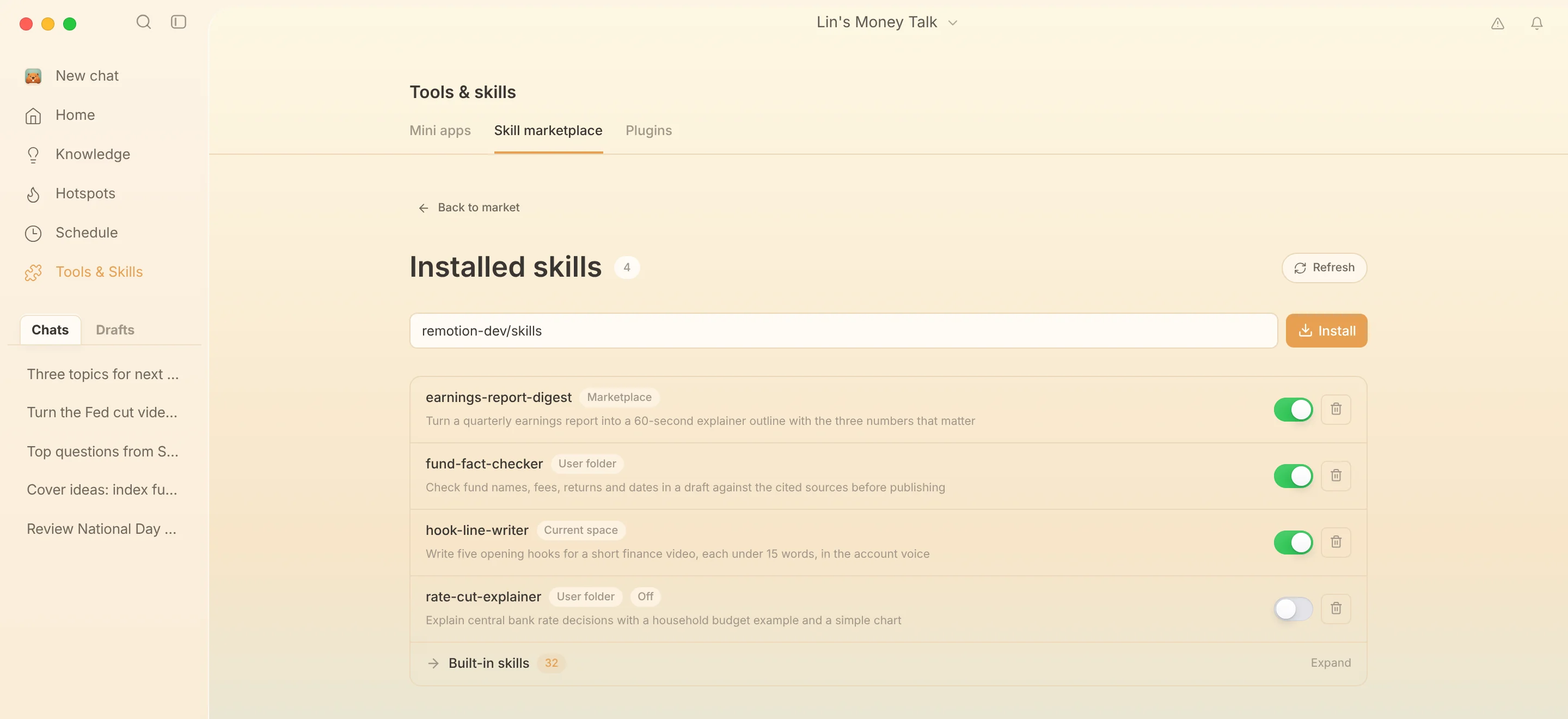
Save a method as a skill
In a chat, you can ask the AI to turn a method you have already confirmed into a reusable Skill. Save it as a user-level skill to use it across spaces, or to the workspace to use it only in the current space. It counts as saved only when you see a successful install receipt. An update with the same name but different content checks versions first so nothing is overwritten.
Plugins
See installed plugins in Tools & Skills → Plugins → My plugins, where you can enable, disable, or uninstall them.
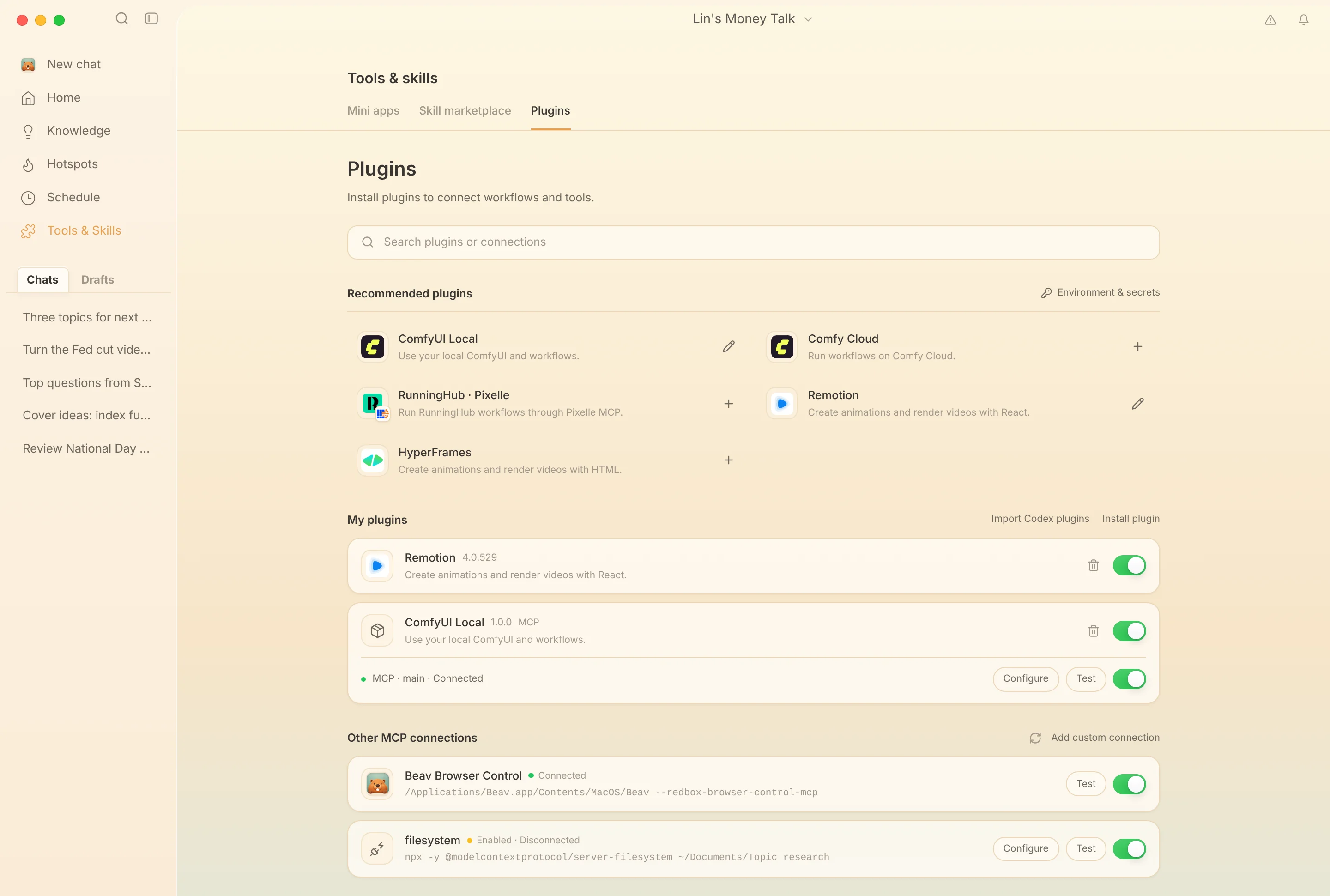
- Recommended plugins: install Remotion, HyperFrames, ComfyUI Local, Comfy Cloud, and RunningHub · Pixelle directly. The Remotion plugin lets the AI build code-driven animations, and HyperFrames provides skills for making HTML videos. They use fixed official versions, and their files are verified before installation.
- Install from GitHub: click Install plugin and enter a GitHub repository that contains a plugin manifest, such as
remotion-dev/codex-plugin. - Import Codex plugins: Beav reads the local Codex plugin cache; the plugins you select are copied into Beav's managed plugin folder.
Skills inside a plugin are managed with the plugin as a whole. Uninstall them in My plugins, not with the regular Skill delete button. A successful plugin install does not mean the rendering environment is ready; Remotion animations, for example, still need a machine that can run the matching project.
ComfyUI and RunningHub
ComfyUI Local and Comfy Cloud are Comfy's official MCP servers; RunningHub · Pixelle is a third-party MCP server. Click an item in the list to see its purpose and requirements, then click Install plugin to confirm the launch command or connection URL. For Comfy Cloud, you can enter COMFY_API_KEY in the install dialog, and it is stored securely as a secret. RunningHub · Pixelle requires you to run Pixelle first and complete its own model and RunningHub API Key setup.
After installation, a plugin's MCP connection is off by default. Enable and test it on the plugin's entry in My plugins.
Custom MCP connections
On the plugins page, under Other MCP connections:
- Add custom connection: choose a STDIO launch command or enter an HTTP / SSE URL, save, then click Test to confirm it connects. Whatever a STDIO command needs, such as Node, Python, npm, or uv, must already be installed.
- Import local configs: in Settings → MCP Servers, click Import to read MCP configuration from Codex, Cursor, and Claude, keeps existing entries by ID, and adds only new servers.
- For HTTP authentication, provide a Bearer Token or header through secure environment variables. MCP OAuth sign-in is not supported yet.
The built-in browser connection appears as "Beav Browser Control".
Once a plugin is enabled, the AI searches for and loads its tools when needed. Installing, enabling, or disabling a plugin while a task is running takes effect on the next model request.
Browser extension diagnostics
If the browser extension connection misbehaves, go to the bottom of Settings → General, find Browser plugin diagnostics, and click Run diagnostics. It checks local registration, the connector program handshake, and the extension connection. Click Send diagnostic feedback to attach the redacted check results and logs automatically; you do not need to find log files yourself. For more, see Browser extension troubleshooting.