
Workflow overview
Built-in mini tools
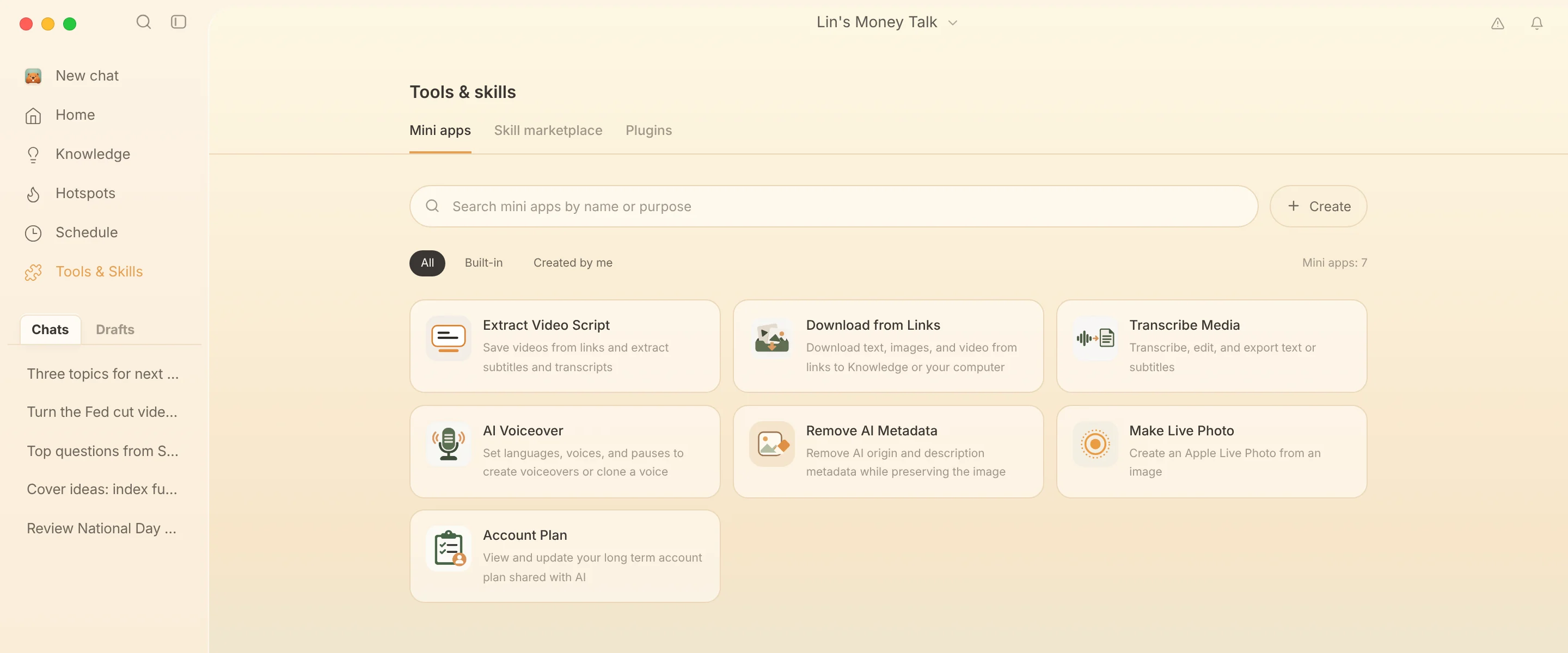
Extract video scripts in bulk, download media from links, transcribe audio and video, create AI voiceovers and clone voices, remove image metadata, make Live Photos, and maintain your account operating plan.
Checked 2026-10-07. Applies to Beav desktop 2.8.13.
Mini tools are standalone windows you can open and use directly. Browse all of them in the default Mini apps tab of Tools & Skills in the left navigation, and filter by All, Built-in, or Created by me. Home also keeps shortcut icons for frequently used tools and a View all link.
Clicking a tool opens it in its own window (960 × 760 by default). You can resize and minimize it, and open several tools at once while you keep working in the main window. More in the top-right corner of the window shows the version, Permissions, and Report a problem. Submitted state is saved before the window closes; background tasks already handed to Beav keep running after you close it. The first time you use a tool, grant the permissions it asks for.
Built-in tools update automatically to the latest version bundled with Beav, and their interface language follows Beav's.
Video transcript extraction
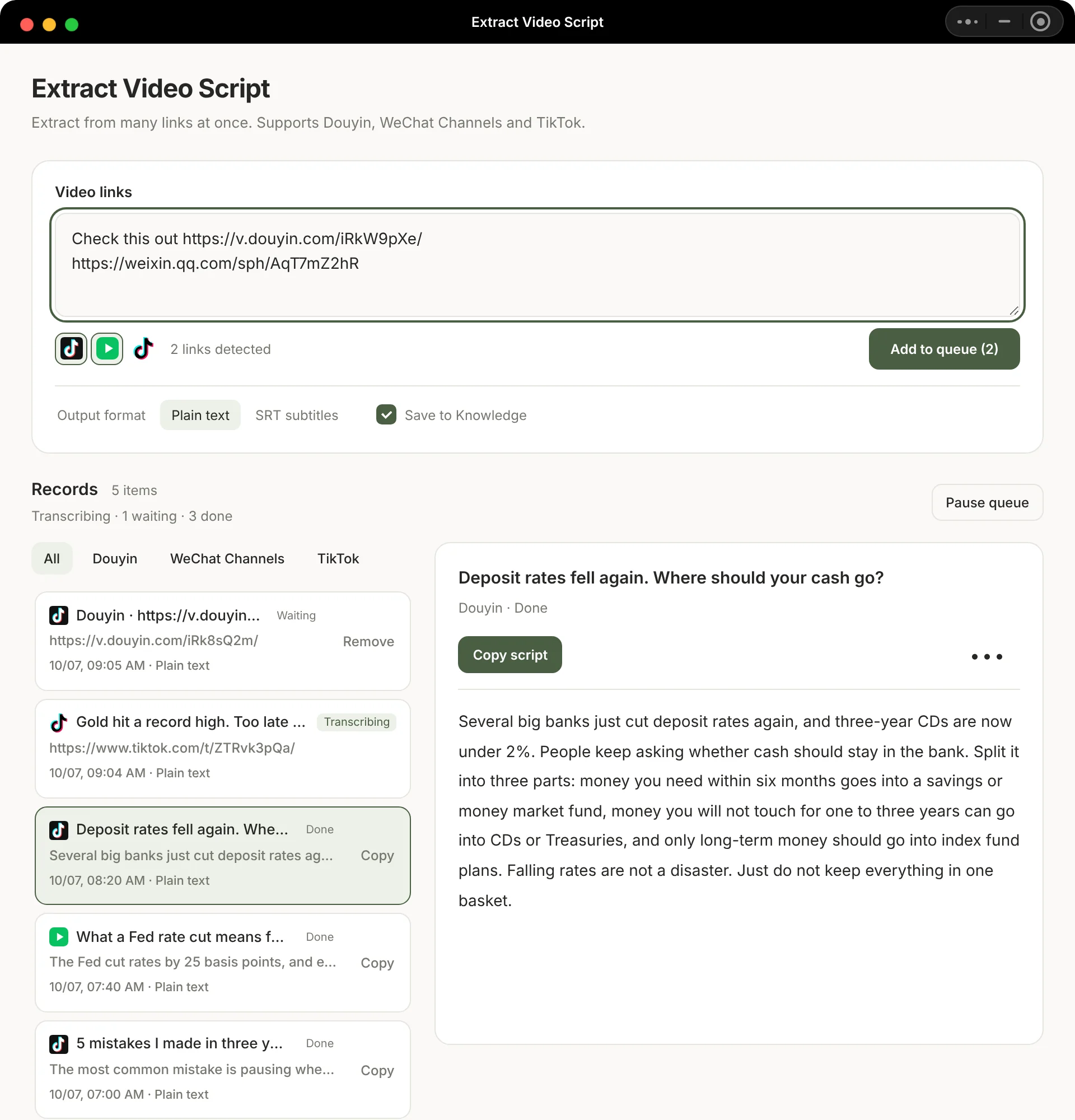
Extract Video Script takes multiple Douyin, WeChat Channels, and TikTok links or share texts pasted at once. It identifies the platform of each, removes duplicate links, and queues them in order, then downloads each video and transcribes it.
- Output is plain text by default; you can switch to SRT. You can also choose to save the results to the knowledge base at the same time.
- While it runs, you can keep adding links and copy finished transcripts. One failed item does not block the rest, and you can retry it on its own.
- You can pause the remaining links, resume the queue, or remove records that have not started.
- Up to 100 records are kept. Queued links are kept when you close the window; when you reopen it, the tool first checks the tasks already submitted before continuing, so nothing is transcribed twice.
Download from Links
Enter one post link per line, or paste a whole share text. Each batch holds up to 20 links, and duplicates are removed automatically. You can mix Xiaohongshu (RedNote), Douyin, WeChat Channels, and TikTok links (YouTube can currently only be saved to the knowledge base).
- Choose Knowledge in this space to save the text, source, and media.
- Choose This computer to skip creating knowledge base items and package the text, images, and videos into a ZIP. It is saved to the Downloads folder by default; use Change to pick another folder.
Results show a status for each item. Failed or partially completed items can be retried individually. If some media fails to download, the ZIP includes a list of the missing files.
Audio and video to text
In Transcribe Media, click Choose from Assets or Upload to select audio or video, then choose the transcription model, language, and output format (TXT, SRT, VTT, or detailed JSON).
- FunASR can tell speakers apart, and you can enter a hint for the number of speakers (2–100; leave it empty to detect automatically).
- Qwen ASR file transcription can turn on number normalization.
- For models that support hotword lists, you can enter the ID of a hotword list you already have in your provider account.
- You can proofread, save changes to, and copy short results directly; for longer results, export the full file and edit it. Results are registered in the asset library.
AI voiceover
In AI Voiceover, choose a model first, then that model's voice, language, and speaking speed. You can search voices by name, language, or style. MiniMax produces MP3; Google produces WAV and lets you enter a reading style.
Segmented script suits dialogue, multilingual reading, and scripts that need precise pauses: set the language, voice, speaking speed, or reading style for each segment; use Insert pause at the cursor (0.1–10 seconds); and add pauses between segments or reorder them. Generation combines everything into one complete audio file, which you can play in the page, open, or save as a copy.
Voice cloning: switch to Voice cloning, choose a voice sample, enter a name, and choose a cloning model plus a voiceover model from the same provider. Once it is created, you can select the new voice. You must have the right to use the voice you clone.
Remove AI Metadata
Select several images from the asset library, or use Upload images to import multiple PNG, JPEG, or WebP files at once (up to 20 per batch, 128 MiB maximum per image). Click Clean images to process them one by one. Results are saved as separate copies and the originals are kept; you can save all copies at once or open the results folder.
It only cleans file metadata (also removing ordinary descriptions, GPS, and camera information, while keeping color profiles and orientation). It does not redraw the image, remove visible logos, or remove invisible watermarks such as SynthID embedded in the pixels. A processed image is not thereby "non-AI," and there is no guarantee platforms will stop labeling it.
Make Live Photo
Click Choose from Assets or Upload to select one PNG, JPEG, or WebP image, choose a motion (a slight push in, pull out, or pan in one of four directions, or keep it still), then click Make Live Photo. The tool first cleans the metadata, then generates a 3-second Live Photo on your computer by default. It does not use AI video generation.
The result is a JPEG and a MOV. Keep both files together so your phone recognizes them as a Live Photo; you can export them as a ZIP. Supported on macOS and Windows; Linux is not supported yet. Beav does not write to your phone's photo library or publish to platforms automatically.
Account Plan
View and maintain the current account's long-term operating plan, which you share with the AI as a single document: after you change it here, the AI reads the new version in later chats and daily reports. You can also copy the current content.
Create your own mini tool
Create in the top-right corner of Tools & Skills has the AI build a mini tool for you. To develop one yourself, see the mini app development guide.