
Key takeaways
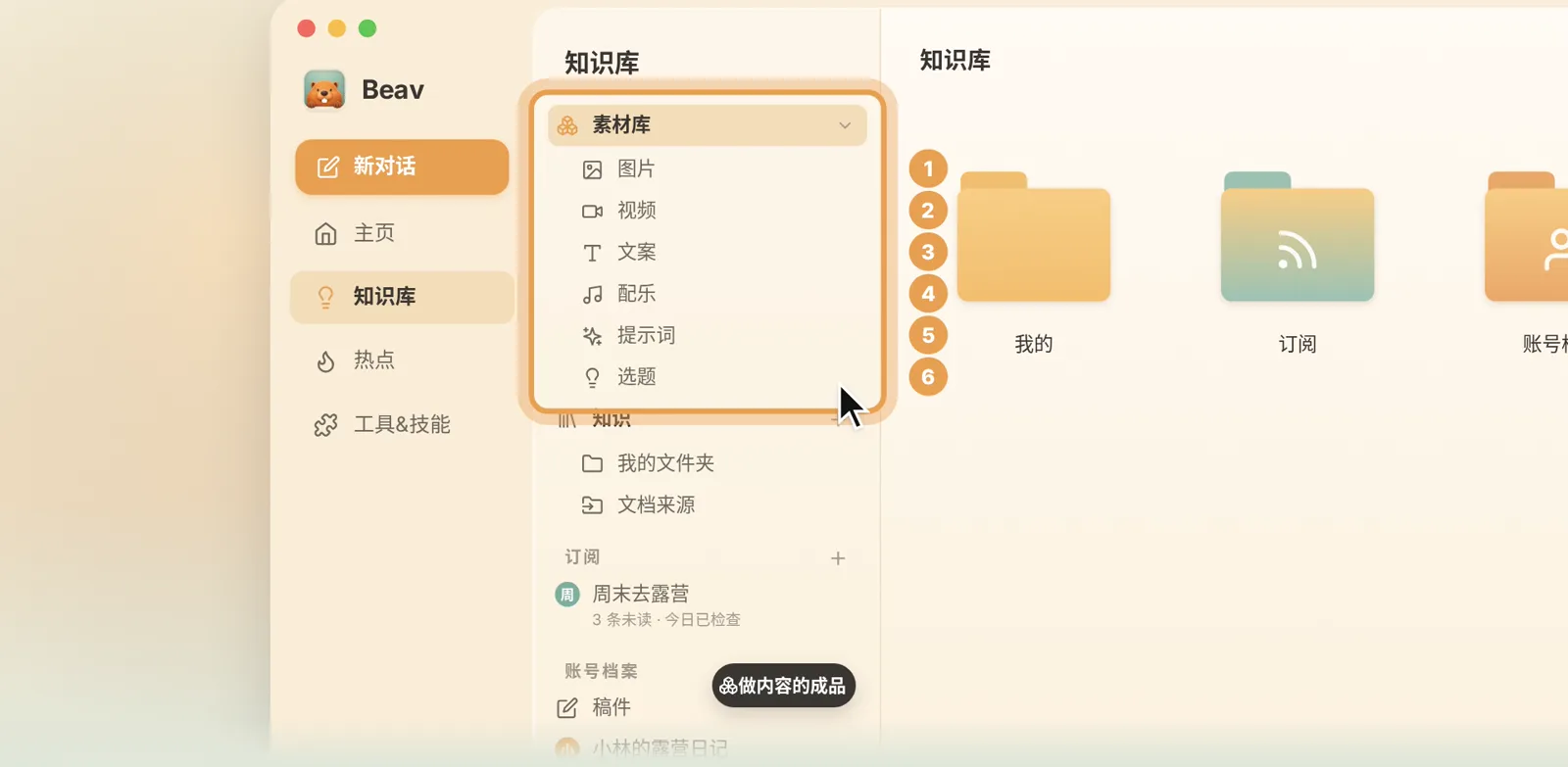
- The left sidebar is the map: the asset library holds material for making content, knowledge holds references for the AI, and below are subscriptions, your account profile and tags.
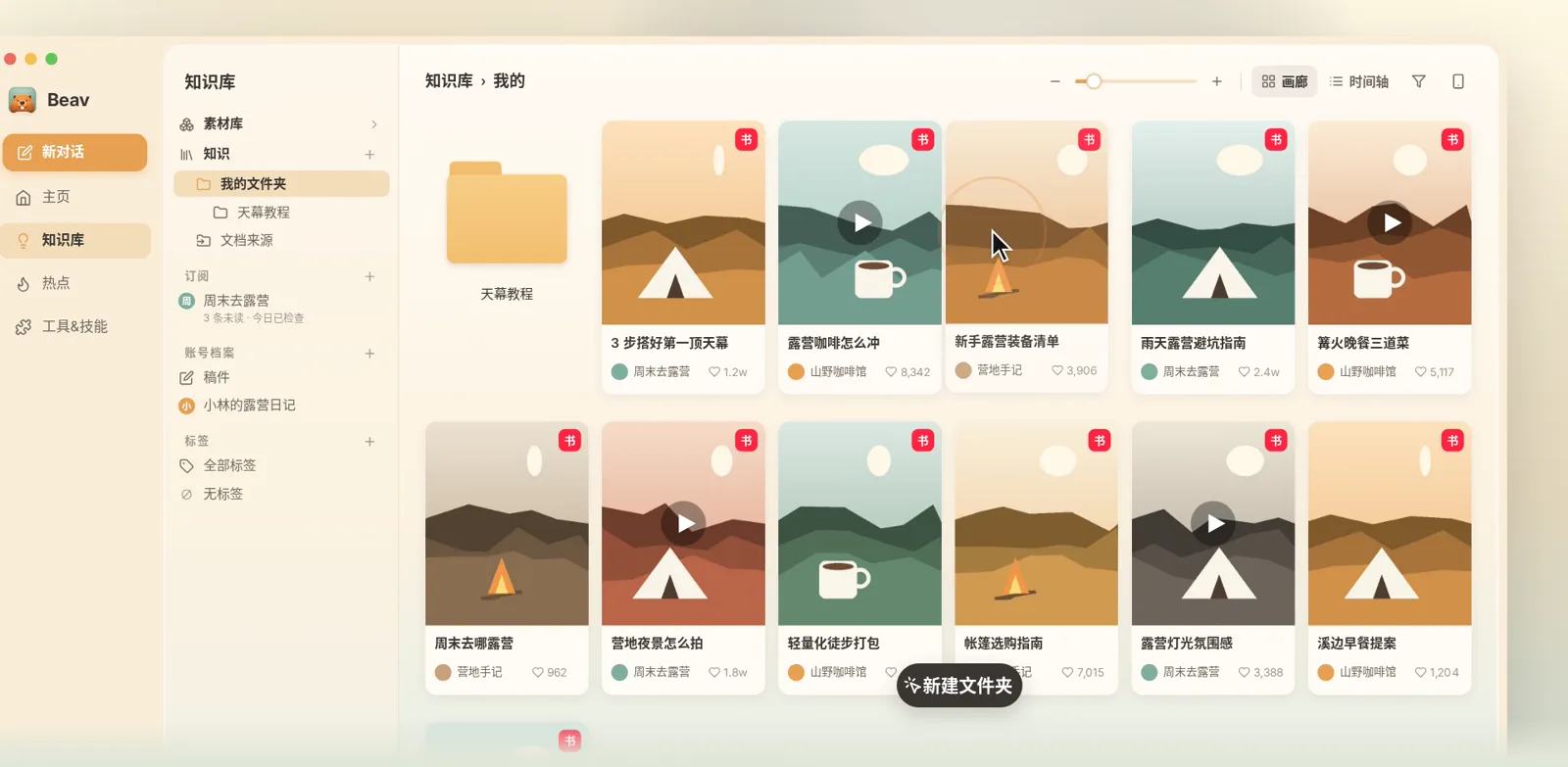
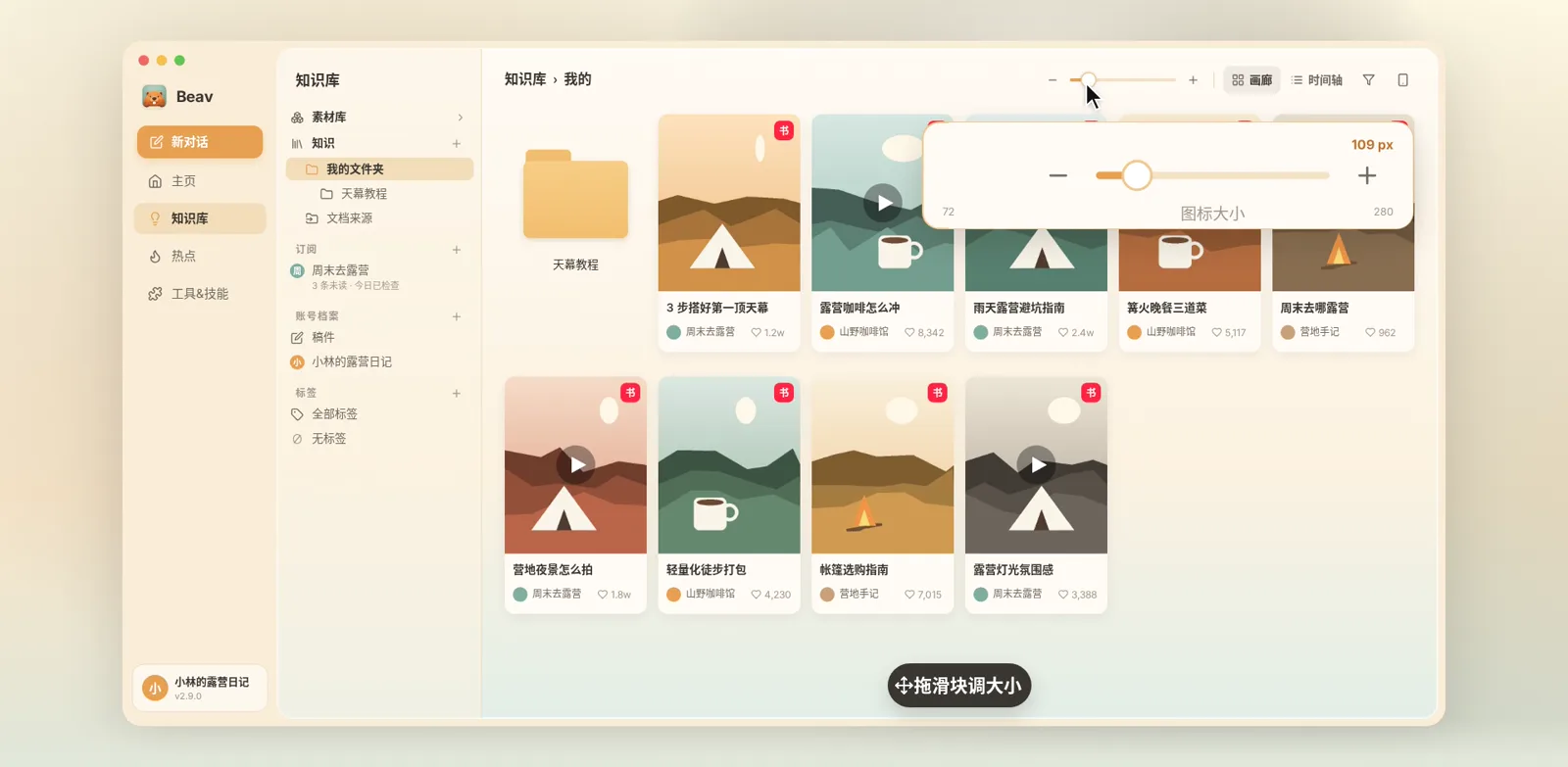
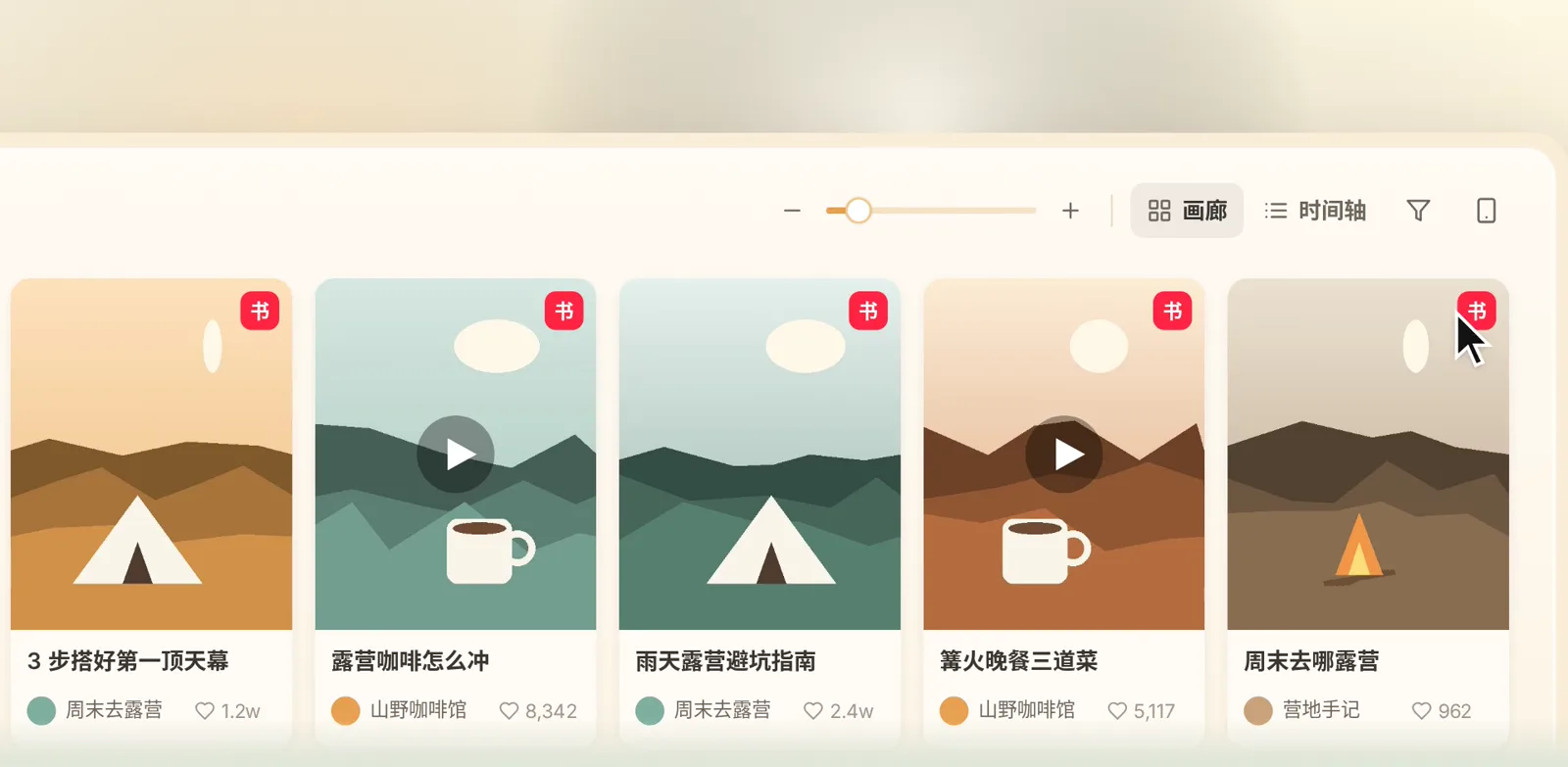
- It works like folders on your computer: right-click to create a folder and drag cards in. The slider resizes cards, and you can switch between gallery and timeline.
- "Import document source → Enter link" takes a pasted link. Tick "Break down after saving" and the extracted shots and music go into the asset library.
- "Add subscription" follows a benchmark creator and checks for updates daily; the account profile syncs your own posts so the AI can refer to them.
Episode 3 is a tour of the Beav knowledge base. Everything you save with the app and the extension ends up here. Click Knowledge base on the left to open it.
The video is narrated in Chinese with Chinese subtitles, and the screenshots show the Chinese interface. Beav displays in your system language, so the English labels are given below, with the Chinese label in brackets where it helps you match the screenshot.
The sidebar is your map
From top to bottom, the left sidebar holds:
- Asset library: images, videos, copy, music, prompts and topics you use to make content.
- Knowledge: references for the AI.
- Subscriptions: the benchmark creators you follow.
- Account profile: your own account.
- Tags: find content by tag.
Organize it like folders
Everything here works like folders on your computer:
- Right-click to create a folder, then drag cards into it.
- Drag the slider at the top right to make cards bigger or smaller.
- Switch between gallery and timeline views at any time.
- To change the sort order, right-click an empty area.
- To see only RedNote videos, filter by type.
Batch organizing and deleting are in the right-click menu as well.
Paste a link, break it down
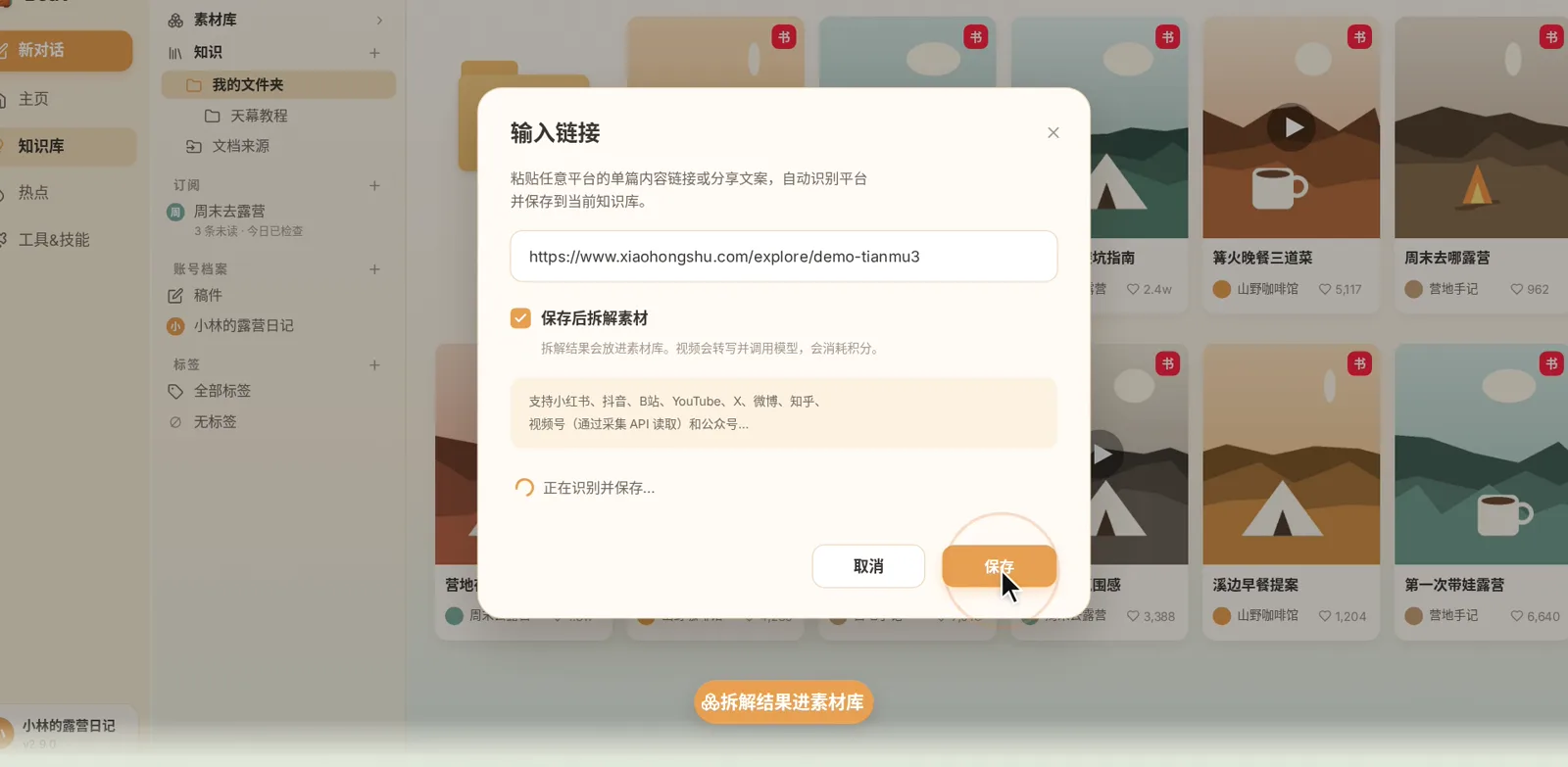
Besides the browser extension, you can paste a link directly:
- Click "Import document source" (导入文档源) and choose "Enter link" (输入链接).
- Paste the post or video link.
- Tick "Break down after saving" and the extracted pieces go into the asset library.
Read the breakdown, hand it to the AI
Open a post and switch to the Breakdown (拆解) tab. The topic, structure, shots, filming script and original copy are all there. Extracted shots and music go straight into the asset library, ready when you make content.
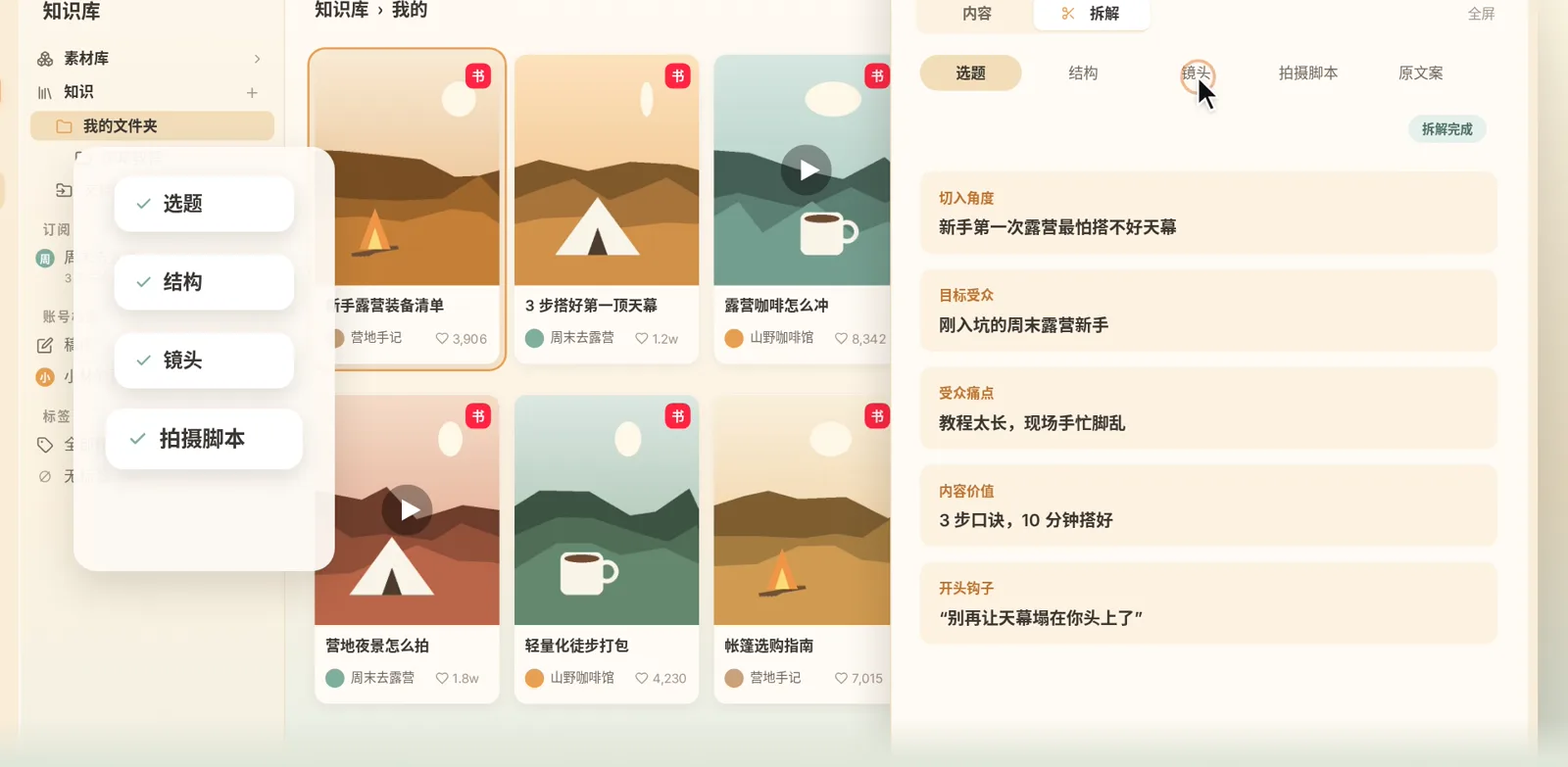
Hover over any card and click "Add to chat" to hand it to the AI, for example to write your own post in the same structure.
Follow benchmark creators
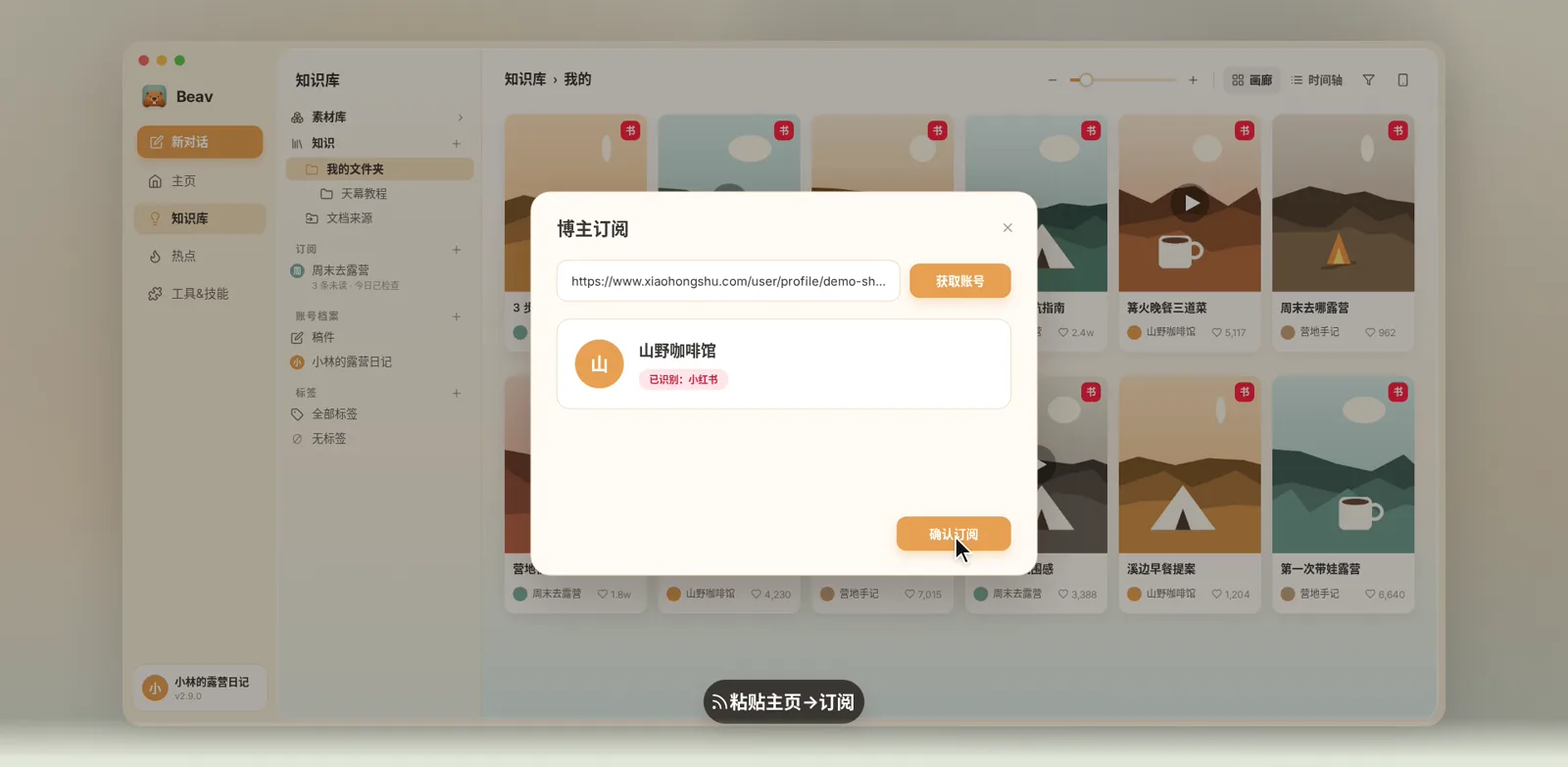
To keep an eye on a benchmark creator, click "Add subscription" next to Subscriptions, paste the creator's profile link and confirm. Beav then checks for updates every day and pins new posts to the top.
Account profile: let the AI know you
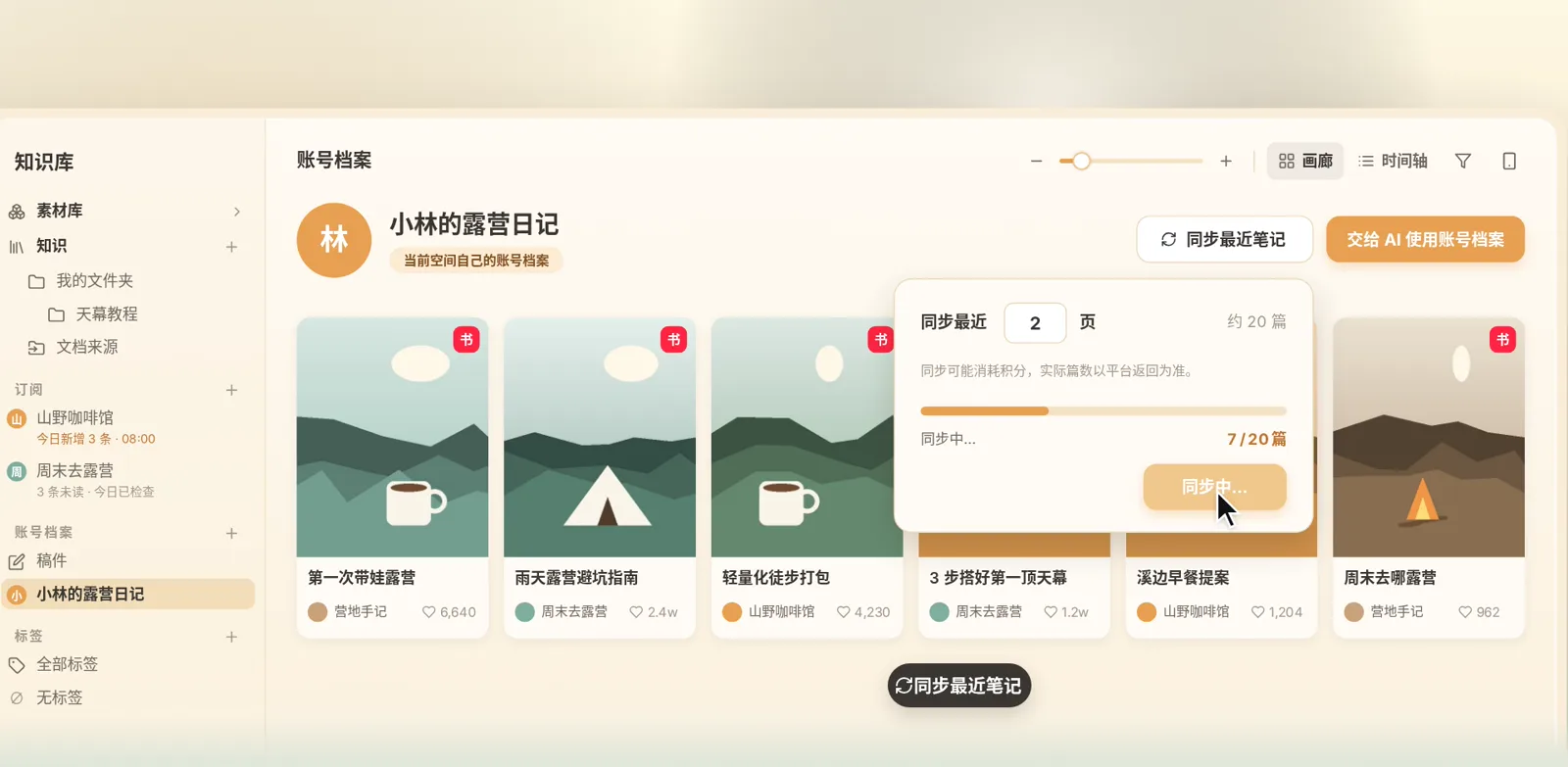
At the bottom is your own account profile. Sync your recent posts and the AI can refer to your past content when it drafts, so the result sounds more like you.
Next episode
There's also a phone button at the top right of the knowledge base. What does it do? The next episode connects your phone and computer: Beav Tutorial 04: Connect your phone and computer.
For more detail, see Organize knowledge, assets, and manuscripts and Links, subscriptions, and account profiles in the docs.