
Key takeaways
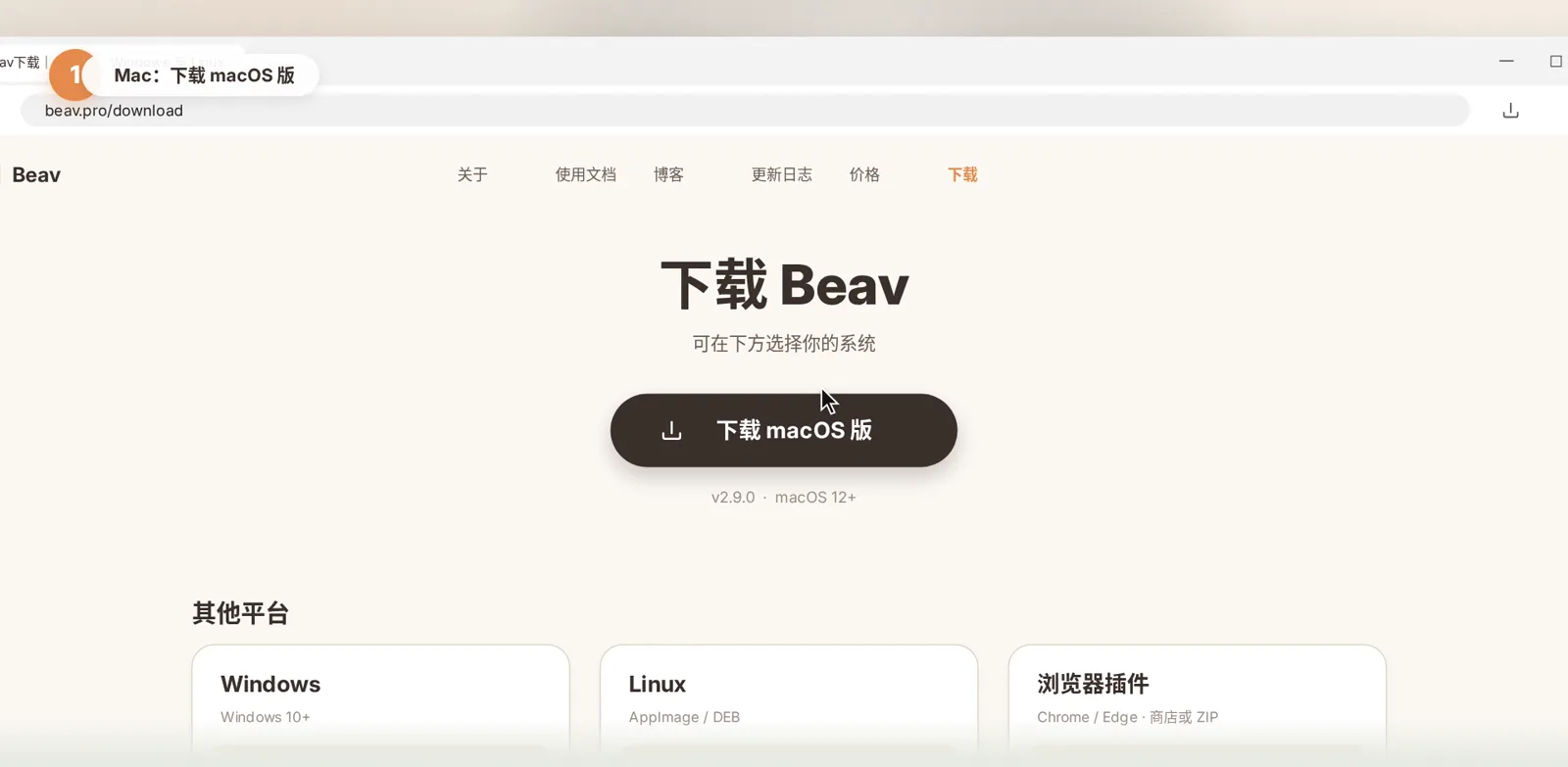
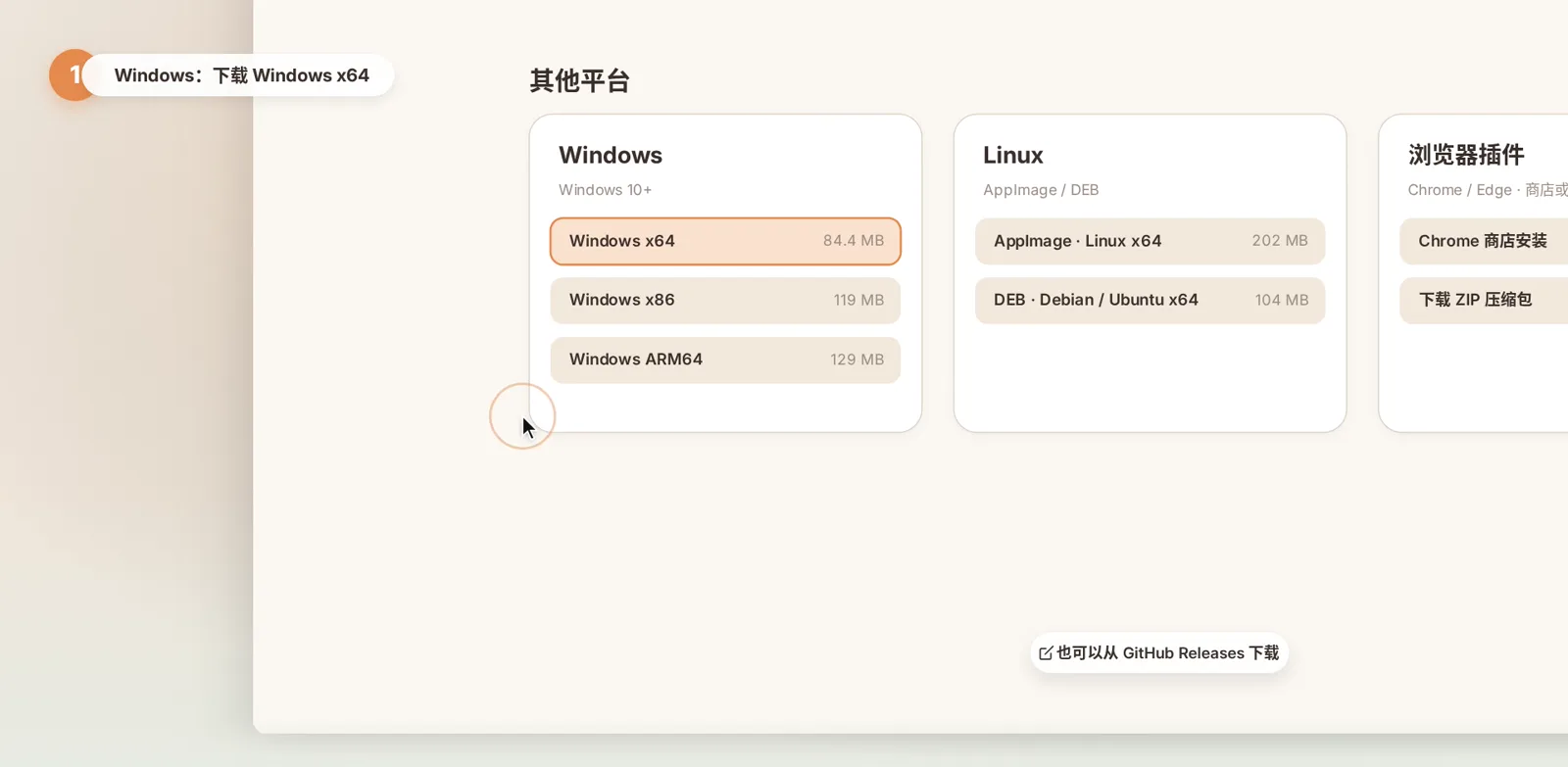
- On the beav.pro download page, Mac users click "Download for macOS" (Apple silicon). Windows users pick Windows x64 under "Other platforms".
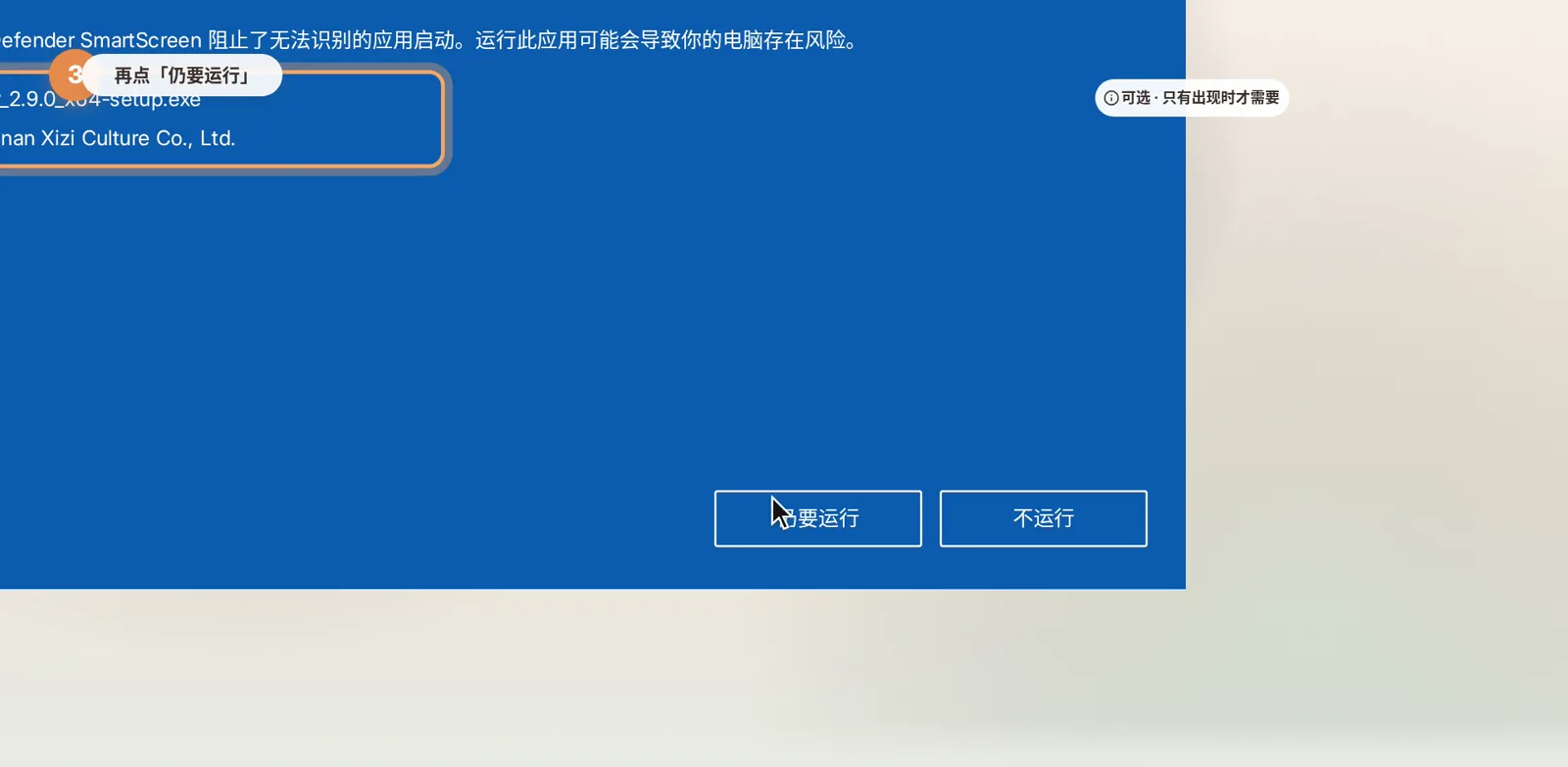
- Edge's "isn't commonly downloaded" warning and Windows' blue "Windows protected your PC" screen appear because the installer is new. Check that the publisher is Hunan Xizi Culture Co., Ltd., then keep the file and run it anyway.
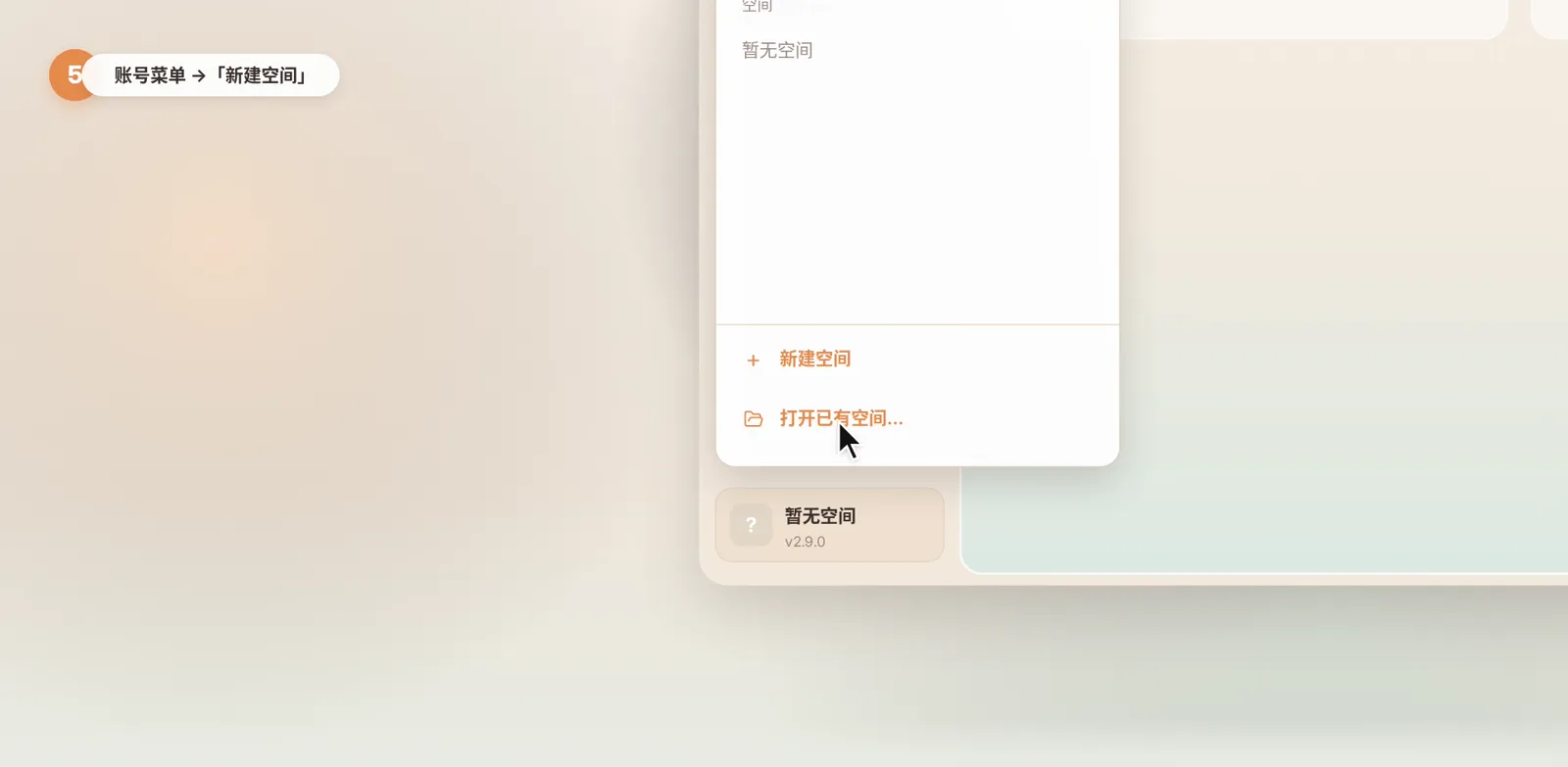
- After signing in, click the account button at the bottom left, choose "New space", name it after your account, and pick a location on your computer, an external drive or a synced folder.
- Use one space per account. After changing computers or reinstalling, "Open existing space" adds the old folder back.
This is episode 1 of the Beav getting-started series. By the end you will have Beav installed and your first space ready. The extension, knowledge base and phone pairing in the next episodes all work inside this space.
The video is narrated in Chinese with Chinese subtitles, and the screenshots show the Chinese interface. Beav displays in your system language, so the English labels are given below, with the Chinese label in brackets where it helps you match the screenshot.
Step 1: Pick the right installer
Open your browser and go to the beav.pro download page.
- Mac: click "Download for macOS". This build is for Apple silicon (M-series) Macs and is about 80 MB.
- Windows: under "Other platforms", click Windows x64. That is the right choice for most Windows PCs.
- You can also download from the GitHub Releases link on the page.
Step 2: Install on a Mac
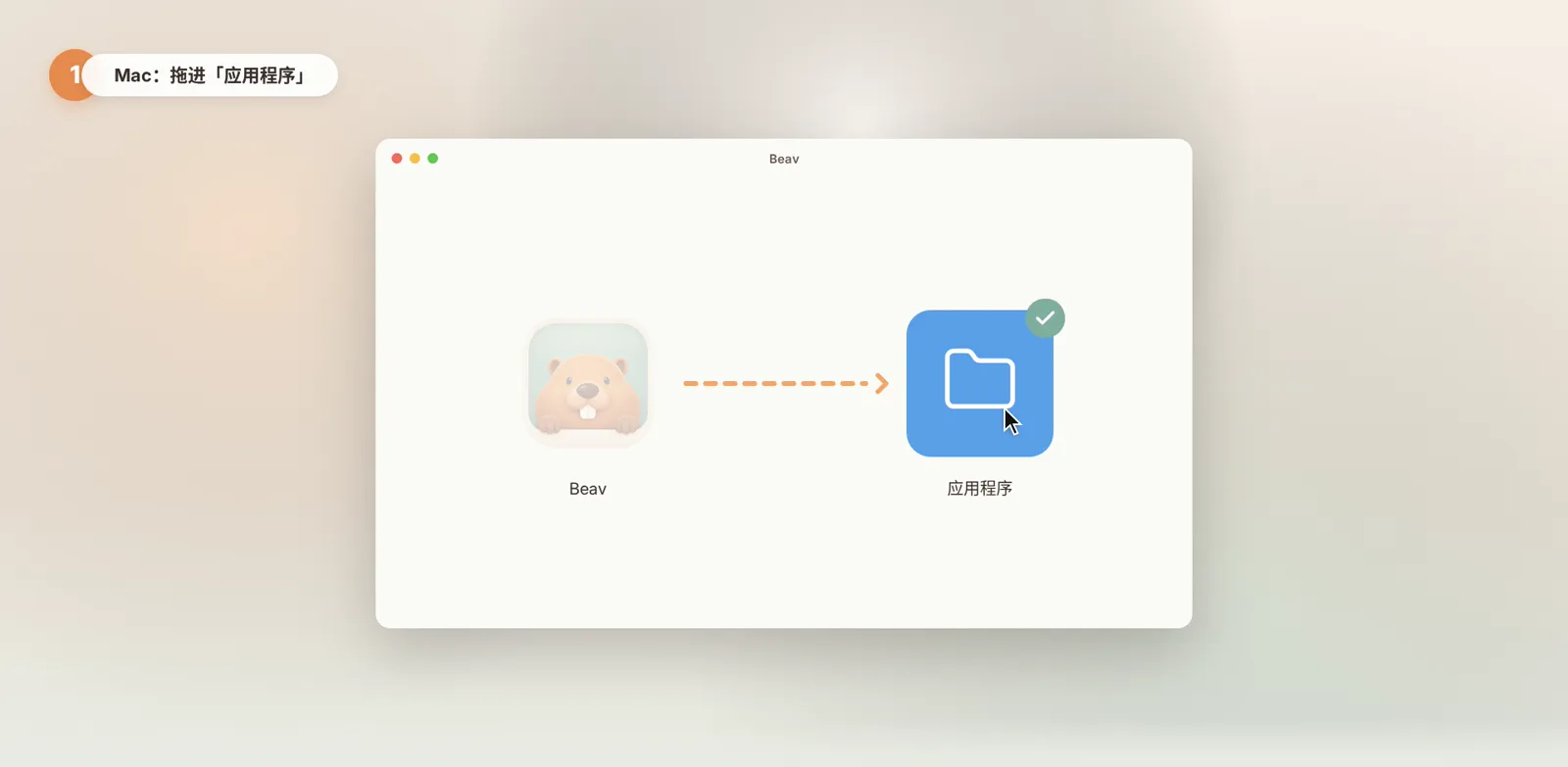
Open the downloaded installer and drag Beav into the Applications folder. Then launch Beav from Applications.
Step 3: Install on Windows
If Edge says the file "isn't commonly downloaded"
Edge may warn that the installer isn't commonly downloaded. That only means the installer is new and few people have downloaded it yet, so the browser doesn't recognize it.
- Hover over the download, click "…" on the right and choose "Keep".
- A "Make sure you trust this file before you open it" dialog appears. Check the publisher: it should be Hunan Xizi Culture Co., Ltd.
- Don't click "Delete". Click the small arrow next to it and choose "Keep anyway".

If the blue "Windows protected your PC" screen appears
Double-click the installer. If Windows shows the blue "Windows protected your PC" screen, click "More info", then "Run anyway". Follow the installer and open Beav when it finishes.
Step 4: First launch and sign-in
On first launch Beav uses your system language. A short product tour follows, covering the overview, capture and breakdown, AI chat, the asset library, ongoing operations and account spaces.
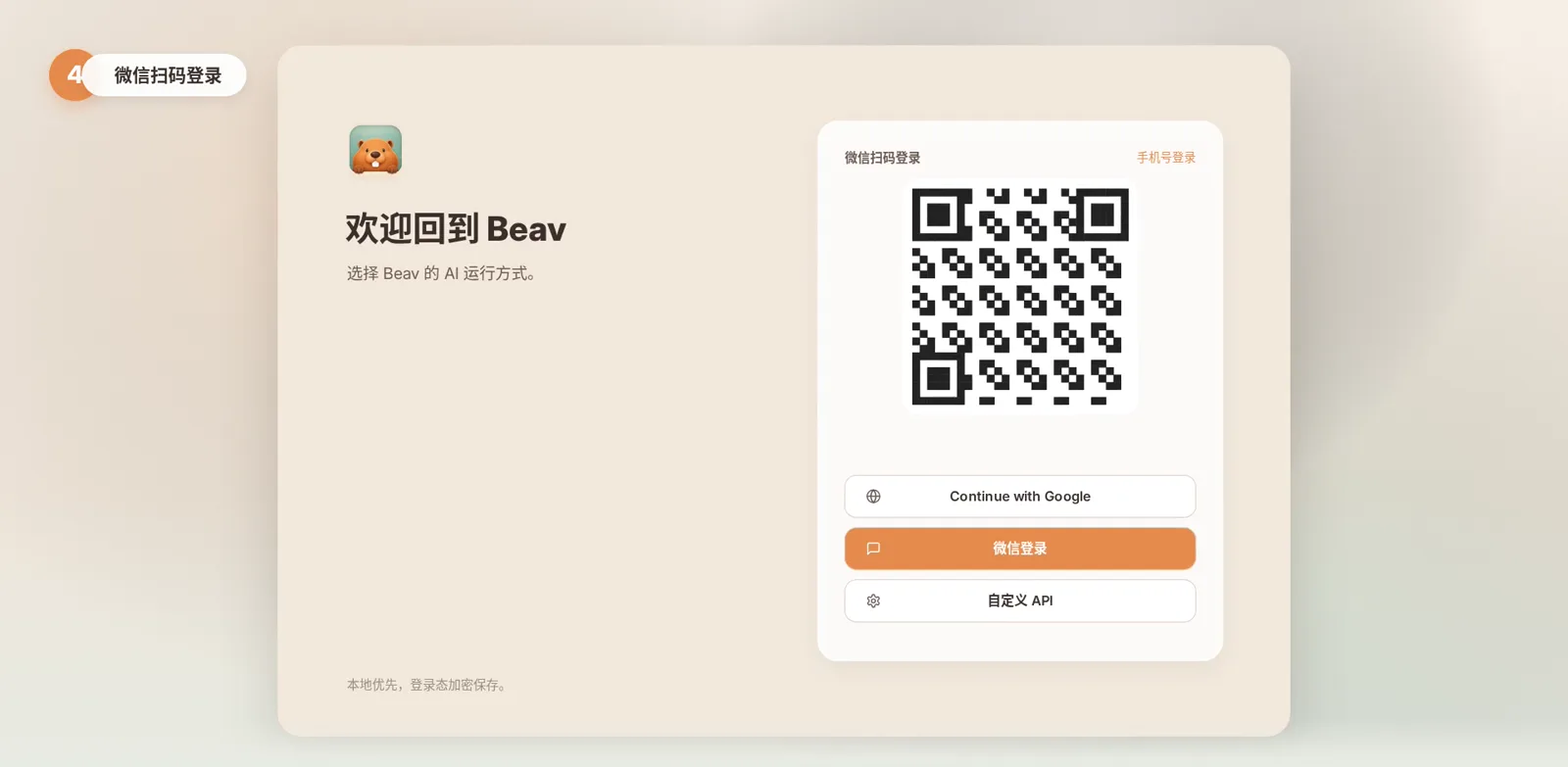
After the tour you reach the sign-in page. Scan the QR code with WeChat, or sign in with your phone number.
Step 5: Create your first account space
A space is where Beav keeps your assets, knowledge and drafts. To create one:
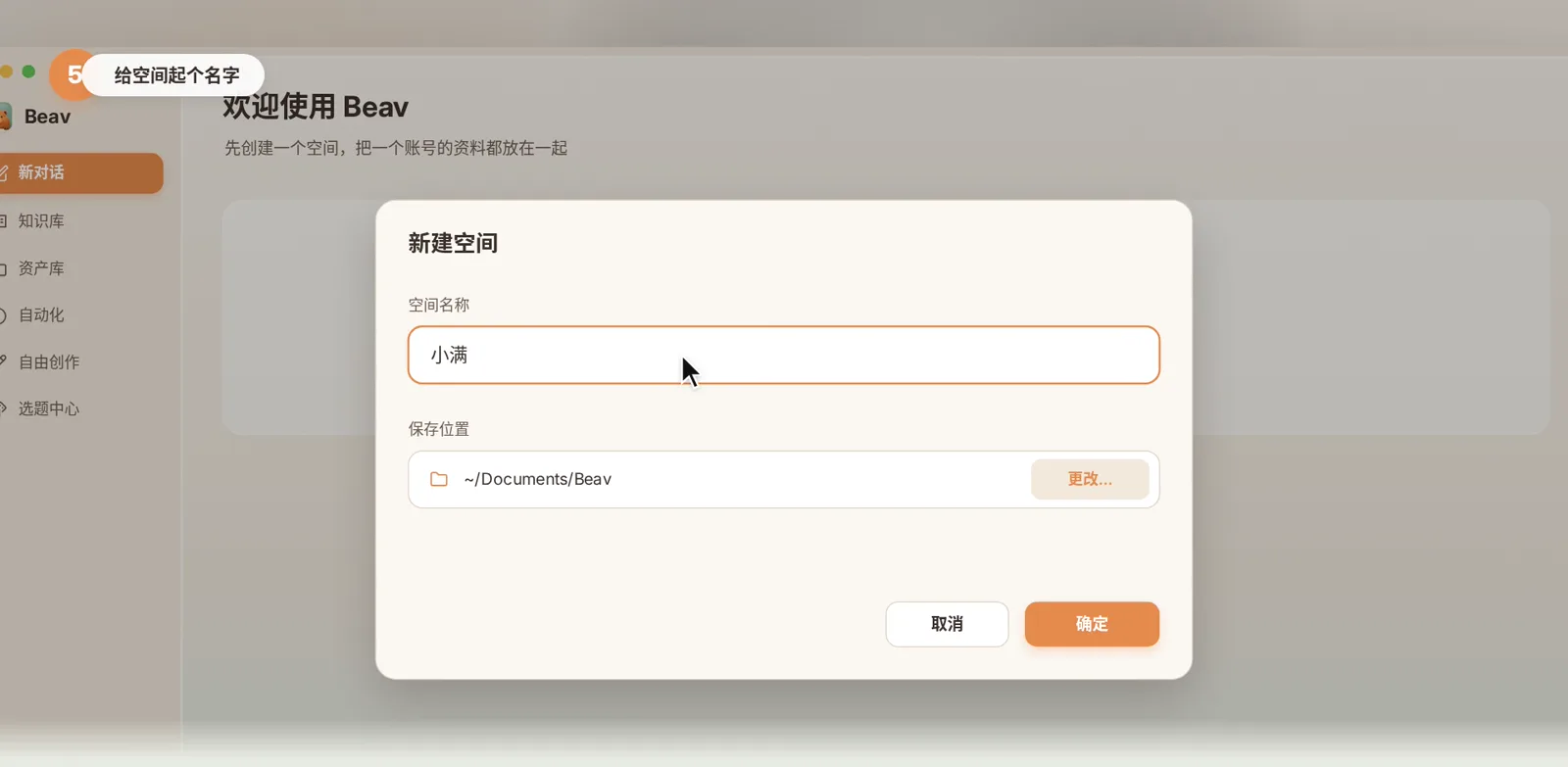
- Click the account button at the bottom left and choose "New space" (新建空间).
- Name the space, for example after your RedNote (Xiaohongshu) account.
- Choose a location: your computer, an external drive or a synced folder. Beav remembers the choice for your next spaces.
- Click "OK".
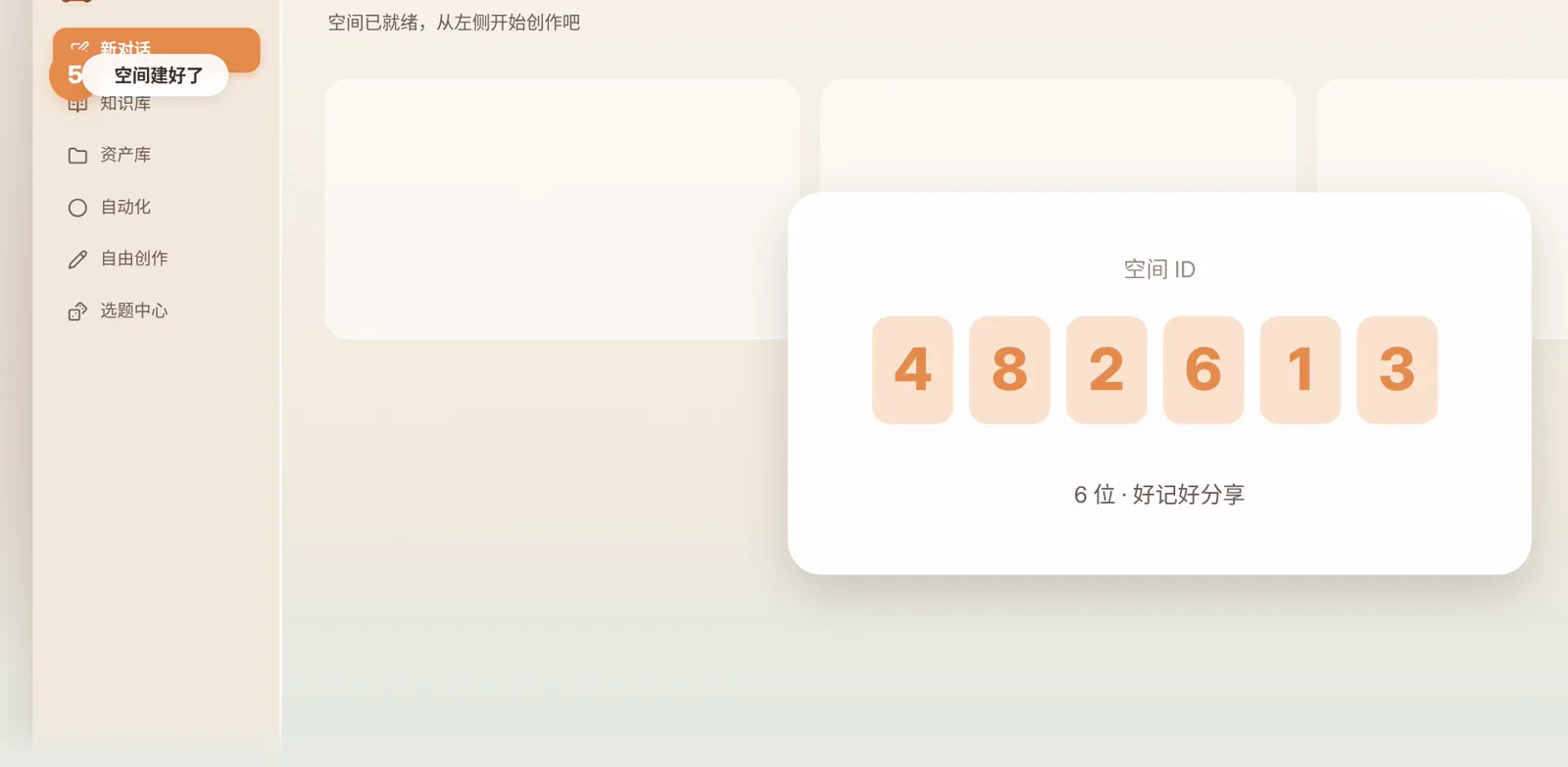
Every new space gets a 6-digit space ID that is easy to remember and share.
Tip: one account, one space. Keeping an account's positioning, assets and drafts together means the AI has more of your own material to draw on over time. If you run several accounts, create a space for each.
New computer, reinstall or external drive
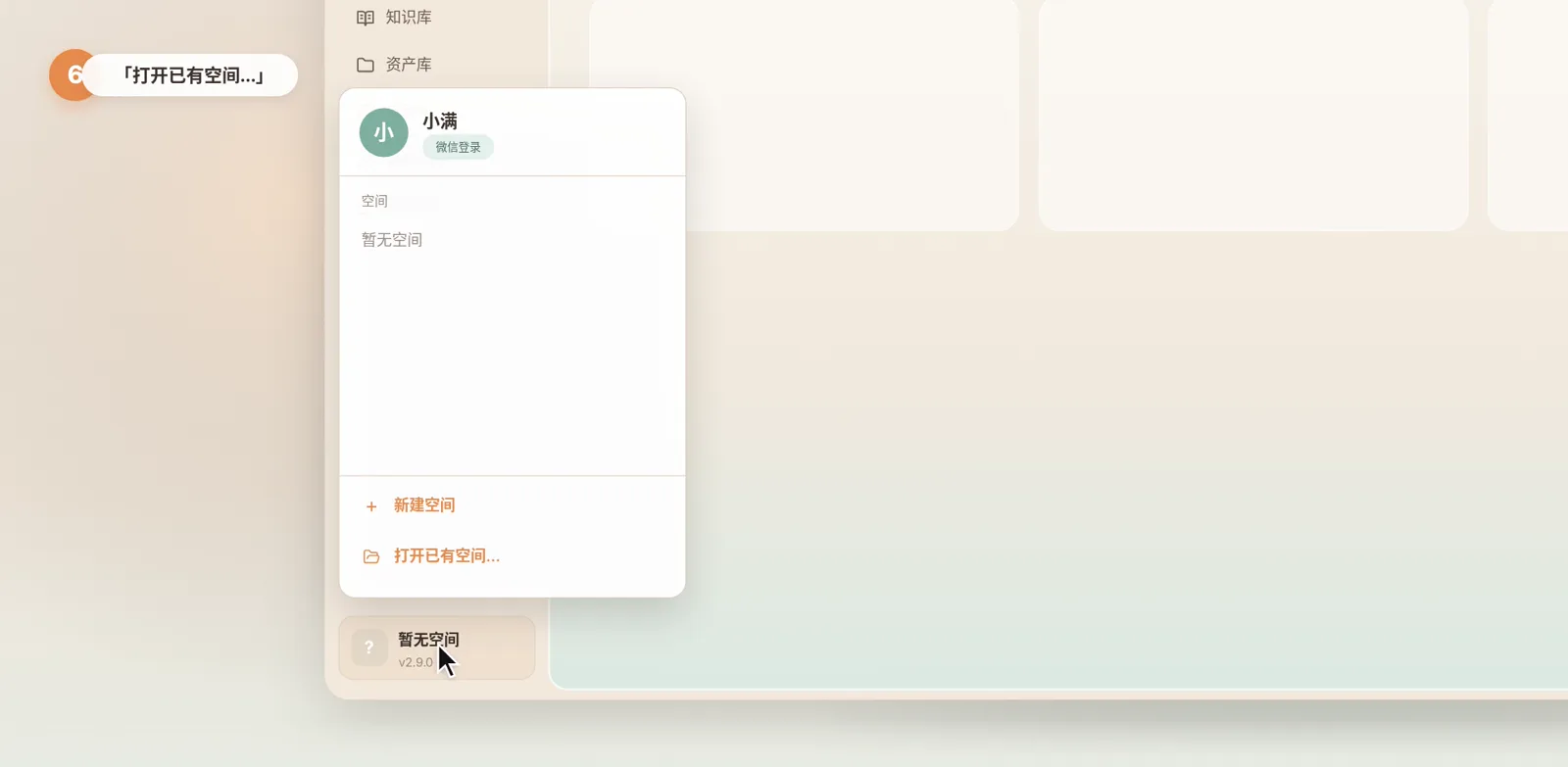
After moving to a new computer or reinstalling Beav, choose "Open existing space" (打开已有空间) in the account menu and select the old space folder to add it back.
If a space lives on an external drive, it shows "Folder unavailable" while the drive is disconnected. Plug the drive back in; Beav won't create empty folders in its place.
Next episode
Beav is installed and your first space is ready. Next, install the browser extension so you can save good content as you browse: Beav Tutorial 02: Install the browser extension.
For the full install guide, including Linux and running in the background, see Install Beav in the docs.