

Key takeaways
- The entry point is the "Install browser extension" button in an empty knowledge base, or account button → Settings → General → Browser extension.
- Option 1: click "Add to Chrome" in the Chrome Web Store; Edge can install from there too. Option 2: download the ZIP, unzip it to a permanent folder, turn on developer mode and "Load unpacked".
- Pin Beav to the toolbar and keep the desktop app open. The popup shows "Connected" and the current space.
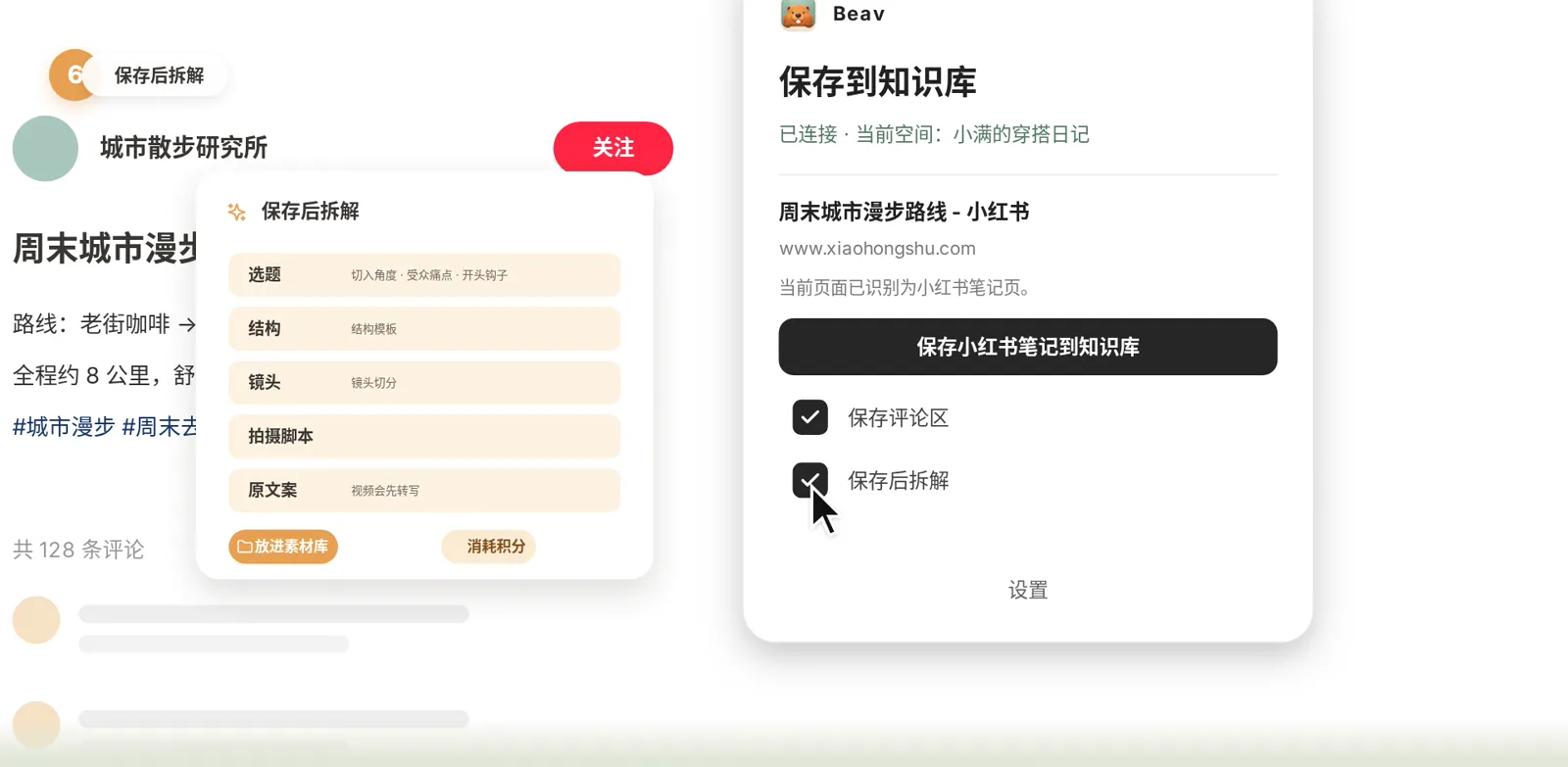
- On a RedNote post, tick "Save comments" and "Break down after saving", then save the post to the knowledge base. Use a separate account in the browser for collecting.
Scrolling RedNote (Xiaohongshu) or Douyin, the worst part is forgetting a great post the moment you scroll past it. In this episode you install the Beav browser extension so you can save it in one click.
Before you start, make sure Beav is installed and you have a space, as shown in episode 1. The extension works together with the Beav desktop app.
The video is narrated in Chinese with Chinese subtitles, and the screenshots show the Chinese interface. Beav displays in your system language, so the English labels are given below, with the Chinese label in brackets where it helps you match the screenshot.
Step 1: Find the install entry
Open Beav and go to the knowledge base. While it is empty, there is an "Install browser extension" (安装浏览器插件) button in the middle. Click it.
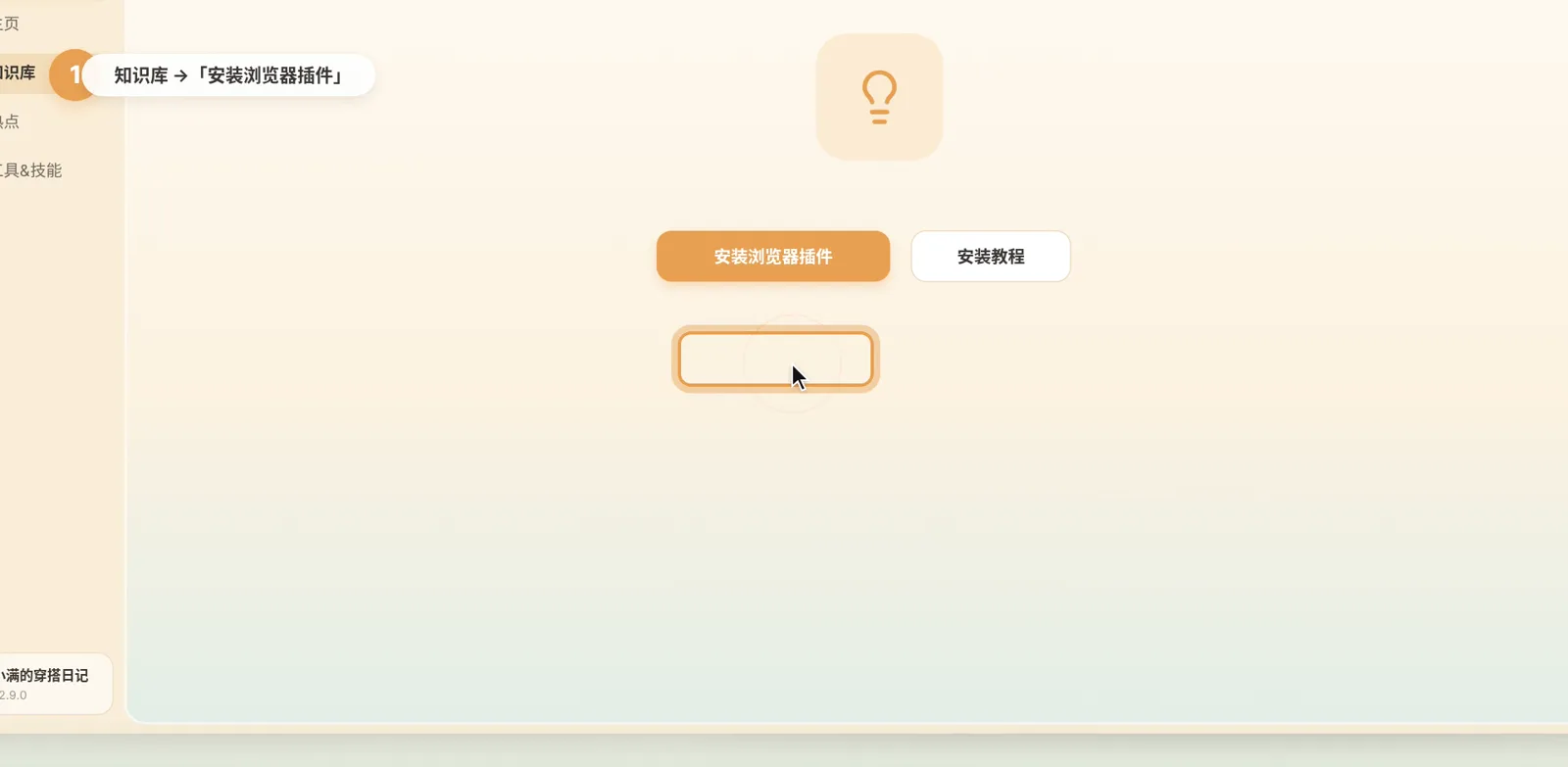
To find it again later, click the account button at the bottom left, choose Settings at the bottom of the menu, and look for Browser extension under General.
There are two ways to install. Use option 1 if you can reach the Chrome Web Store, and option 2 if you can't.
Option 1: Install from the Chrome Web Store
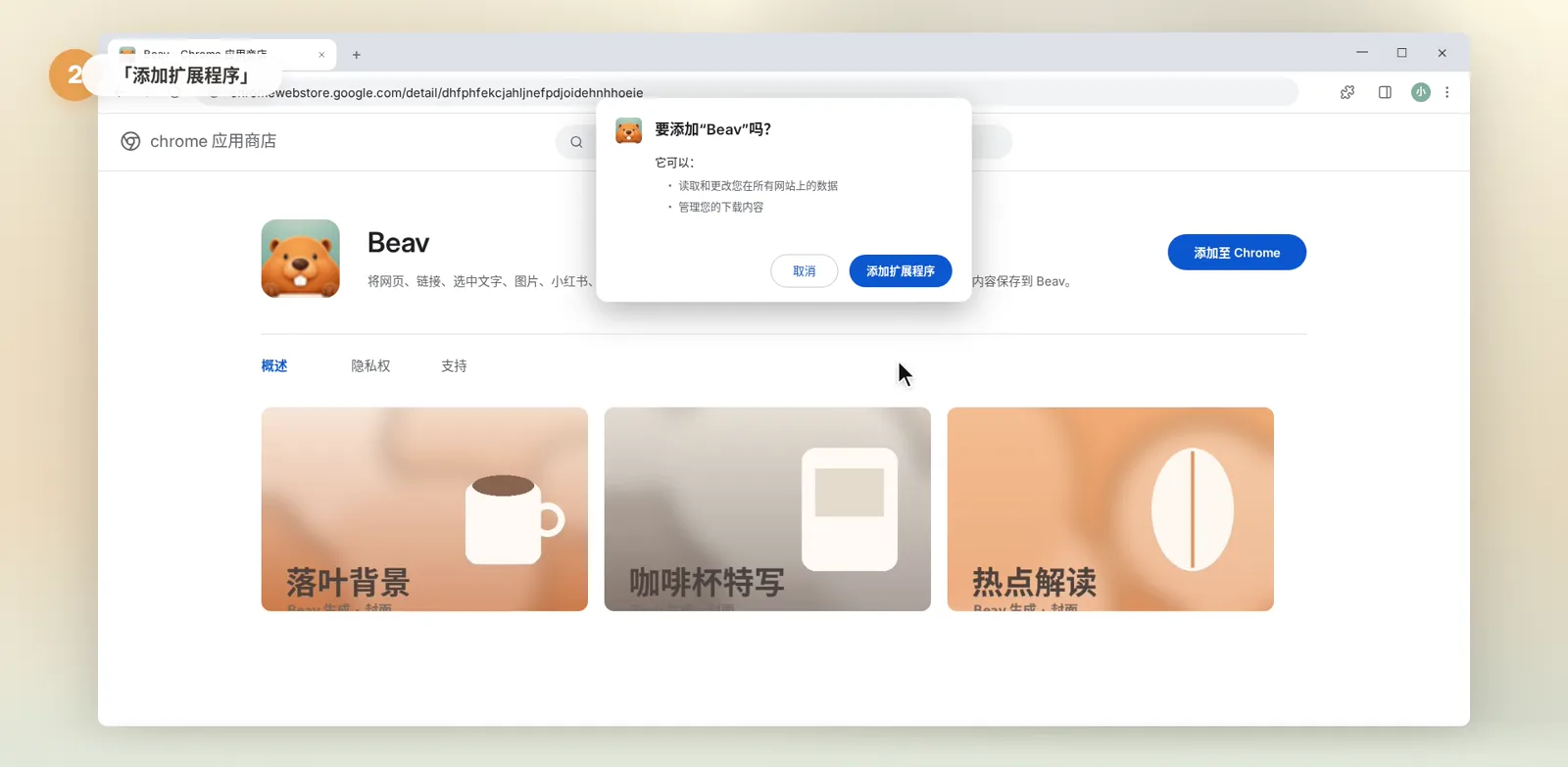
- Your browser opens the Beav page in the Chrome Web Store. Click "Add to Chrome".
- In the confirmation dialog, click "Add extension". It installs in a few seconds.
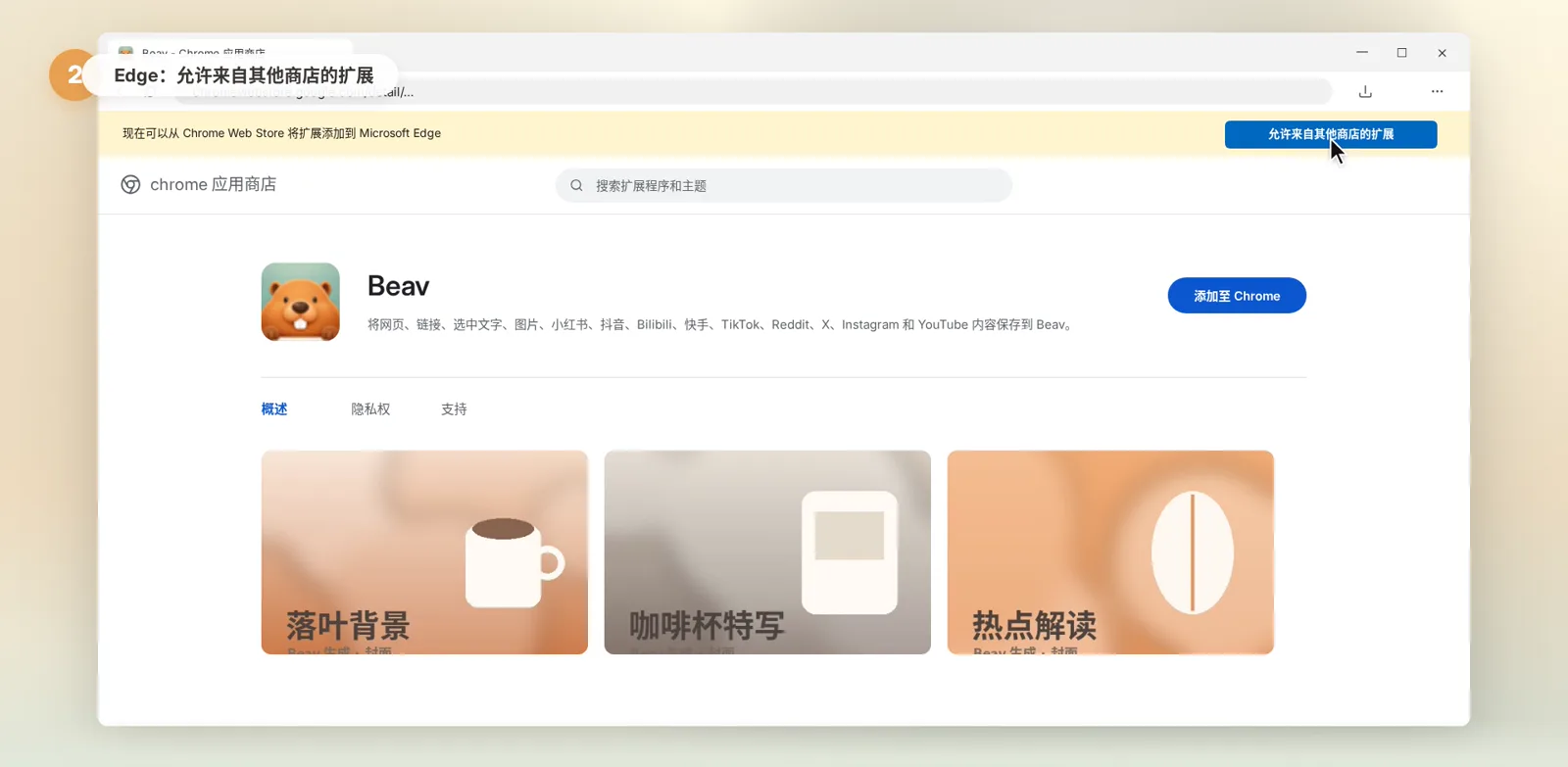
On Edge, you can install from the Chrome Web Store too. When a banner appears at the top of the page, click "Allow extensions from other stores" first.
Option 2: Install from the ZIP file
If you can't open the store:
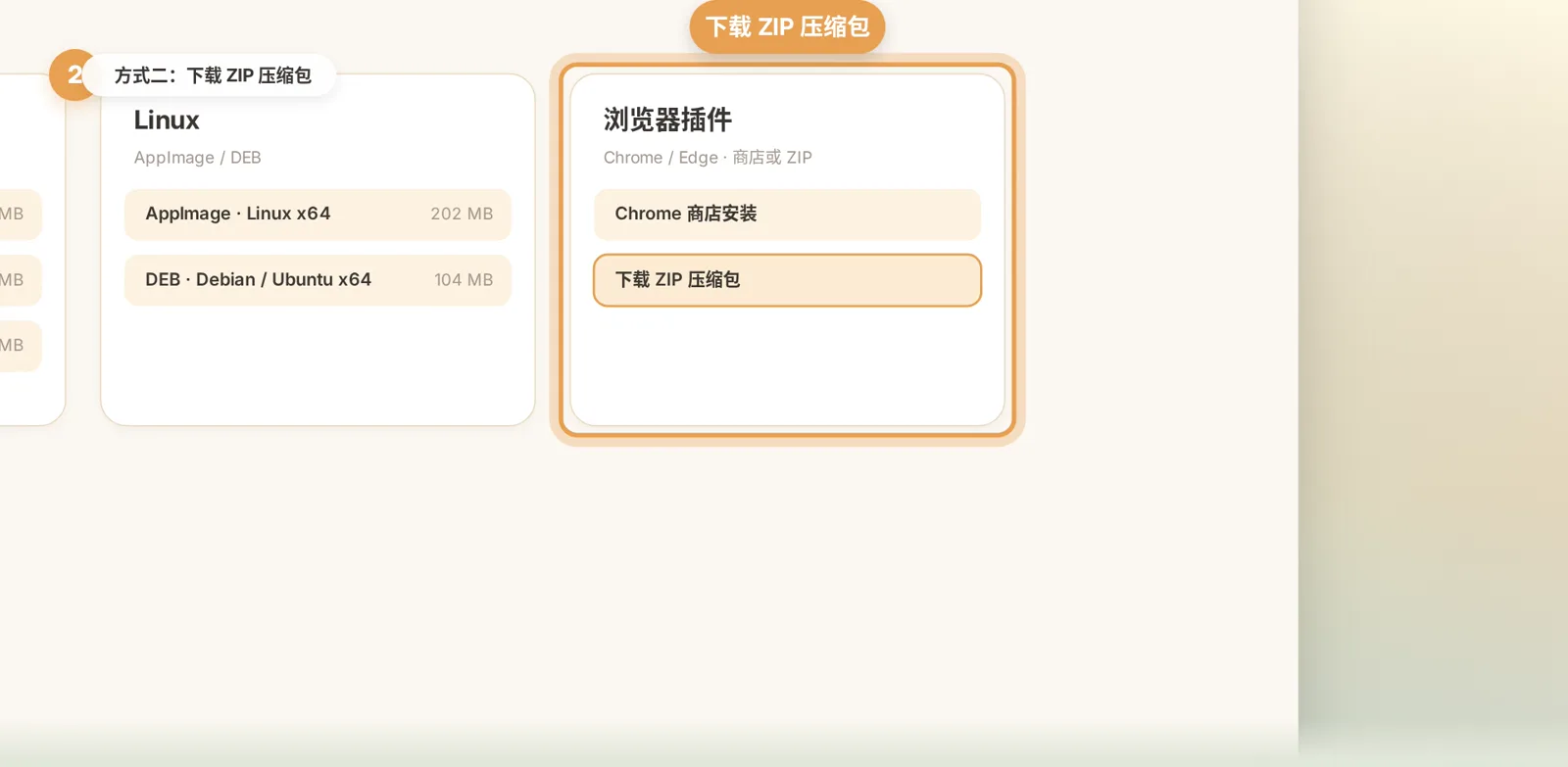
- Open the beav.pro download page and click "Download ZIP" under Browser extension.
- Unzip it to a permanent location, for example a new "Beav extension" folder in Documents.
- Don't delete or move this folder after installing, or the extension stops working.
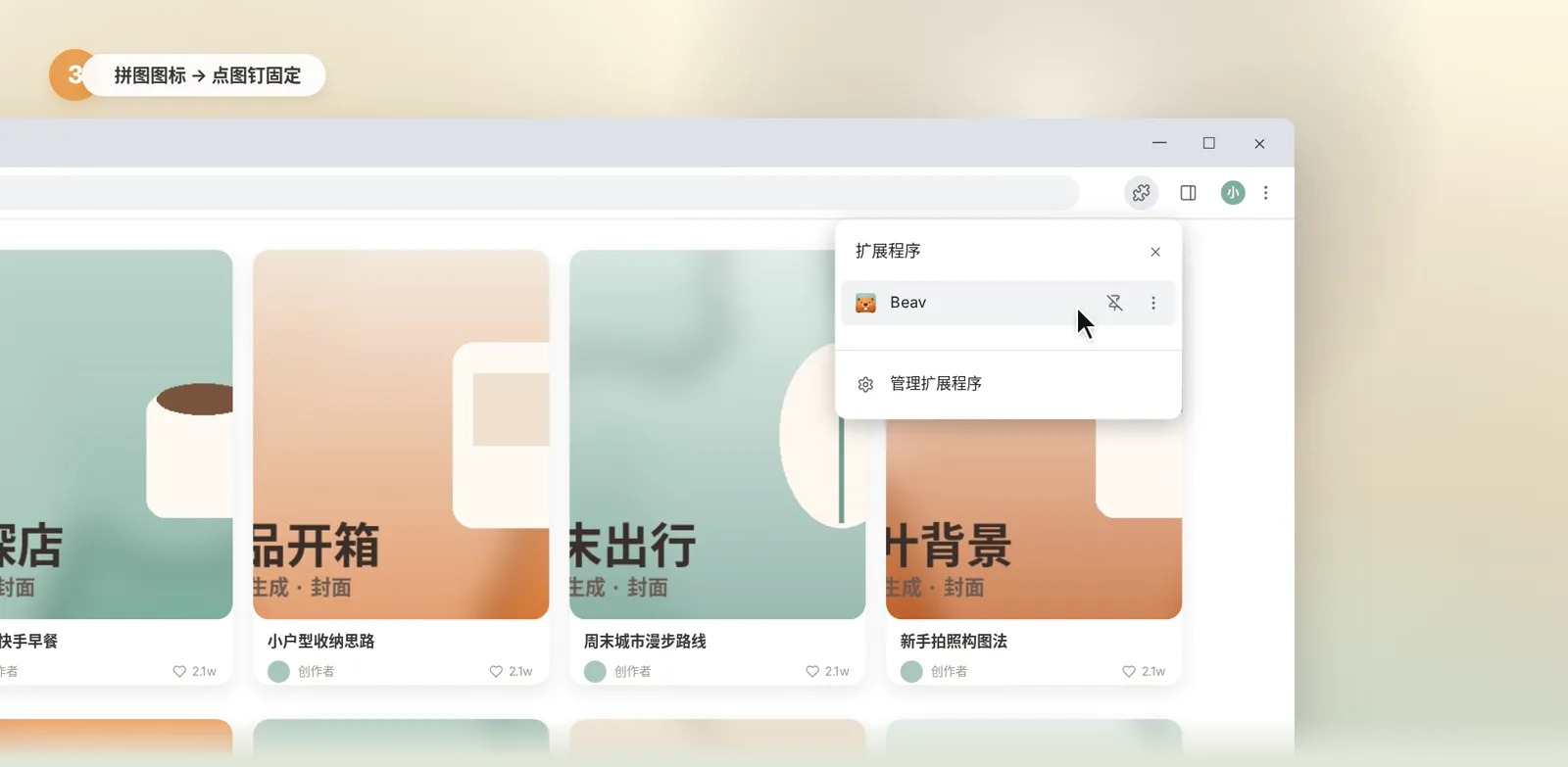
- Click the puzzle icon at the top right of the browser and choose "Manage extensions" at the bottom of the menu.
- Turn on "Developer mode" at the top right of the extensions page.
- Click "Load unpacked" and select the "Beav extension" folder you unzipped. Beav now appears in your extension list.
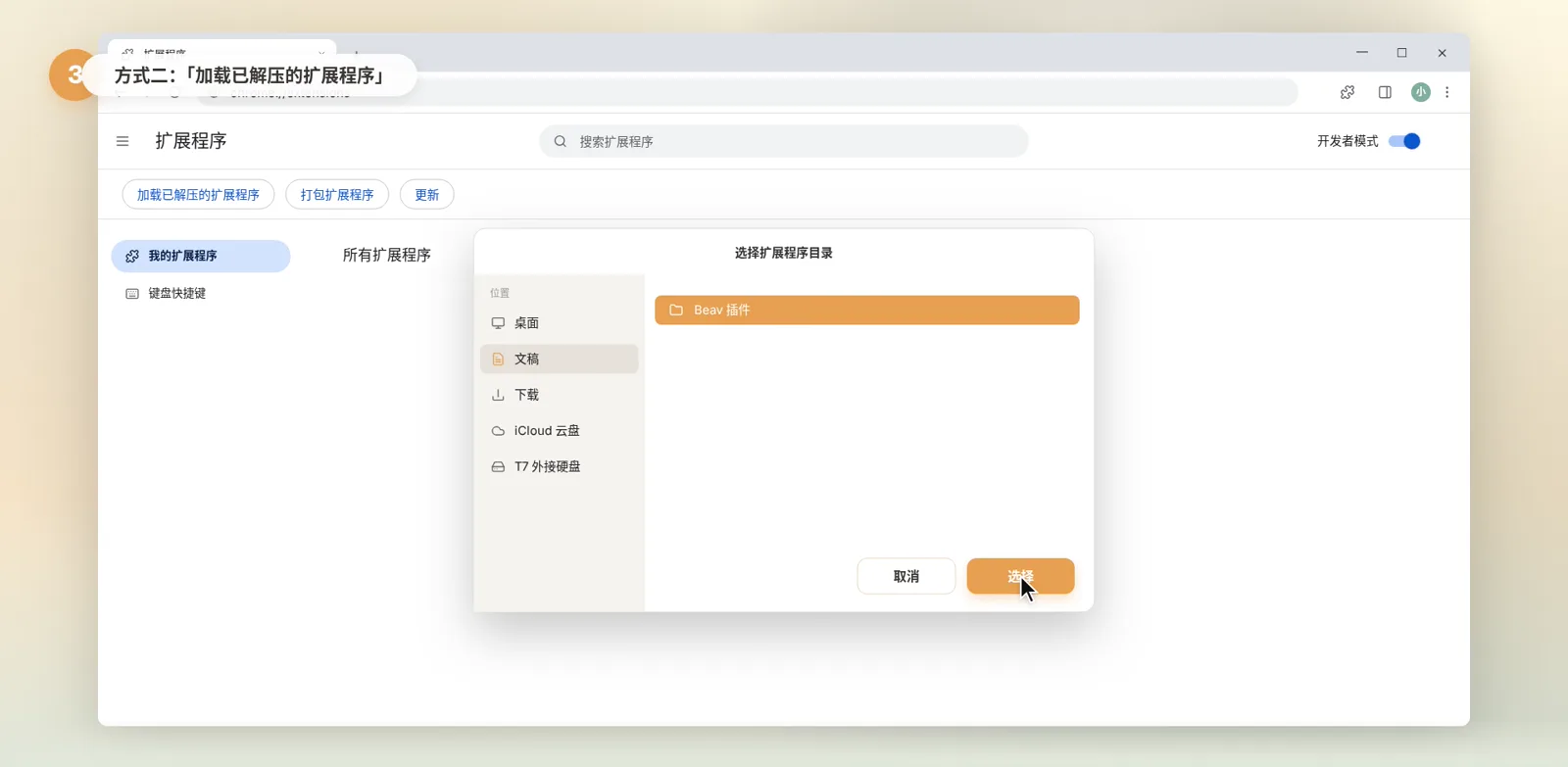
Step 2: Pin it and connect to Beav
Whichever way you installed it, click the puzzle icon and click the pin next to Beav to keep it on the toolbar.
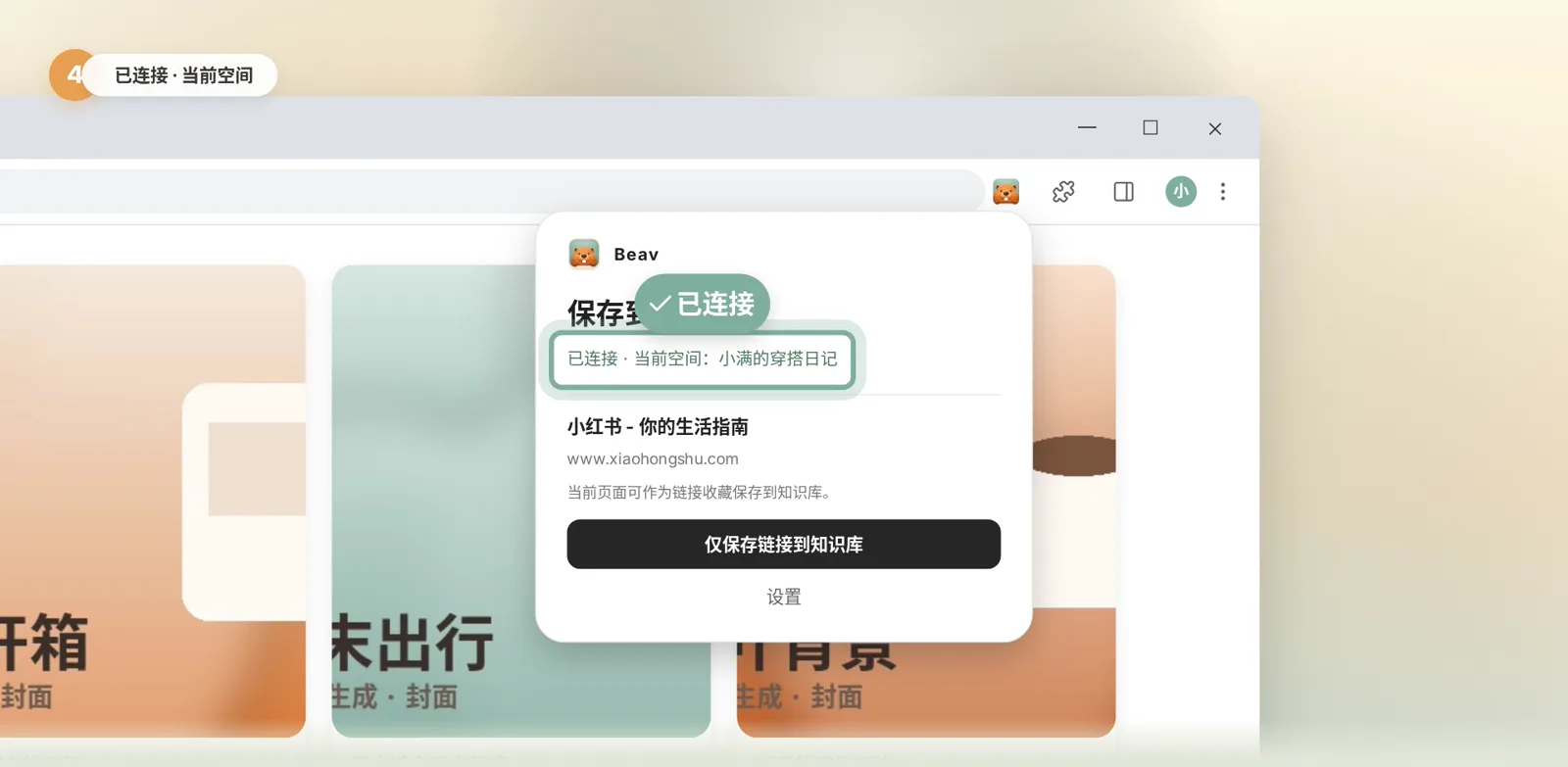
The extension works with the Beav app on your computer, so keep Beav open. Click the Beav icon on the toolbar and a small popup appears. Once connected, it shows "Connected" and the name of the current space. Everything the extension saves goes into that space.
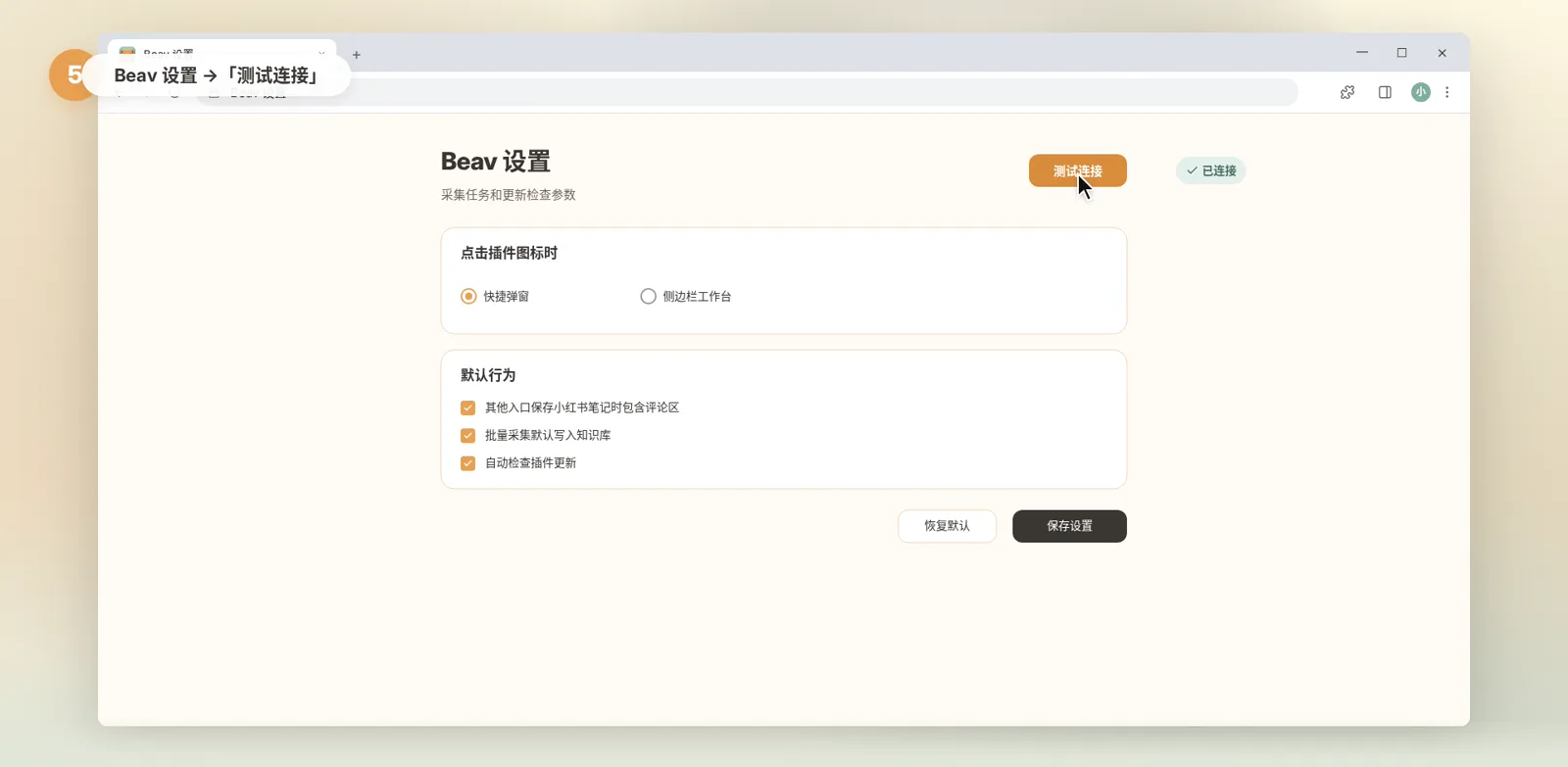
If it shows Not connected, open the Beav desktop app first. If that doesn't help, click Settings at the bottom of the popup and then "Test connection".
Step 3: Save your first RedNote post
- Open a RedNote post and click the Beav icon. The popup recognizes it as a post page.
- Tick "Save comments" (保存评论区) to keep the comments, so you can see what readers care about and ask.
- Tick "Break down after saving" (保存后拆解). Beav extracts the topic, structure, shots, filming script and original copy into your asset library. Breakdowns use credits.
- Click "Save RedNote post to knowledge base" (保存小红书笔记到知识库).
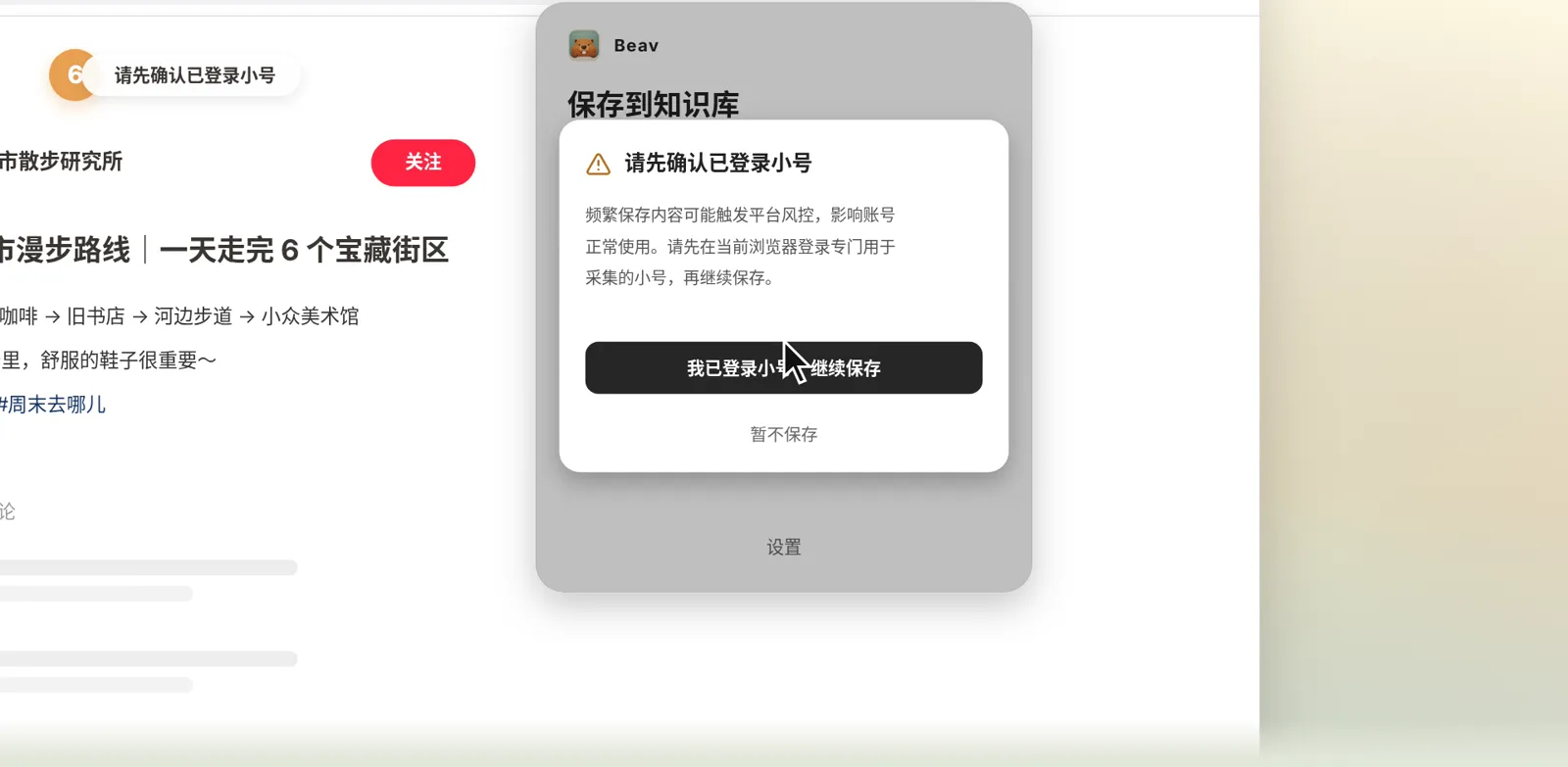
The first time you save, Beav asks you to confirm you're signed in with a secondary account. Saving often can trigger the platform's risk controls, so sign in to the browser with an account used only for collecting. Then click "I'm signed in with a secondary account, continue".
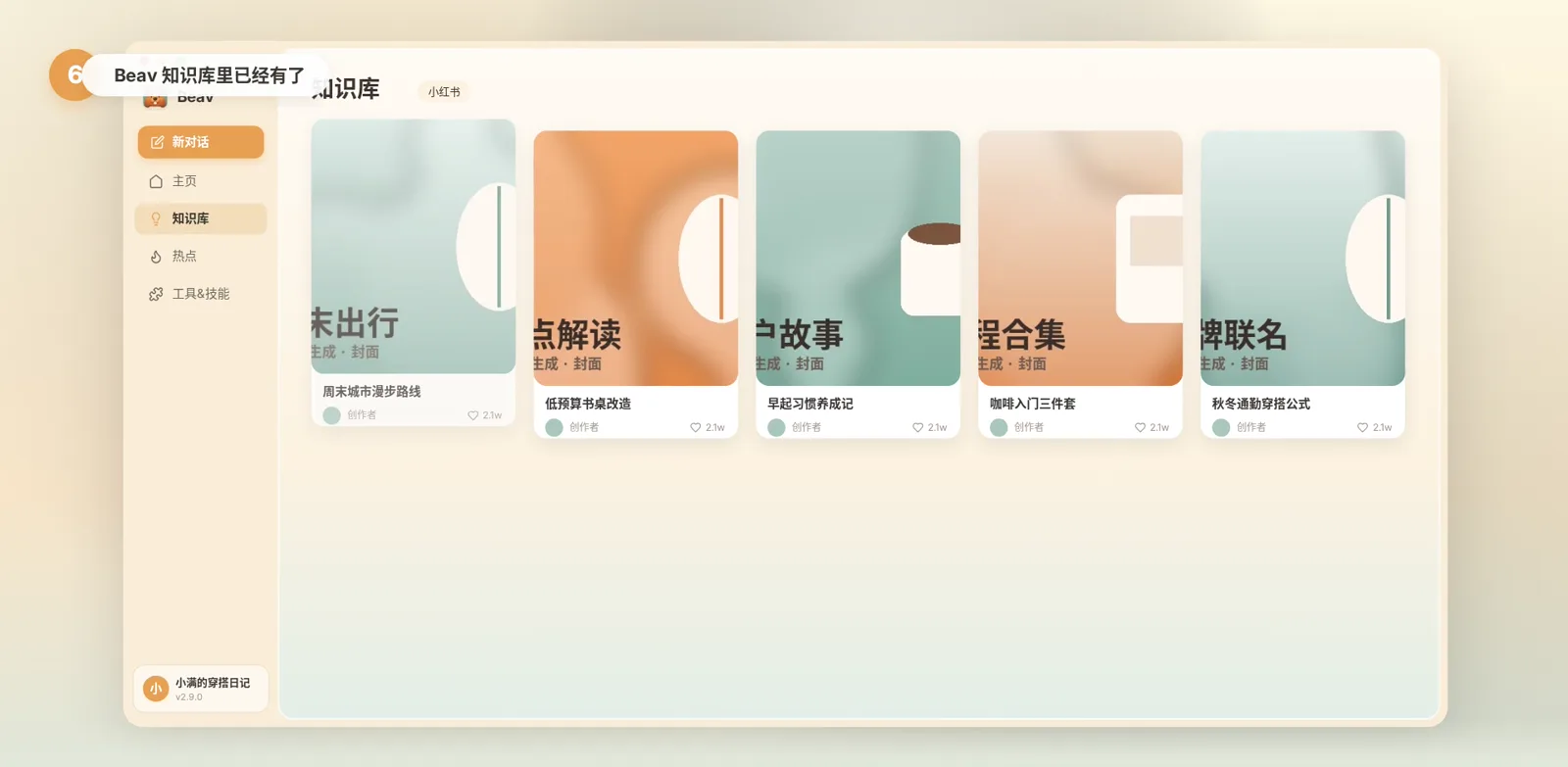
Back in Beav's knowledge base, the post is already there.
Other web pages: right-click to save
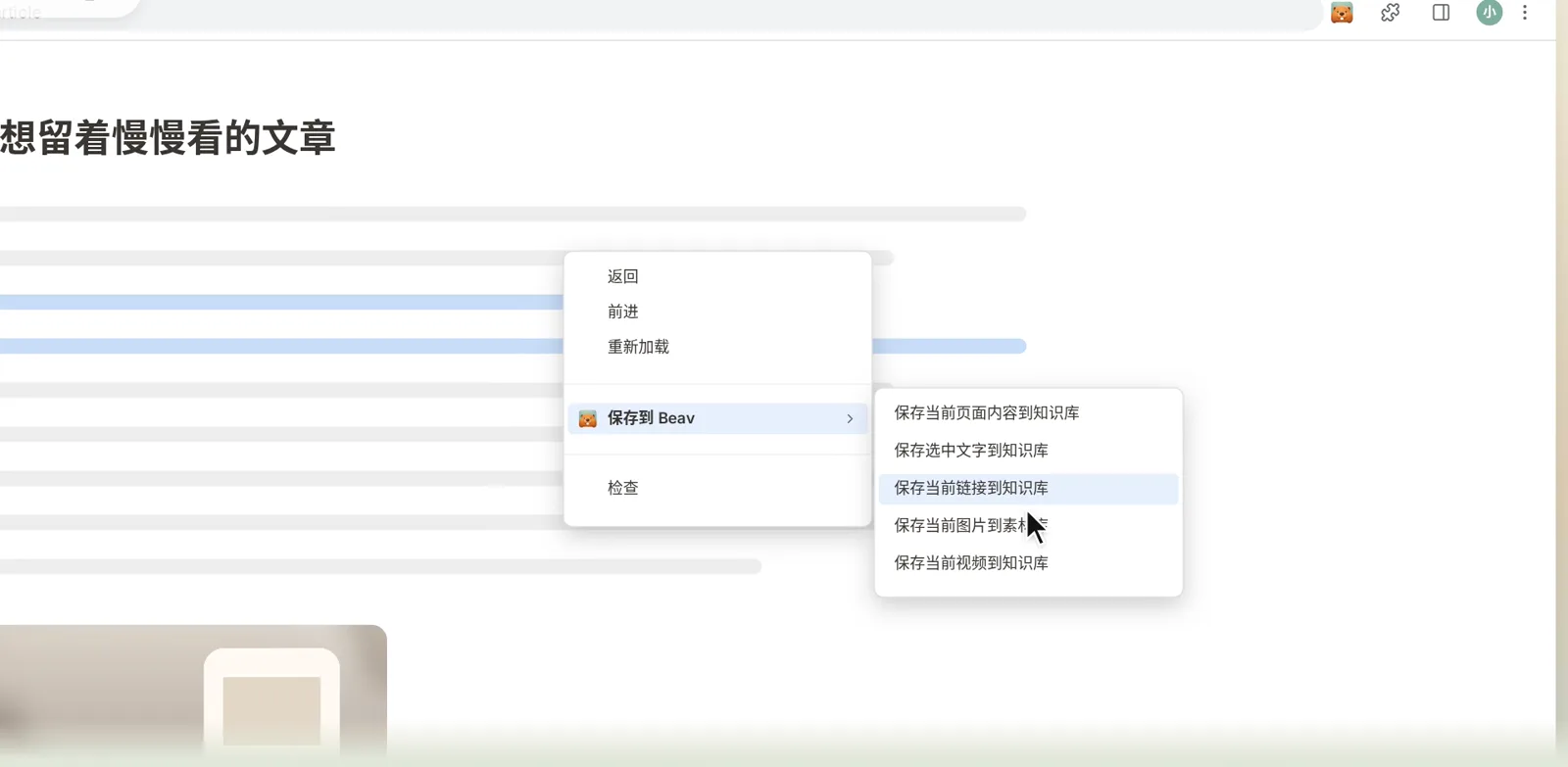
It works beyond RedNote. On any web page, right-click and choose "Save to Beav" to save the page, selected text, a link or an image.
Next episode
The extension is installed and connected. Next, take a tour of the knowledge base and see how to organize and use what you save: Beav Tutorial 03: Get around the knowledge base.
For more on the extension and fixing problems, see Install the Beav browser extension and Extension troubleshooting.