
Key takeaways
- Click the phone button at the top right of the knowledge base, scan the QR code with the phone on the same Wi-Fi, and click "Allow pairing" when the codes match. A pairing lasts 90 days.
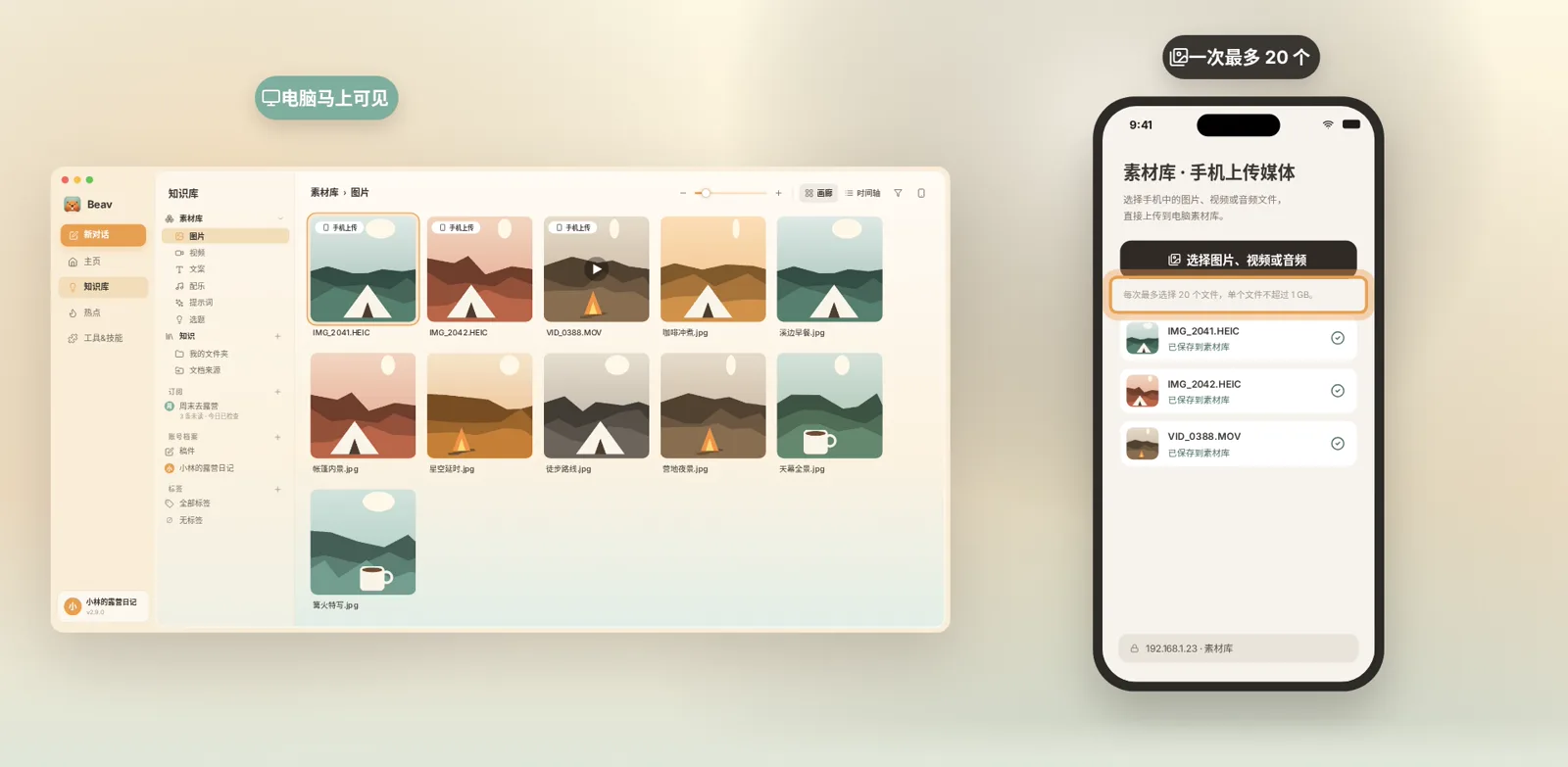
- Paste a post link on the phone and tap "Submit" to save it to the computer's knowledge base. Upload up to 20 photos or videos from the album at a time.
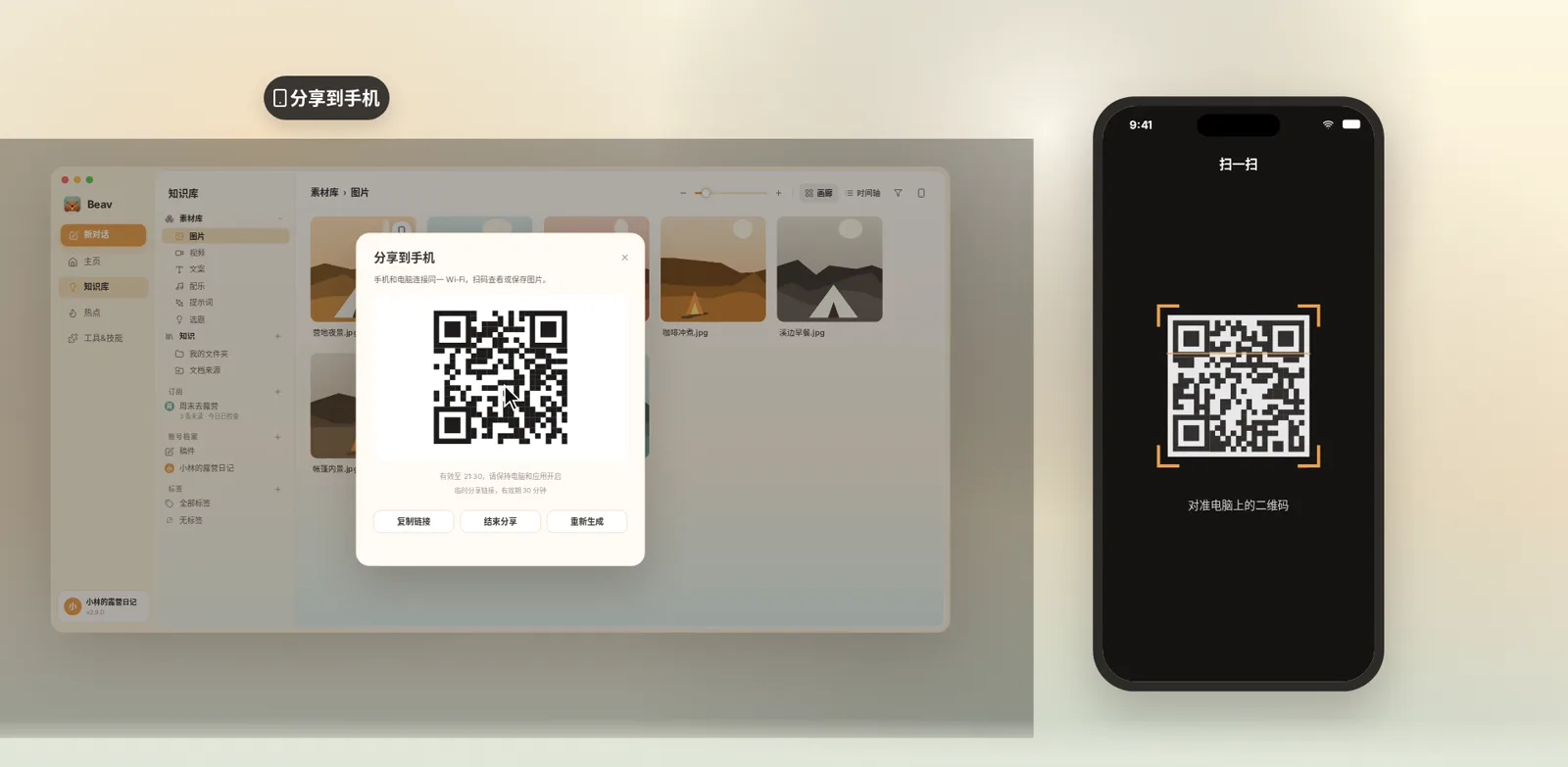
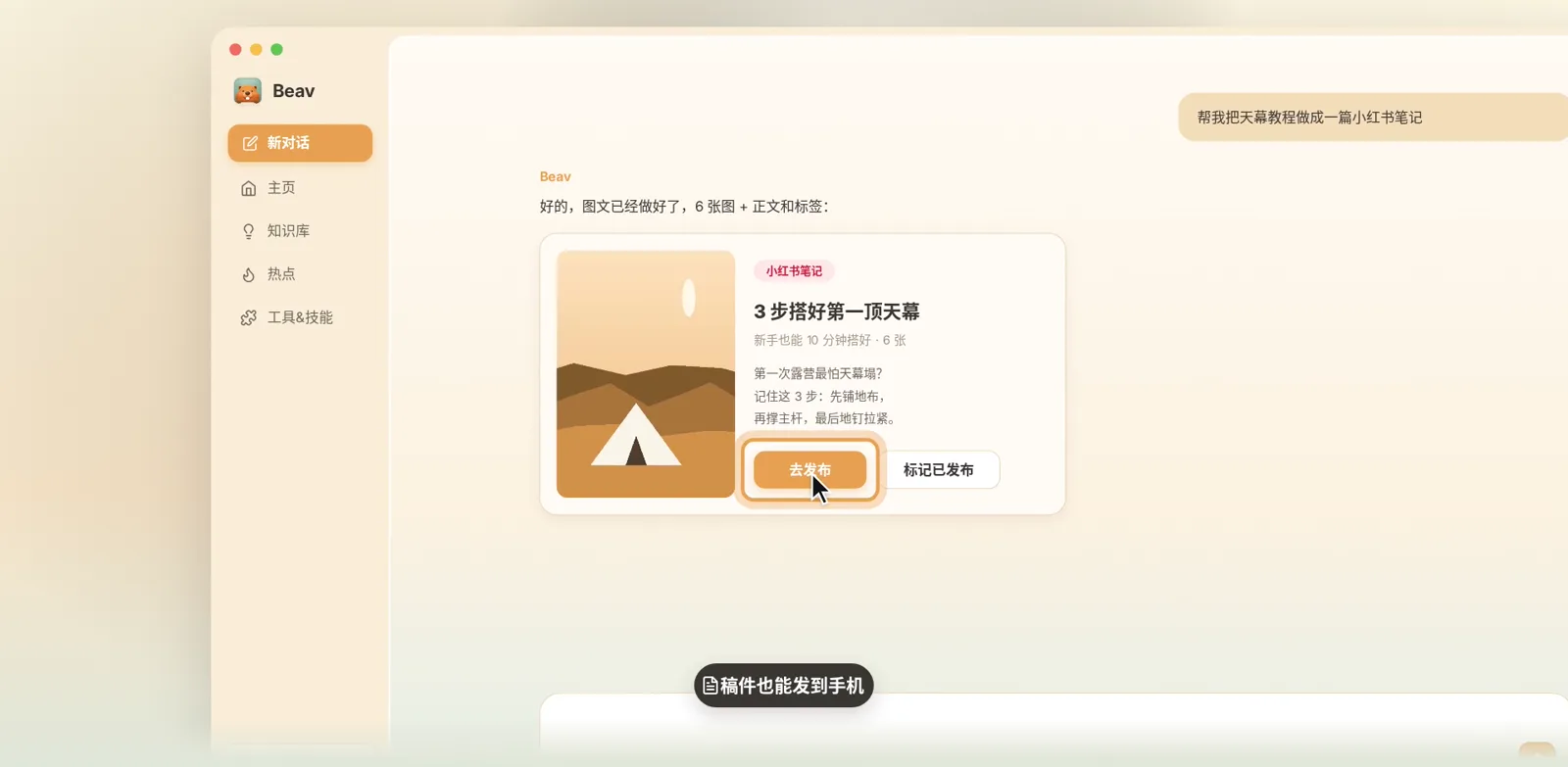
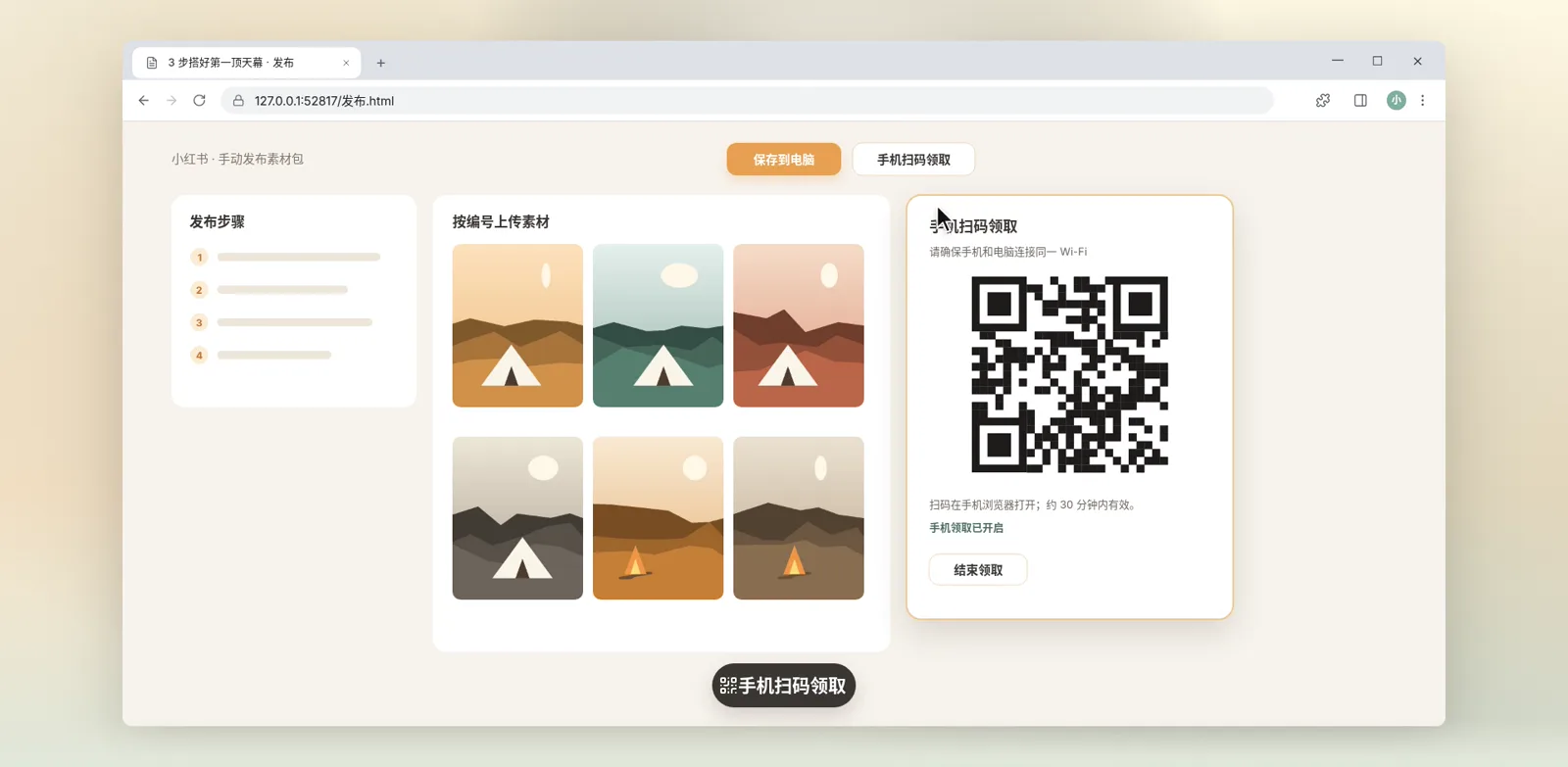
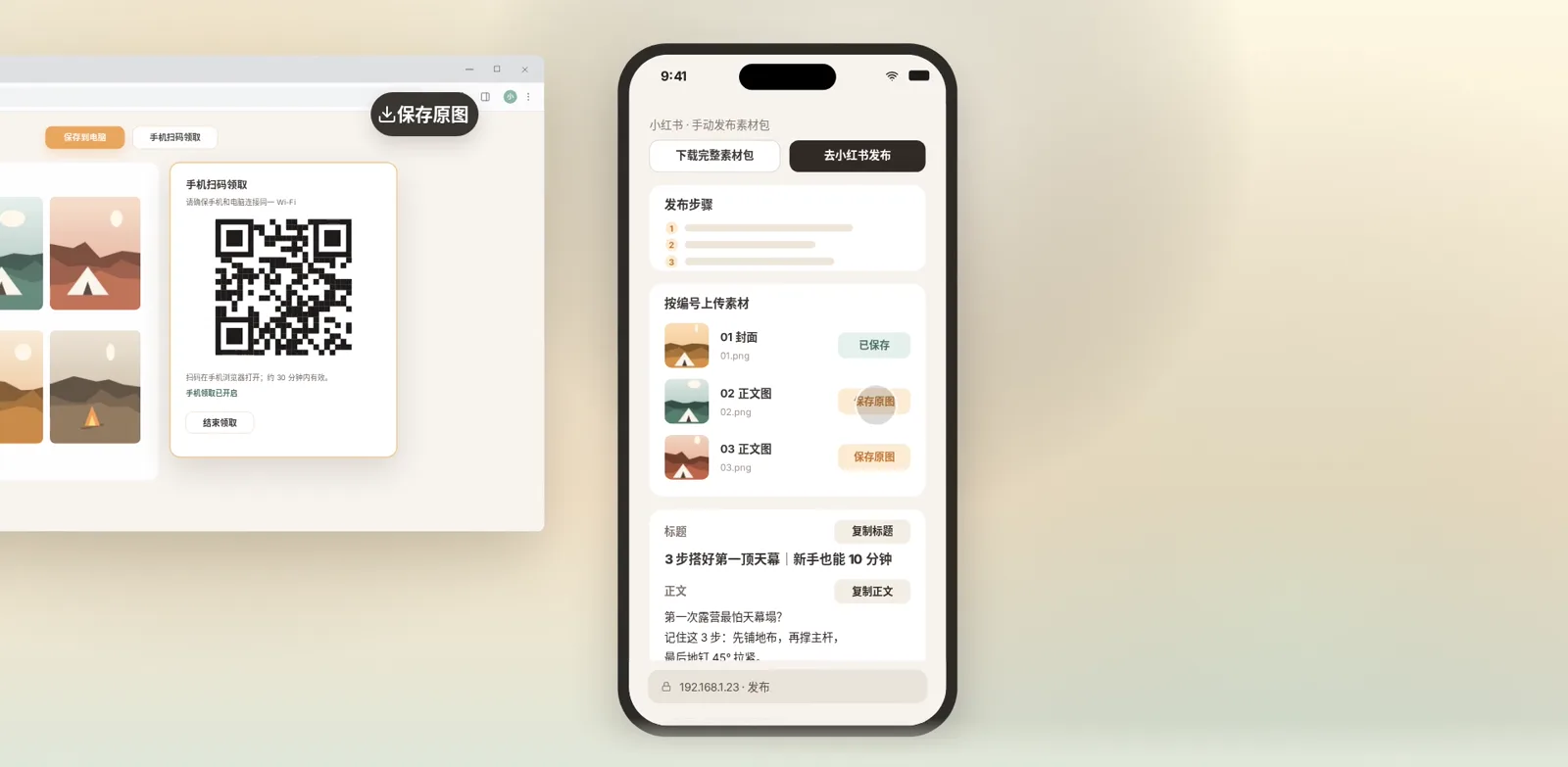
- "Share to phone" on an asset card, or "Publish → Scan to pick up" on a draft card, lets the phone save the original images and copy the title, body and tags.
- Make content on the computer, post from the phone. For several accounts, give each space its own phone, paired separately.
Episode 4 connects your phone and computer. A lot of good content is found on the phone, and finished posts are published from the phone too. This episode joins the two ends.
The video is narrated in Chinese with Chinese subtitles, and the screenshots show the Chinese interface. Beav displays in your system language, so the English labels are given below, with the Chinese label in brackets where it helps you match the screenshot.
Step 1: Pair your phone and computer
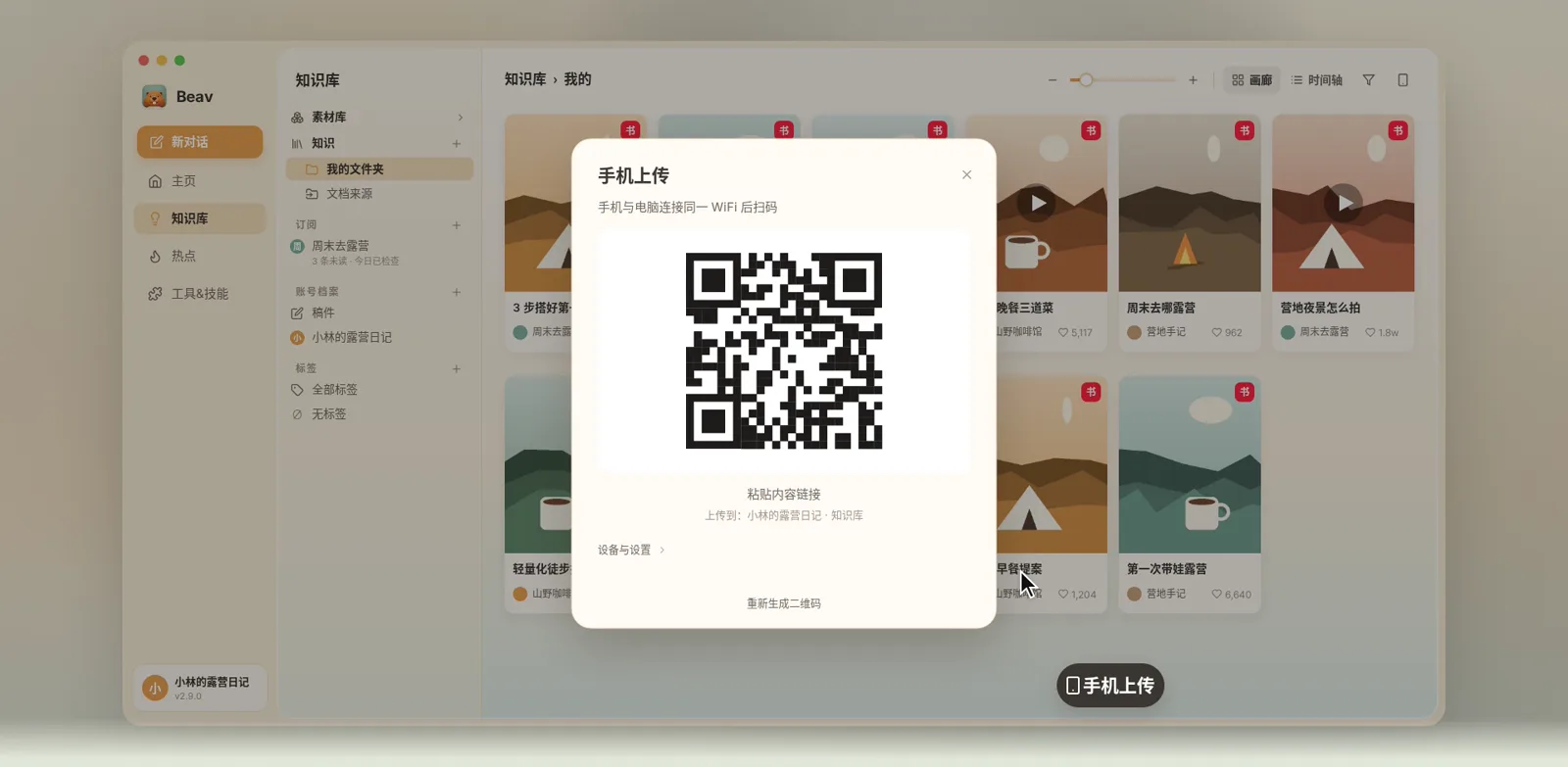
- In the Beav knowledge base, click the phone button at the top right. A QR code appears.
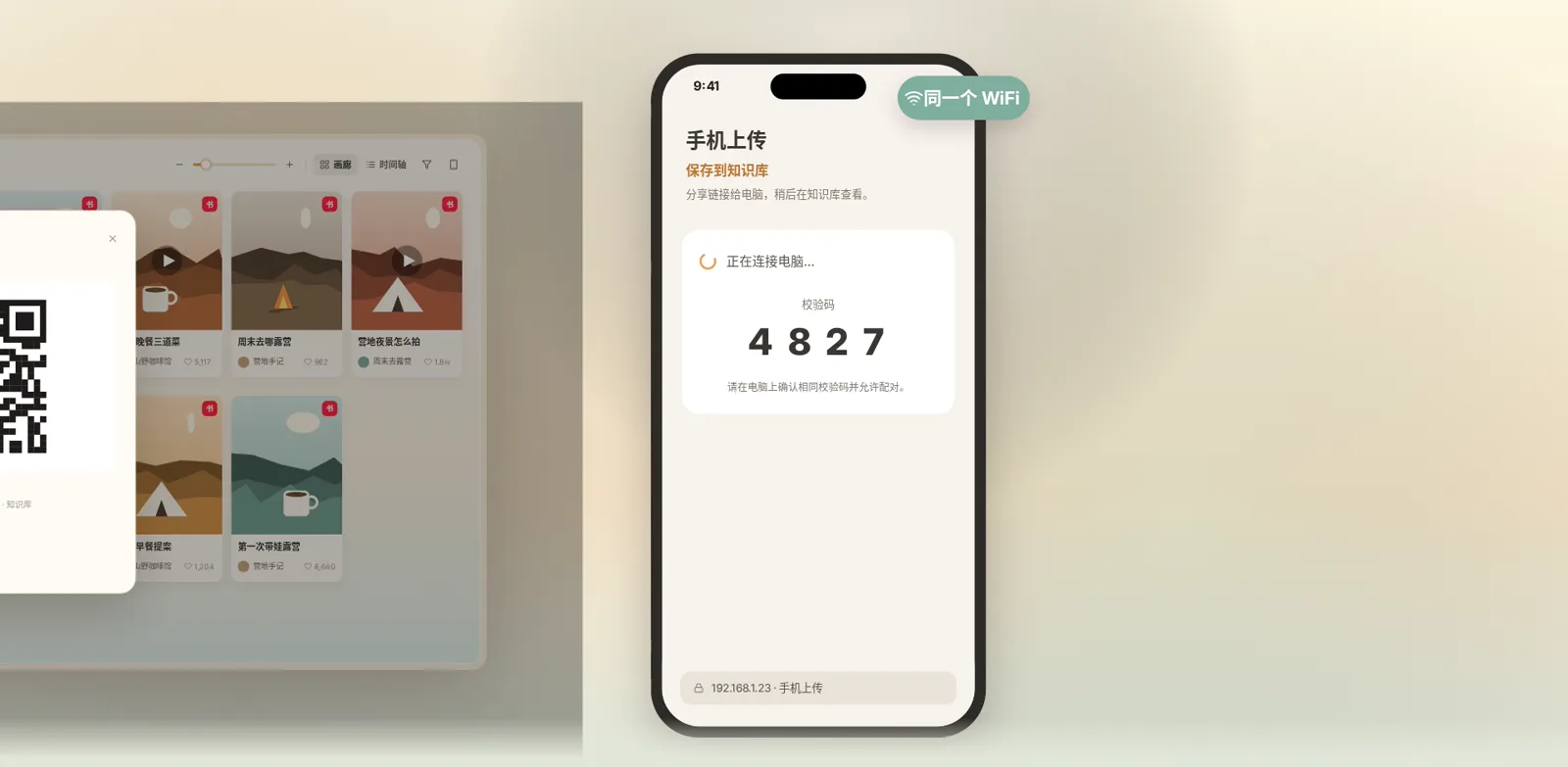
- Connect the phone and computer to the same Wi-Fi and scan the code with the phone.
- A verification code appears on the computer. If it matches the phone, click "Allow pairing".
One pairing lasts 90 days.
Step 2: Send content from the phone to the computer
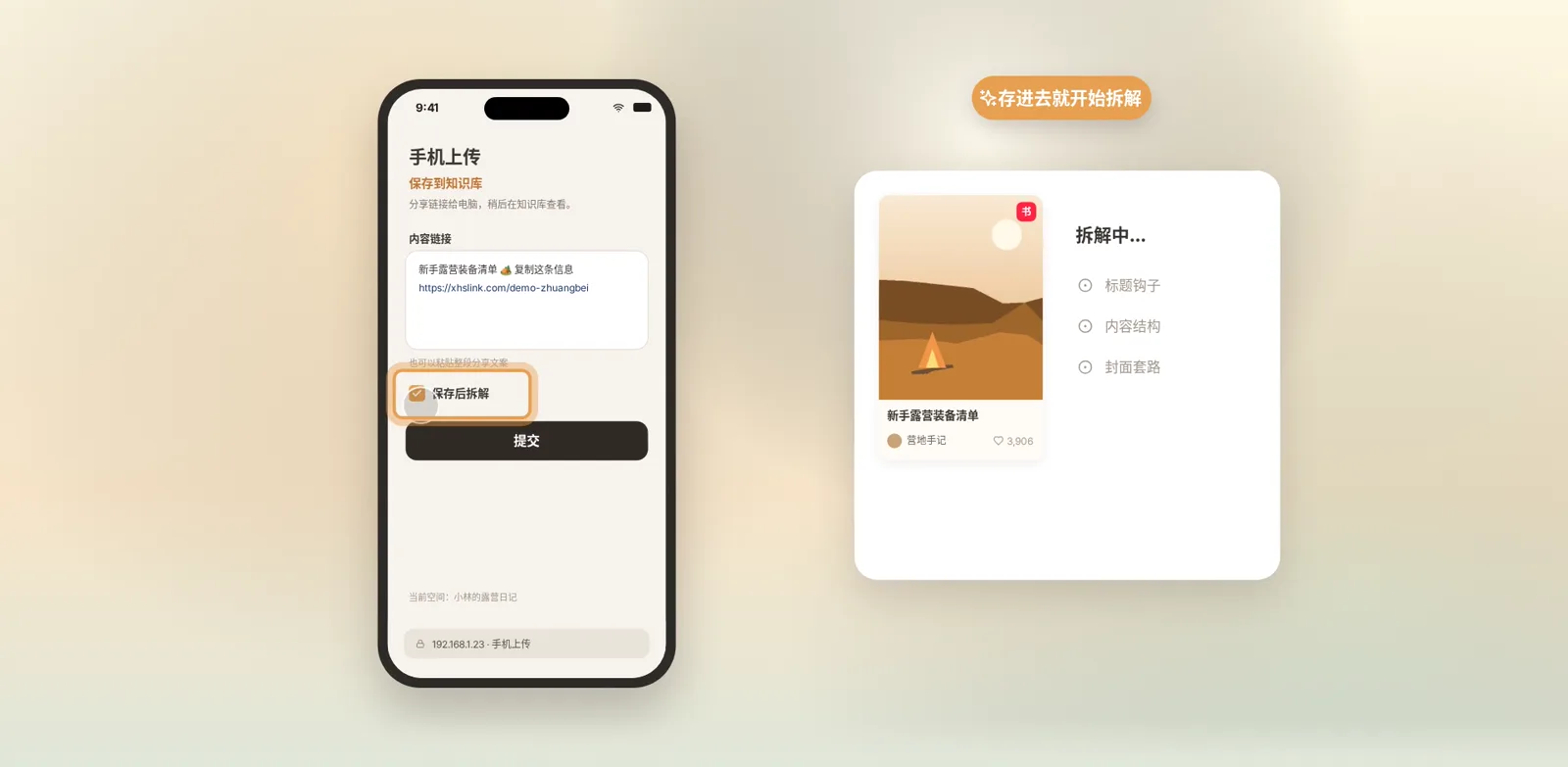
Paste a post link
Paste a post link on the phone and tap "Submit". It's saved to the knowledge base on your computer. Tick "Break down after saving" before submitting and the breakdown starts as soon as it's saved.
Upload photos and videos
Photos and videos in your phone's album can go straight into the asset library. Pick up to 20 files at a time; they show up on the computer as soon as they finish uploading.
Step 3: Send things from the computer to the phone
It works the other way too.
- Assets: click "Share to phone" on an asset card to get a QR code. Scan it with the phone to save the original image.
- Videos: the same way. Scan to play or download on the phone.
Send a finished draft to the phone
Finished drafts work the same way:
- On a draft card in the chat, click "Publish" (去发布) to open the publish page.
- Click "Scan to pick up on phone" (手机扫码领取).
- On the phone, save the images in order and copy the title, body and tags in one tap, then post on RedNote (Xiaohongshu).
Why post from the phone?
Batch posting from a computer is easily flagged by the platform as automated. Several posts in a short time from the same computer look abnormal. At best your reach is throttled; at worst the account is banned, and all the work that built it is gone.
Posting from a phone is a real person posting normally, which is much safer. So we recommend: make content on the computer, post from the phone.
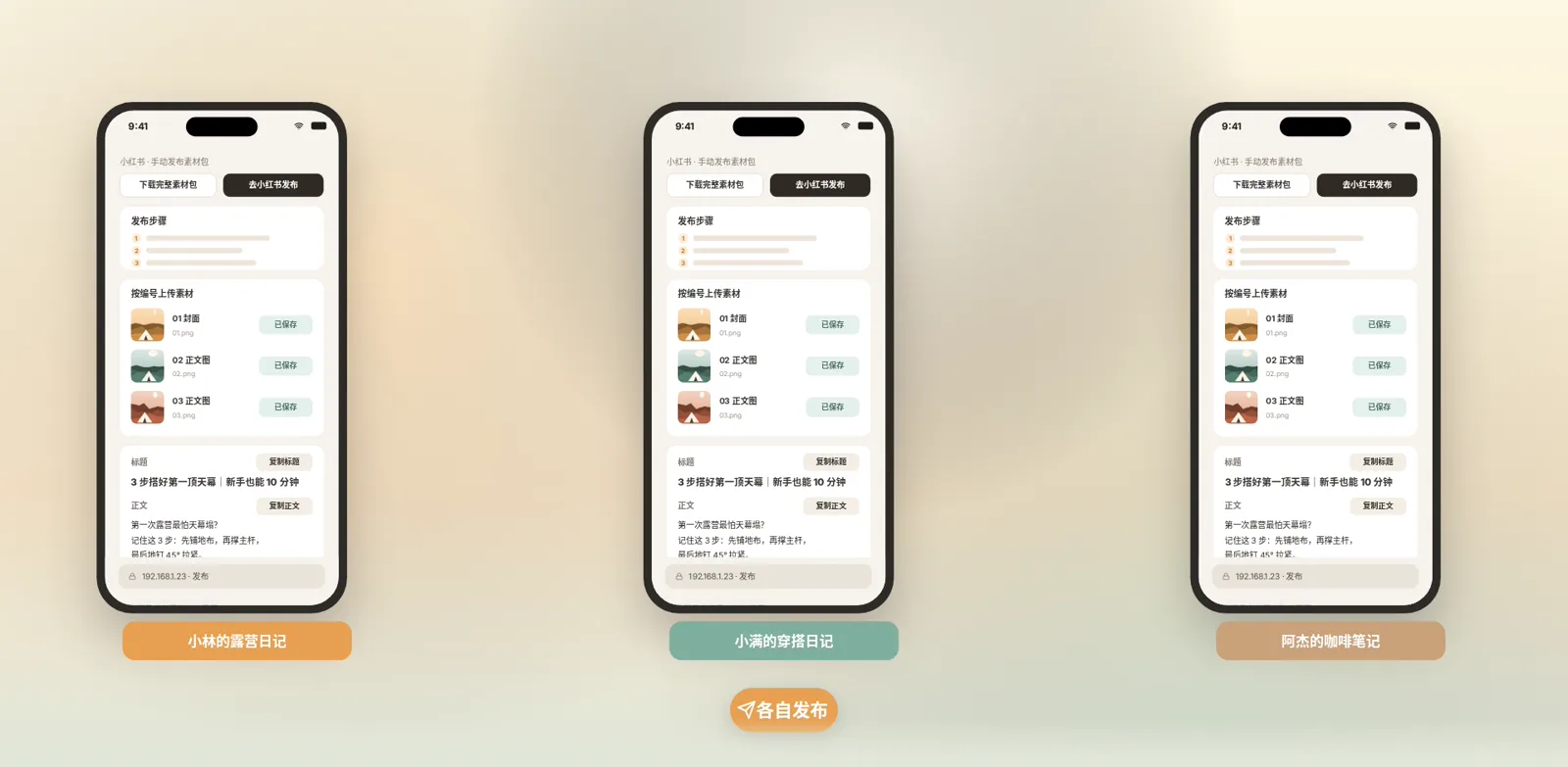
Several accounts: one phone per space
If you run several accounts, give each account space its own phone. One phone per account means the platform sees one normal, real user.
Pair each space separately so each collects its own material and posts on its own, with no crossover between accounts.
Next episode
That's it for this episode; remember to pair your phone first. The next episode covers choosing topics.
For supported link platforms and pairing problems, see Upload note links from your phone and Share assets to your phone and drop files into Beav in the docs.