

Key takeaways
- In the Beav knowledge base, click + next to Knowledge Base, choose Add link, paste a YouTube video link and save. This only creates an entry awaiting download confirmation. Nothing has downloaded and no points have been charged yet.
- In the desktop app, choose a maximum of 360p, 720p or 1080p; the confirmation dialog shows the points quote for this download, and that figure is the one that counts. Once you confirm and the video is resolved successfully, the points are charged, and a later download failure is not refunded. Retrying asks you again. If you cancel, the entry stays.
- When the download finishes, the video sits on your own computer with its title, description and cover. You can preview it, it's transcribed automatically, and you can click Decompose later if you want to take it apart.
YouTube is where a lot of creators go looking for ideas: tutorials, reviews and vlogs that are often half a step ahead. The usual ways to keep one are a click on Watch Later or a downloader that turns it into an MP4. The first grows into a list of hundreds you'll never get through. The second leaves you with a folder of file names, and a month later you can't remember whose video each one was or why you kept it.
Beav saves YouTube videos into your reference library instead. The video downloads to your computer, and its title, description, cover and channel information come with it, in the same knowledge base as everything else you've collected. Your overseas references stop being scattered MP4s and become entries you can file, search and break down. This is the first step of building a material library.
Who it is for
- Creators and directors who find ideas on YouTube and adapt them for their own audience.
- People studying the pacing of YouTube Shorts for their own vertical videos on Douyin, RedNote (Xiaohongshu) or elsewhere.
- Teams who want overseas references and local material in one library everyone can browse.
How to use it
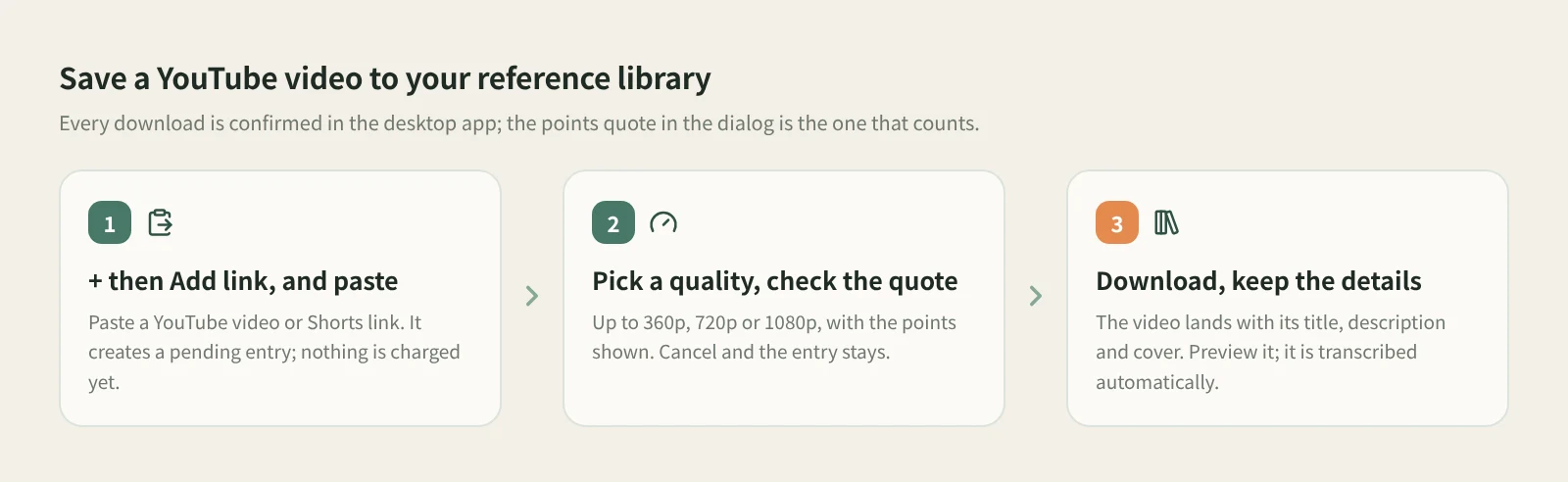
- Paste the link. At the knowledge base root or in a personal folder, click + in the title bar or next to Knowledge Base on the left, then Add link. Paste a YouTube video or Shorts link. You don't pick a platform. Click Save or press Enter.
- An entry awaiting confirmation appears. For YouTube, Save only means the entry has been created; the video hasn't downloaded. Content you already saved isn't saved twice.
- Pick a quality and check the quote. In the app's confirmation dialog, choose a maximum of 360p (Fastest), 720p (Recommended) or 1080p (Larger file). If the source doesn't reach your limit, Beav takes the best quality at or below it. The dialog shows the points quote for this download.
- Confirm, or leave it for later. Once you confirm, your computer downloads the video. If you're not ready, cancel; the entry stays in the knowledge base for you to confirm later.
- Wait for the download. Cards and details show the percentage and speed for the video and audio files separately, followed by merging and saving, so one file reaching 100% doesn't mean the whole thing is done. When it finishes you can preview the video, and it's transcribed automatically.
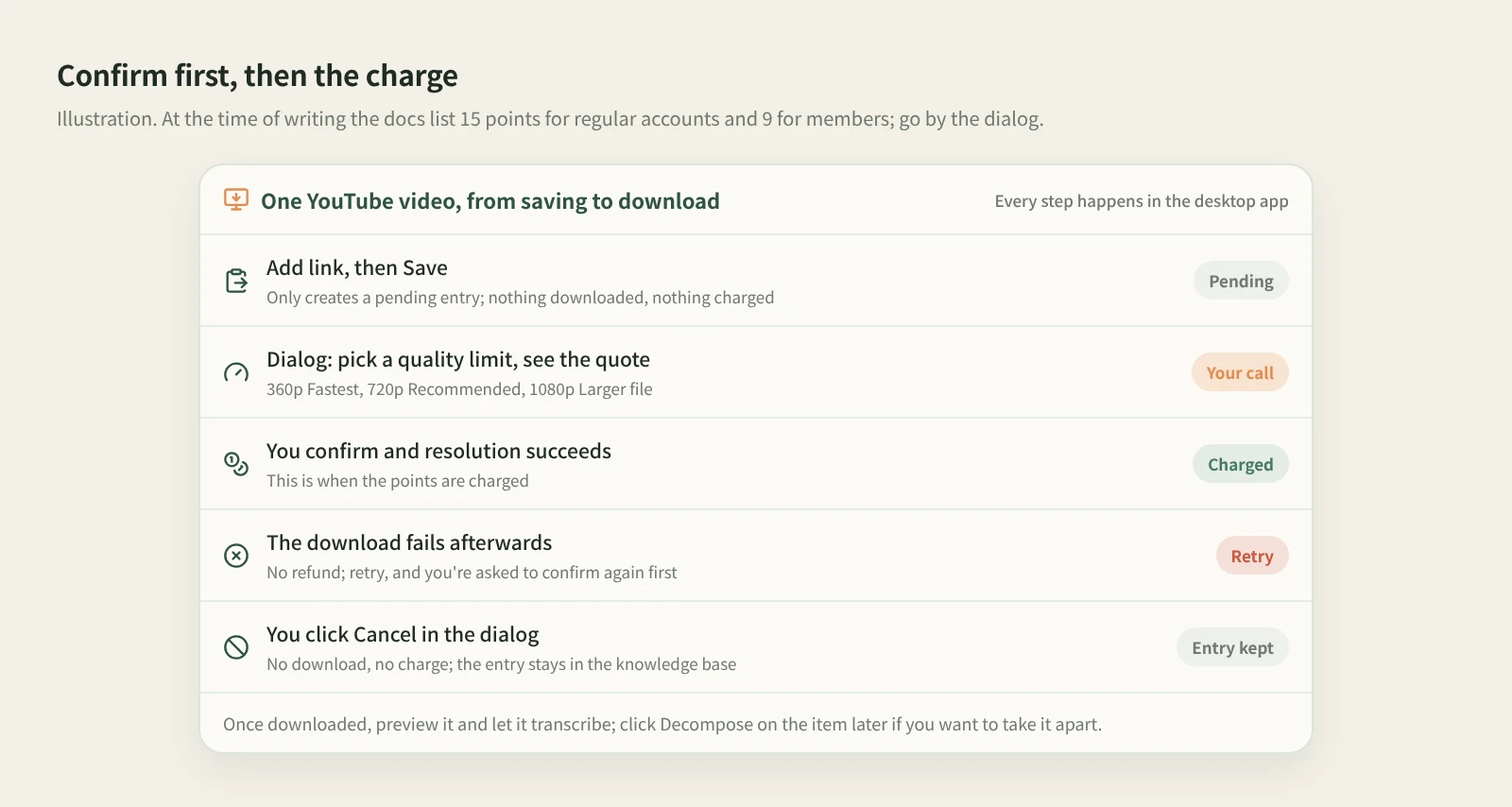
How do points work? Every YouTube download is confirmed in the desktop app, and the quote in the confirmation dialog is the one that counts. At the time of writing, the docs list 15 points for regular accounts and 9 for members. One thing to be clear about: once the video is resolved successfully, the points are charged, and a later download failure is not refunded. A failed entry can be retried, and you're asked to confirm again before each new attempt, so you always see what it will cost.
What do you keep? A knowledge base entry: the video file on your computer, plus the title, description, cover and source link, with the channel and view information on the card. This flow doesn't fetch YouTube's own subtitles; the text comes from local transcription after the download. Earlier entries and their subtitles are still readable.
Other entry points. Found something on your phone? Click Phone Upload in the desktop knowledge base, put the phone and computer on the same Wi-Fi, scan to pair and submit the YouTube link. It creates the same pending entry for you to confirm back at the computer. See phone and computer pairing. The browser extension can also save from a video page, with the same result. The Download from Links mini app can't package YouTube videos to This computer; YouTube only goes to the knowledge base.
Once a video is saved, you can take it apart: after the paid resolution and the download have both succeeded and the video is on your computer, click Decompose on the item yourself. The full flow is in saving, breaking down and rewriting YouTube videos.
How it compares with the usual ways
| YouTube Watch Later, saved playlists | YouTube Premium downloads | Downloader tools and sites | Beav reference library | |
|---|---|---|---|---|
| Effort to save | One click, the fastest | One tap with a subscription | Copy the link, download a file | Paste the link, pick a quality and confirm points in the app |
| What you keep | A record on YouTube | An offline copy inside the YouTube app | Usually just the video file | Local video, title, description, cover, source link |
| If the creator deletes it | Usually won't play | Usually won't play either | File remains; you track the source | The downloaded video and its details stay in your library |
| Quality and batches | Not applicable | Per Premium's rules | Lots of options, many handle batches | Up to 1080p, confirmed one at a time |
| Alongside your other material | Only inside YouTube | Only inside YouTube | Your own folders | Same knowledge base as every other platform, with folders, search and Decompose |
| Cost | Free | Premium subscription | Often free, or per the tool's terms | Points per download, as shown in the dialog |
If you just want to watch something later, Watch Later is the easiest. For offline viewing on a commute, Premium is the least hassle. For batches or higher quality, an off-the-shelf downloader is more flexible and often cheaper. Beav is for keeping YouTube as long-term reference: you want the source, the description and the text, not just a file, and you want it next to everything else you've collected so you can study it later.
Limits and notes
- One at a time, and each one is confirmed. Add link is not a bulk import, and quality tops out at 1080p. The entry is not shown in shared spaces, account profiles, subscription views or local source folders.
- The charge happens when resolution succeeds. A failed download isn't refunded, and retries ask for confirmation again. Prices can change; go by the dialog.
- Use a link to a single video or Short. If saving fails, the dialog keeps the link and shows the reason, so you can fix it and try again.
- Beav doesn't promise higher quality than the original, doesn't remove watermarks and never posts for you.
- Saved videos are for your own research. Ask the creator before republishing, commercial use or cutting their video into your own work.
Next steps
- To break saved videos down and rewrite them for your audience, read saving, breaking down and rewriting YouTube videos.
- To see which other platforms Add link handles, read one box for every platform. For why collecting matters at all, read the series overview, "Accumulation Is the Moat".
- Full reference: add a link to save a single post and save a YouTube video.
Applies to Beav desktop 2.9. Checked 2026-11-03.