
Key takeaways
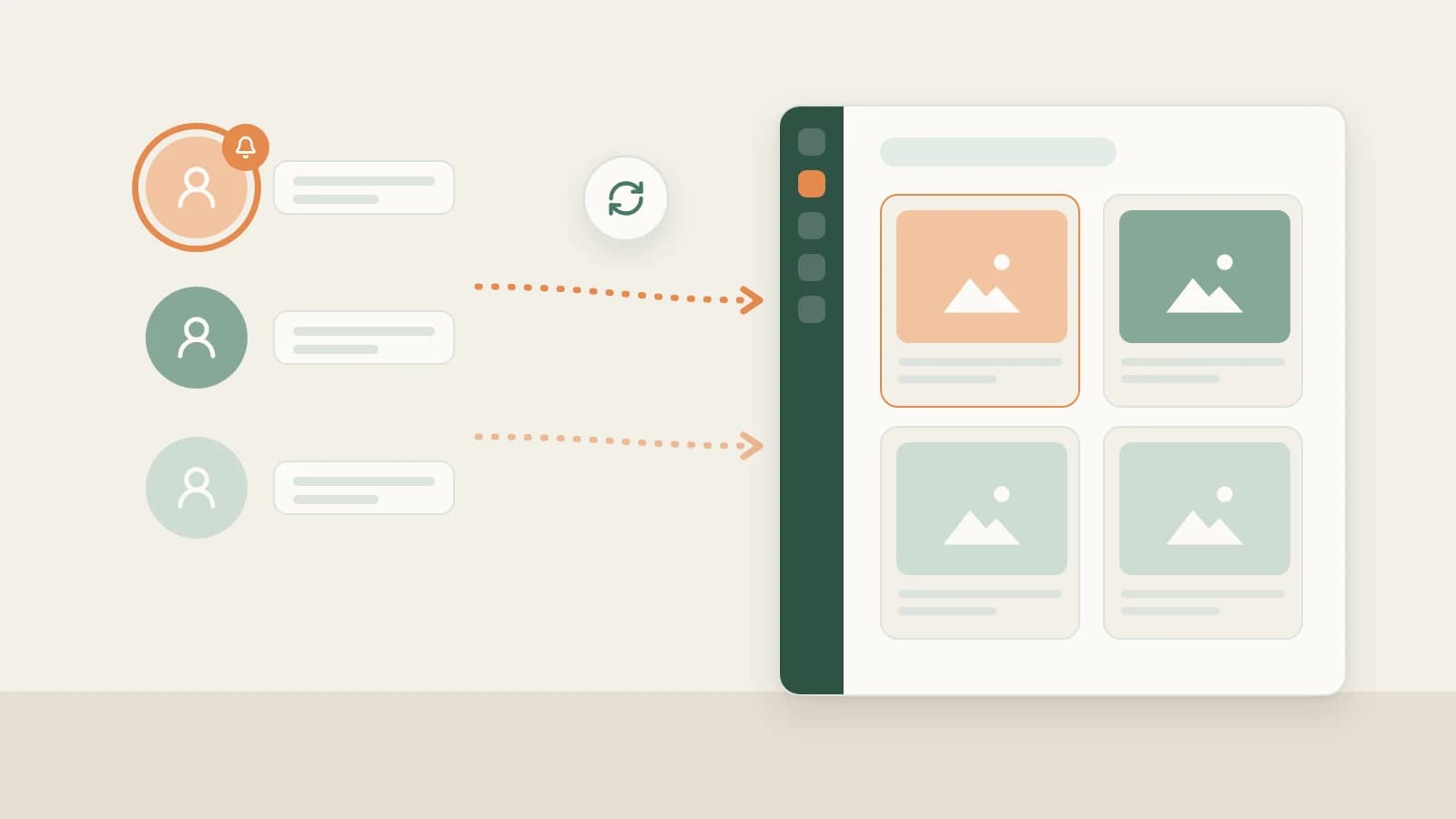
- Open Hotspots in Beav's left navigation and authorize NewsBing. The left column (For Me) ranks trends by fit with the current space's RedNote account profile, while the right column shows platform charts, including RedNote.
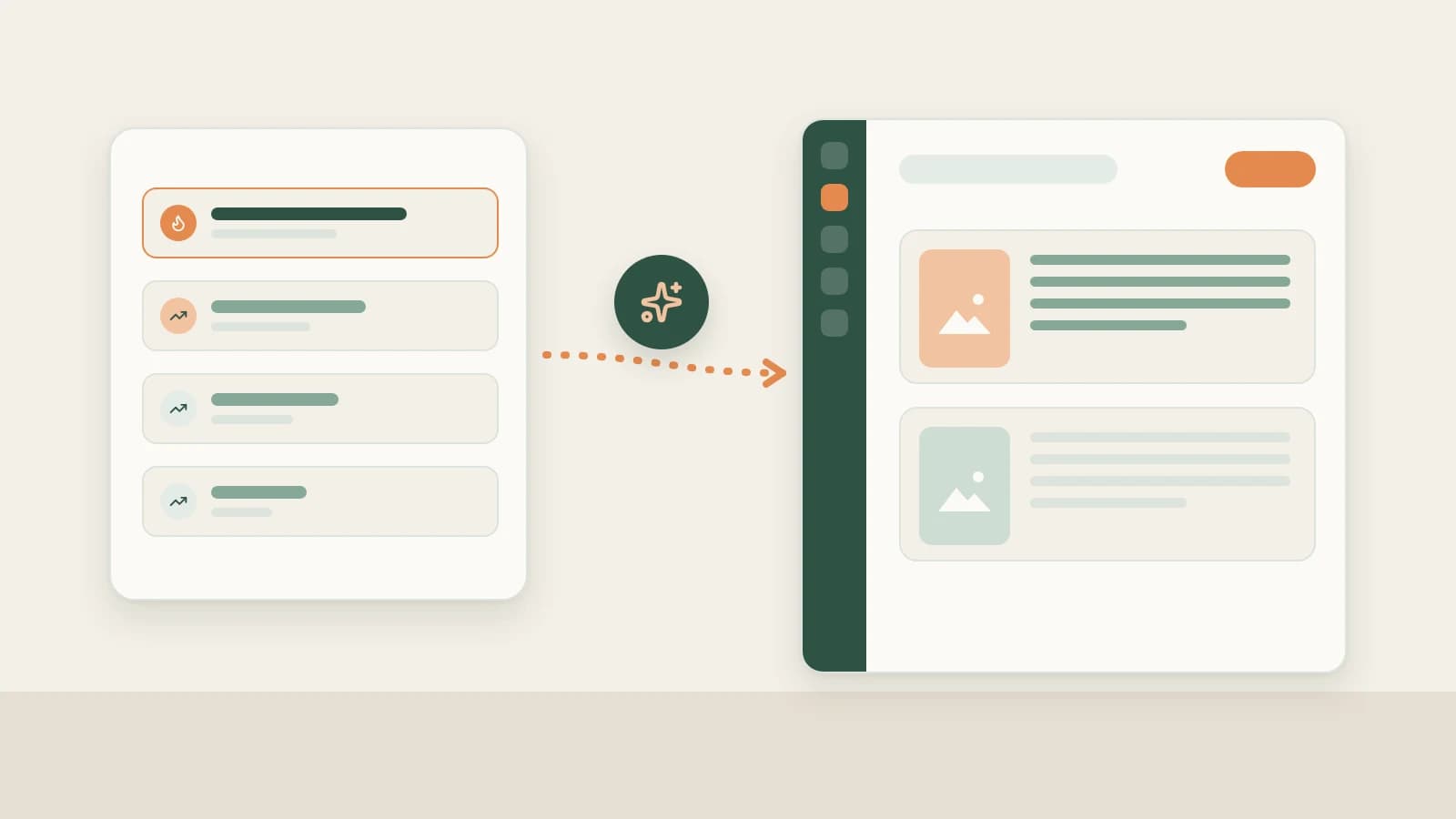
- Hover over a trend and click Discuss with AI. The AI checks the original sources first, then talks through note angles that suit your RedNote account without writing on its own.
- Save settled angles in Home's Topic pool, or click + on discoveries in the daily brief. Click Start creating when you are ready to turn one into a RedNote post package.
On RedNote (Xiaohongshu), the hardest bottleneck is rarely writing speed — it is deciding what to post today. Opening in-app trending searches fills your screen with celebrity news and general headlines that do nothing for a skincare, home design or career account, while scrolling your own feed mostly surfaces angles people have already covered.
Beav's Hotspots page turns that morning guesswork into three concrete steps: rank trends against your RedNote account direction, talk through note angles with the source attached, and keep the topic in your Topic pool so drafting and cover design pick right up from there.
Who it is for
- RedNote creators publishing regularly who want topics grounded in what fits their niche rather than random scrolling.
- Niche operators in beauty, home design, parenting, careers or education who need to decide fast whether a trending topic is worth covering.
- Teams running several RedNote accounts who want each account space to see its own relevance ranking.
How to use it
Start by confirming your current workspace is the RedNote account you want topics for. For Me ranks trends against the active space's profile, so clearer positioning produces more useful suggestions; see Account Plan.
- Authorize NewsBing. Open Hotspots in Beav's left navigation. On first visit, click Go to Authorization, sign up or sign in to NewsBing in your browser, and click Authorize Beav. The page tries to jump back to the desktop app; if it does not, copy the authorization link shown on the page and click the fallback link on Beav's Hotspots screen.
- Check For Me first. The main list opens on For Me, combining popularity with estimated relevance to your RedNote account profile. Scores and stars help you pick direction, and hovering over a score shows how much comes from popularity versus relevance. Switch to Overall Popularity when you want raw volume order.
- Cross-check the RedNote chart. Platform cards on the right show individual platform charts, including RedNote. Click a trend in the main list to pull matching platform cards to the front and highlight them; click again to clear. An orange Rising badge marks 3–4 platforms discussing the topic, and a red Viral badge marks 5 or more. Click a source or platform item to read the original post.
- Open Discuss with AI. Hover over a trend and click Discuss with AI. Beav starts a new chat with the trend and available sources. The AI reads the sources first, then works through angles for your RedNote account. Ask directly whether the topic suits a carousel note or a short video, or what hook to put on the first cover card.
- Keep the angle in the Topic pool. Back on Home, type your chosen angle at the top of the Topic pool and press Enter, or paste several lines at once. Each entry offers Continue discussion, Start creating and Discard. In library mode, the button on each trend is Save as topic, saving the headline and source links in one click.
Another morning route: the daily brief. At 09:00 local time each day, Home generates your daily brief. Today's discoveries groups notable news, trends worth chasing and hit posts to learn from; clicking + adds an item straight into your Topic pool. Even without NewsBing authorized, the daily brief pulls public trends that require no key. See daily ops report.
Connect your reference library and comment insights alongside trends:
- Mine your reference library & Topic Radar: pick grounded candidates in Creation → Topic Radar, start a chat with RedNote → Find topics, or drag 3–5 saved notes into one chat to distill audience pain points without copying. Manual Decompose runs also collect extracted topics under Asset Library → Topics. See RedNote reference library topics.
- Turn real reader questions into angles: capture RedNote posts with Save comments checked in the browser extension, then click Comment insights on the saved item to spot recurring doubts and objections. See RedNote comment insights.
- Track benchmark creators daily: subscribed accounts bring new posts into your local timeline automatically so you spot emerging directions early—see RedNote competitor tracking.
From a topic to a finished RedNote post
A topic is only the starting line. Click Start creating in the Topic pool to gather reference cards and lock a structure; asking the AI to prepare a RedNote post package produces caption copy, tags and matching image cards ready to review and share to your phone — see RedNote post package. For 3:4 bold-headline or comparison covers, see RedNote 3:4 cover generation.
How it compares with RedNote search and trend aggregators
| RedNote in-app search trends | General trend aggregators | Beav Hotspots | |
|---|---|---|---|
| What you see | What RedNote users are searching right now | Many websites' charts on one page | Overall trends plus platform charts including RedNote, via NewsBing |
| Ranking | Platform's own rules | Each chart's default order | Estimated fit with your account plus popularity, or Overall Popularity |
| Fit with your account | You judge manually | You judge manually | Scored against the active space's profile |
| Next step | Brainstorm and jot notes yourself | Brainstorm and jot notes yourself | Discuss with AI with sources attached, then saved in the Topic pool |
| Setup | Open the RedNote app | Browser or app | Beav desktop app plus NewsBing authorization |
In-app search trends stay closest to real-time RedNote search behavior and live comment threads, and trend aggregators are quick to scan on a phone with zero setup. Beav Hotspots handles what comes next: deciding whether a trend actually fits your RedNote account, verifying the original source before drafting, and keeping settled topics next to your library.
Limits and notes
- Hotspots requires NewsBing authorization. Without it, rankings are not displayed on the Hotspots screen.
- Relevance is not fact-checking. Scores are estimated from titles and your account profile only. Always open and verify the original source before citing specifics; if a source cannot open, do not write from the headline alone.
- Notice the update time on failed refreshes. If a refresh fails, Beav keeps the previous list; use the refresh icon on the right of the window title bar when you want an immediate update.
- Switch spaces before doing another account's topics. Rankings follow the active space's profile, so switch via the bottom-left account menu first.
- Follow platform rules and factual accuracy when covering news, people or brands.
Next steps
- Keeping topics and assets strictly separated across several RedNote accounts? Read RedNote multi-account management.
- For the platform-agnostic walkthrough, read use trending lists to find topics and Topic pool.
- For the full RedNote workflow, see the RedNote AI operation guide, or check the docs on Hotspots and Topic pool.
Applies to Beav desktop 2.9 and later.