

Key takeaways
- The Topic pool sits on the Beav home page. Type an idea in the box at the top and press Enter to save it, or paste several at once.
- News, trends and hits you like in the daily brief land in the pool when you click Add to Topics. In library mode, the button next to a hotspot is Save as topic.
- Each topic has Continue discussion, Start creating and Discard. Topics live in the same workspace as your sources and drafts, so one click starts the work.
Ideas show up at odd moments: a trending topic while scrolling, a competitor's post that took off, an angle that comes to you in a meeting. Most people drop them into a notes app, or the team keeps a spreadsheet or a Notion content database. The idea is saved, but on the day you want to write it, you copy it out, go hunting for the post that inspired it, and then open whatever you write in. If any of those steps stalls, the idea just sits in the list and goes stale.
The Beav Topic pool closes that gap: your ideas live where you make the content, next to your asset library, knowledge base and drafts. When you're ready, click Start creating without switching tools.
Who it is for
- Creators who need new ideas every day and keep losing them across notes and chat threads.
- People already using the Beav daily brief or Trends page who want the picks they like in one place.
- Anyone with a long list of ideas and few finished posts, who wants "write it down" and "start writing" to sit closer together.
How to use it
Install the Beav desktop app and open the workspace you want to use. The Topic pool is on the home page, alongside Today's Plan, the daily brief and Recent output.
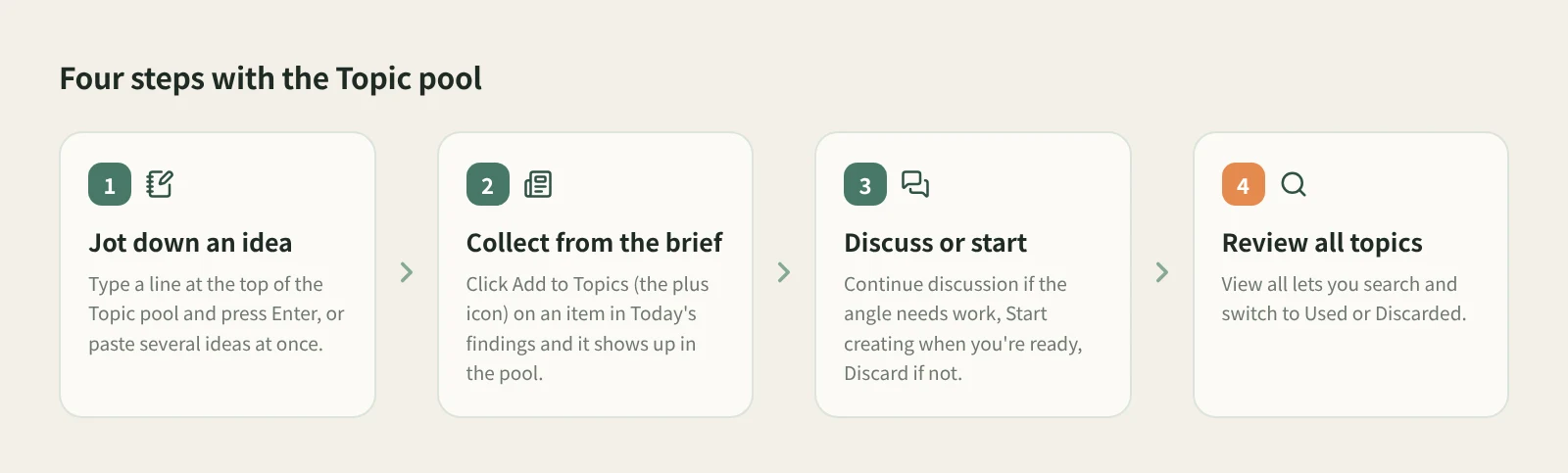
- Jot down an idea. Type a line in the box at the top of the Topic pool and press Enter. If you've built up a list in your phone's notes or a chat, copy the whole block and paste several ideas at once instead of typing them one by one.
- Collect topics from the daily brief. Today's findings in the brief is grouped into News worth watching, Trends worth following and Hits worth learning from, and each item has Add to Topics (the plus icon) on its right. Click it and the topic appears in the pool. When you preview a source through a link with an arrow, you can add it as a topic from there too. For how the brief is built, see the daily ops report.
- Save hotspots in library mode. If you've switched Beav to library mode, Discuss with AI in the hotspot list becomes Save as topic. One click saves the hotspot title and its source links as a topic.
- Move one forward. Each topic has three buttons on the right: Continue discussion when the angle still needs work, Start creating when you're ready (a topic you've already started shows Continue creating), and Discard when you've decided against it.
- Look back at everything. Click View all in the Topic pool to open all topics. You can search, and switch to Used or Discarded. By default it only shows topics still in the pool, so discarded ones stay out of the way but can still be found.
Also, when you break down a video or post, the topic in the result is saved to the topic center too, and you can see it under the Topics category in the asset library.
Where topics come from and where they go
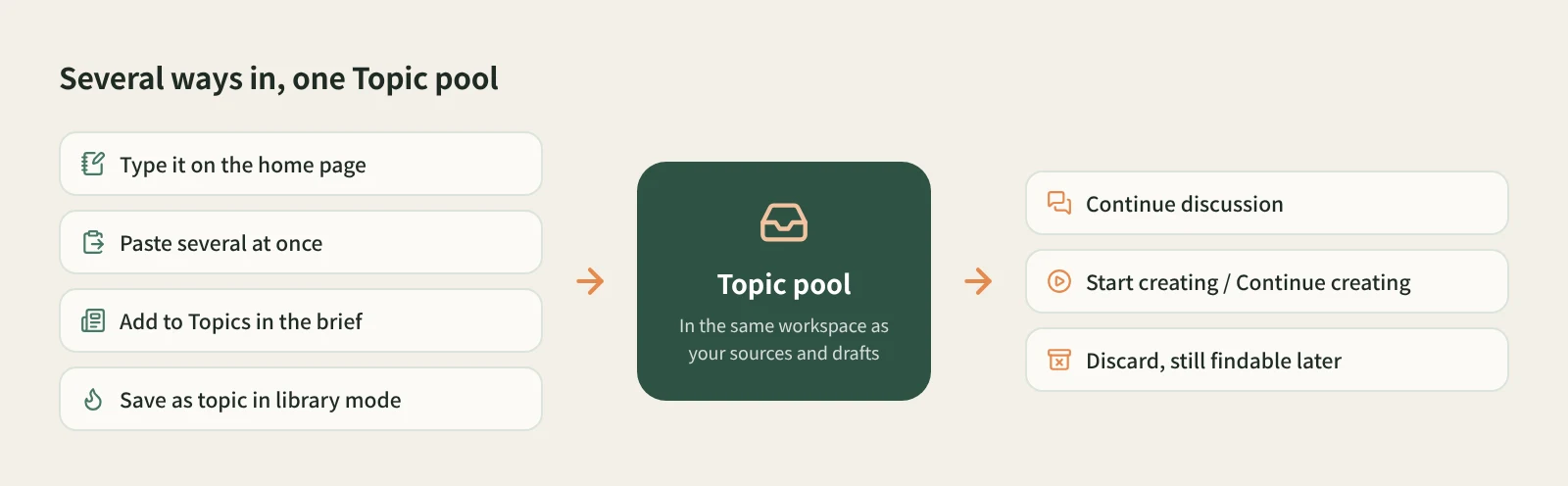
The pool is more than a list. Today's Plan in the brief combines your account plan, preferences, topics, existing drafts and recent chats to suggest tasks you can do today, so the topics you collect are part of what it works from. To see how plan items are confirmed and reviewed, read Today's Plan and review cards.
How it compares
| Phone notes app | Feishu (Lark) Sheets | Notion content database | Beav Topic pool | |
|---|---|---|---|---|
| Capturing one idea | Fastest, your phone is always there | Open the sheet and find the row | Open the database and add a page | Type a line on the home page and press Enter; paste several at once |
| Where ideas come from | Only what you write | You and your teammates | You, plus templates and automations | You, plus Add to Topics in the daily brief and Save as topic in library mode |
| Organizing | Hardly any | Custom columns, statuses and filters | Properties, views and boards, the most flexible | Search, plus Used and Discarded filters |
| Collaboration | Personal | Mature real-time co-editing | Mature sharing | Topics belong to the workspace; mainly for your own use on desktop |
| When you start writing | Copy it into another tool | Copy it out and look for sources | Write on the same page, but sources live elsewhere | Click Start creating; sources, knowledge base and drafts are in the same workspace |
A notes app wins on being everywhere: whatever you see on your phone, you can write down right away. Feishu Sheets and Notion are far more flexible than the Topic pool on fields, views and teamwork, and they remain the better fit for team scheduling, assignments and approvals. The Topic pool doesn't try to replace them. It keeps the ideas you write down next to the place you make content: your sources are already in the knowledge base, and what you write becomes a draft, with less copying back and forth.
If you like capturing on your phone, keep doing it. Every so often, copy the whole list and paste it into the Topic pool in one go.
Limits and notes
- The Topic pool is on the home page of the Beav desktop app, so you add and manage topics on your computer. Ideas you have on the go can wait in your phone and be pasted in later.
- There are no custom fields or board views. For tracking owners, deadlines and platforms, a spreadsheet or Notion is a better tool.
- Topics from the brief only enter the pool when you click Add to Topics; nothing is added in bulk on its own. The brief is generated on your computer at 09:00 by default, and not while Beav is closed.
- Start creating starts work from that topic. Beav never publishes anything for you.
- For topics from trends and the brief, open the original source and check the facts before you write. Don't judge from the headline alone.
Next steps
- Want a first pass at today's ideas every morning? Read the daily content ops report.
- Prefer to dig through trends yourself? Read Use trending lists to find topics that fit your account.
- Full details are in the docs: Daily report and today's plan.
Applies to Beav desktop 2.9. Checked 2026-10-24.