
Key takeaways
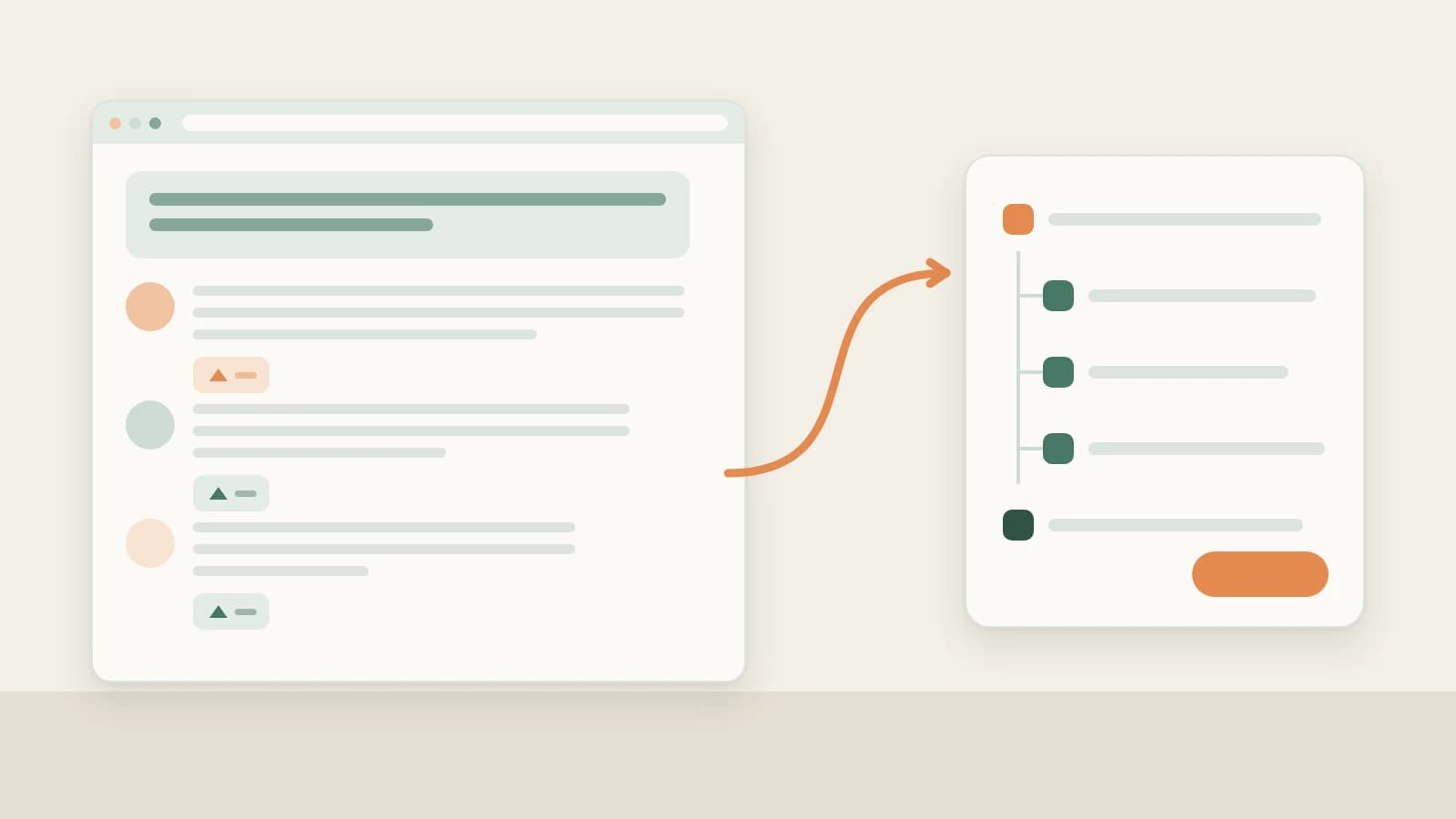
- A page: open the Beav side panel and save the current page. Beav keeps the title, source link, body text and any available media information.
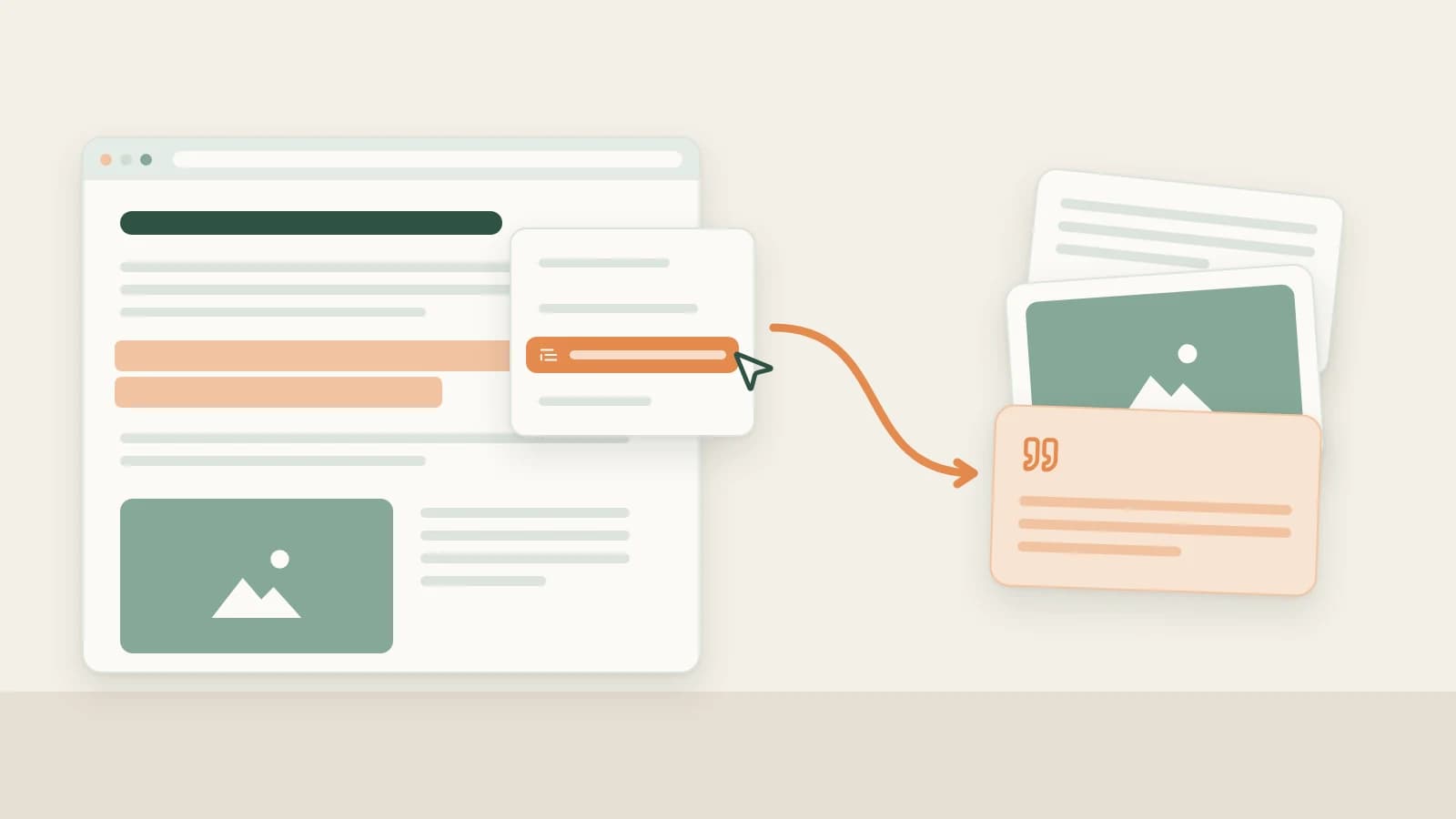
- A passage: select it, right-click and choose Save selected text to Beav, and the page is kept as its source. Web images can be saved with Beav's save action or the right-click menu.
- These sit in the same space as your RedNote, Douyin and WeChat material, so the AI can cite them together.
The material you reach for while writing is often small: one figure from a report, one line from an article, a spec from a product page, a customer's exact words. Paste it into a notes app and two days later you cannot remember where it came from.
The Beav browser extension has a place for these pieces. A whole page, a passage or an image can be saved in a click or two, each with its source page attached.
Who it is for
- Writers who quote data, arguments and people's words and need to trace them back.
- Marketers collecting product pages and research for a category.
- Anyone already saving RedNote (Xiaohongshu) material in Beav who wants their other web research in the same place.
How to use it
Install the Beav desktop app and the browser extension, and check that the side panel shows it is connected to the right space. Tutorial 02 covers setup.
Save a whole page
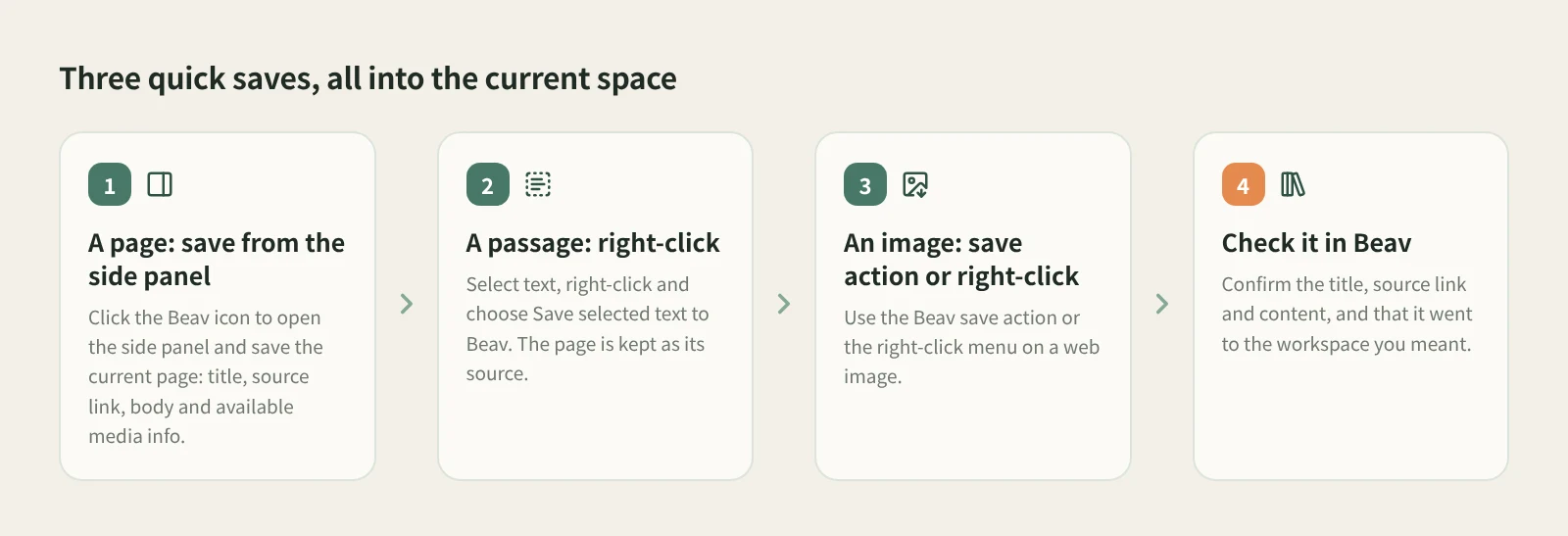
- Open the page in Chrome or Edge on your computer and let it load.
- Click the Beav icon in the toolbar to open the side panel, and check it shows the current page and the connection status.
- Choose to save the current page and wait for the side panel to confirm. Beav keeps the page title, source link, body text and available media information as faithfully as it can.
Save a passage
- Select some text on the page.
- Right-click and choose Save selected text to Beav. It suits arguments, data points, people's exact words and short paragraphs, with the page kept as the source.
Save a web image
Use the Beav save action or the right-click menu on the image.
Then check in Beav: the title is right, the source link is there, the body or summary opens, and it went to the space you meant. A save counts only when the browser says it succeeded and you can find it in Beav.
How it compares with Notion Web Clipper and Cubox
| Notion Web Clipper | Cubox and other read-later apps | Beav browser extension | |
|---|---|---|---|
| Where it lives | Your Notion workspace | The app's cloud | The current Beav space on your computer |
| What it saves | Whole pages, into a page or database | Pages, selections, images, links | Pages, selected text, web images, plus RedNote posts, Douyin videos and WeChat articles |
| Strengths | Managing clips with your notes, projects and databases | Reading, cross-device sync, highlights | One library with your creative material, ready for the AI to cite |
| On mobile | Yes | Yes | The extension runs in desktop browsers only |
| What you need | A Notion account | An account with that app; some features are paid | The Beav desktop app running, plus the Chrome or Edge extension |
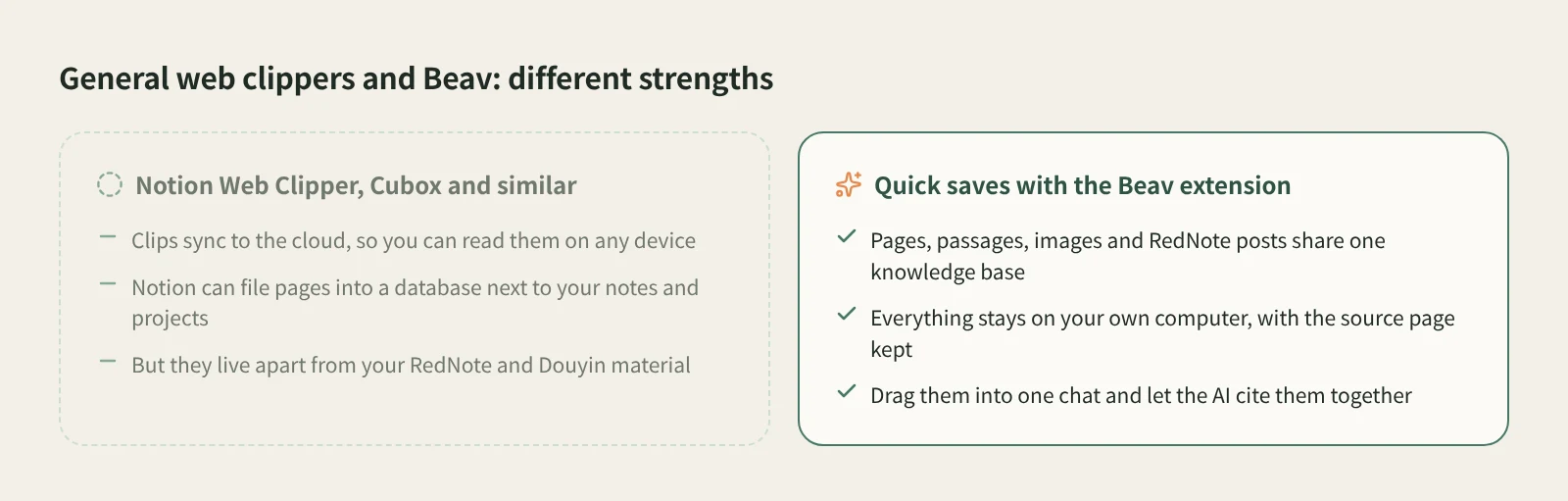
If your notes already live in Notion, or you mainly want comfortable reading on your phone, these tools are excellent. Beav's point is keeping web research next to your platform material. When you write a RedNote post, the reference posts, industry figures and customer quotes can all be cited in one chat instead of across three apps.
Limits and notes
- Saving never starts a breakdown; for pages and platform content, click Decompose in Beav after saving.
- Browser internal pages, extension stores and other protected pages do not allow normal extensions, so they cannot be saved.
- The extension needs Chrome or Edge on a computer, and the Beav desktop app must be running.
- For short passages, save from the original page with a right-click rather than pasting into a chat, so the source is kept.
- Saved content is for your own reference. Credit other people's words and images when you quote them, and get permission before republishing.
- If the extension says saved but the knowledge base is empty, check the current space first, then see extension troubleshooting.
Next steps
- WeChat Official Account articles can be saved by pasting the link: see how to save a WeChat article in full.
- For complete RedNote posts, read how to save a whole RedNote post to your computer.
- Full reference: images and selected text. To turn scattered material into a library, see asset management.
Applies to Beav desktop 2.9 and browser extension 2.7. Checked 2026-10-21.