

Key takeaways
- Everything in Beav, including sources, chats, manuscripts and generated results, belongs to an account space. A space usually maps to one account, one client or one long-term project.
- Knowledge, AI memory, creation platforms and the built-in browser's sign-ins are kept per space, so one account's material and preferences don't leak into another account's drafts.
- Switch spaces with one click in the account menu at the bottom left. AI tasks, generation and transcription that already started keep using the original space and save their results back there.
If you run two or three accounts, the real problem is rarely workload. It is crossover. The AI quotes a reference you saved for your tech account in a post for your beauty account. You teach it "no emoji on this account" and suddenly it drops emoji everywhere. Every time you open a site, you first check which account you're signed in as.
Beav's answer is simple: one account, one space. Material, preferences and sign-ins each stay in their own place, and changing accounts means changing spaces.
Who it is for
- Creators running several accounts with very different positioning and voice.
- Agencies and freelancers managing content for several clients or brands who need each one's material kept apart.
- Anyone with a long-term project or niche that deserves its own library alongside their main account.
How to use it
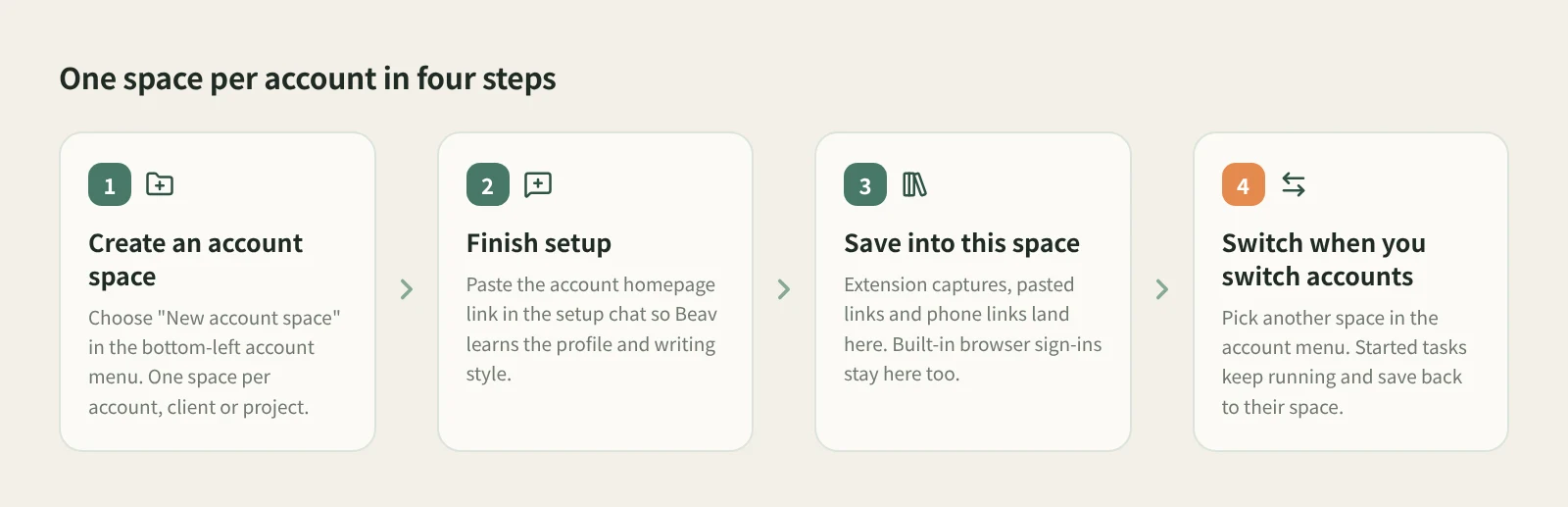
- Create a space per account. Click the account button at the bottom left and choose "New account space" below the space list. When you create a space you can put it in a folder of your choice, such as an external drive or a synced folder. Don't create a space for every post: keeping one account's past material and finished work together is what makes search and reuse pay off.
- Finish the setup chat. A new space opens a setup chat. If the account exists, paste its homepage link and Beav saves its posts and learns the account profile and writing style. If not, answer the questions about content direction and positioning. Setup uses points; if you run out it pauses, and you click Resume setup once that's sorted.
- Save into the current space. Links you paste into the knowledge base, links sent from your phone, and browser extension captures all go to the space currently open. A glance before saving beats moving things later.
- Set the space's creation platforms. Each space can have its own creation platforms, and manuscripts show versions for the current space's platforms. Your RedNote account and your newsletter account can each keep their own set.
- Sign in to the sites this account needs in the built-in browser. The Browser tab in the chat's right workspace is Beav's built-in browser. Its sign-in state is stored separately per space and does not use your system browser's sign-ins. If a site refuses embedded sign-in, use Open in system browser.
- Switch spaces when you switch accounts. Click the account button at the bottom left and pick another space from the list under your profile. On Home, Knowledge, Hotspots and similar pages you stay on the same page and see the new space's content. Switching from a chat or the manuscript editor takes you to Home.
Switching spaces only changes what you see. AI tasks, image and video generation, voiceover, transcription and edit exports that already started keep using the original space's sources and save their results back to it. Switch back and open the original chat to see progress and results.
A single space can also hold several account profiles. If one client has accounts on a few platforms, keep them in one space: click + next to Account profile and paste the homepage link. It doesn't replace the space's main account or create a new space. Decide by asking whether those accounts should share material and voice.
What a space keeps separate
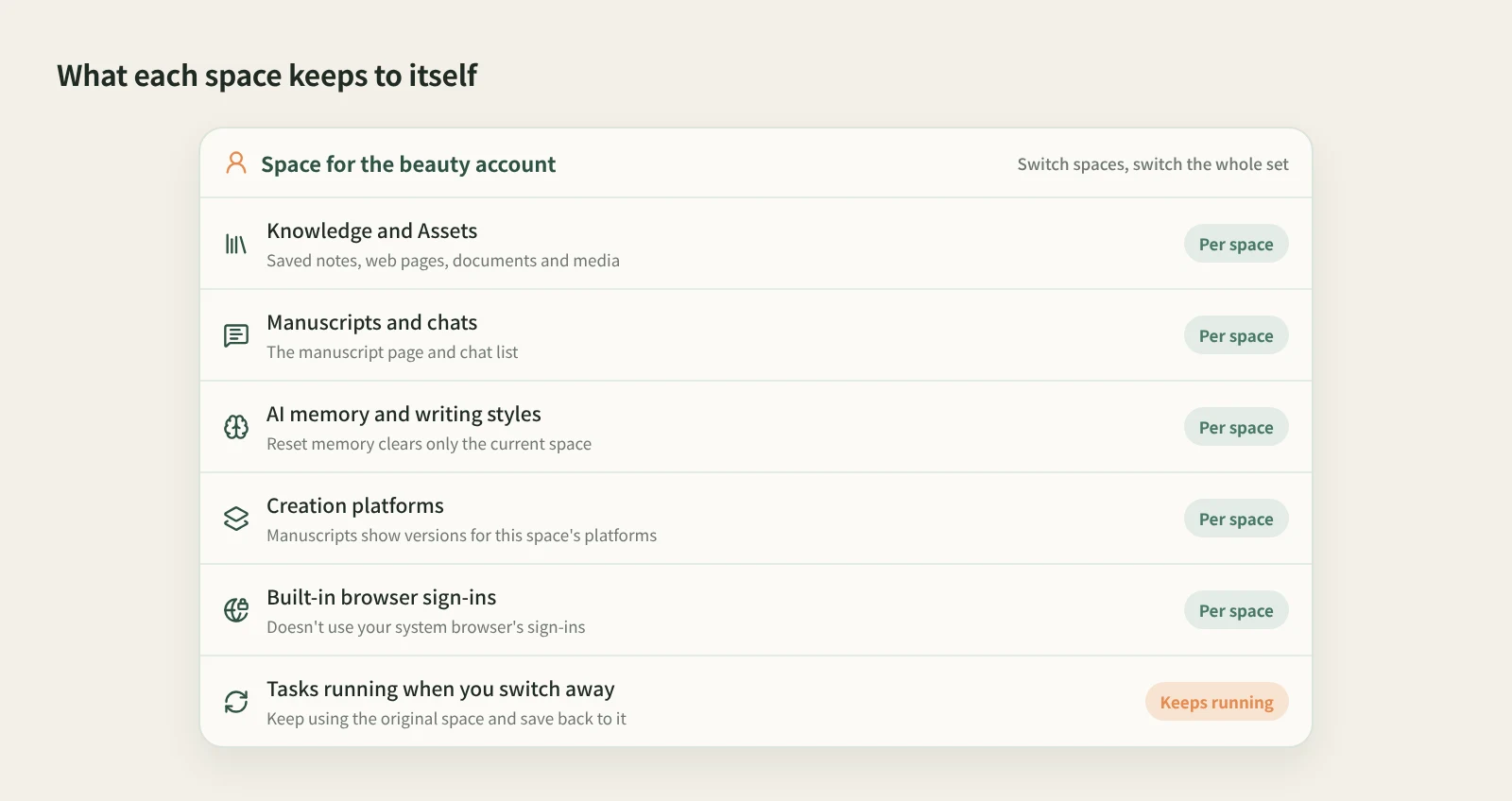
- Knowledge and Assets: notes, web pages, documents and media you save appear only in their own space.
- Manuscripts and chats: the manuscript page and chat list belong to the current space.
- AI memory and writing styles: memory is used only within its space, and Reset memory in Settings → Personalization clears only the current space. For how to teach the AI preferences, see memory and creative style.
- Creation platforms: chosen per space.
- Built-in browser sign-ins: stored per space.
How it compares
| One AI tool for everything | Several browser profiles | One Beav space per account | |
|---|---|---|---|
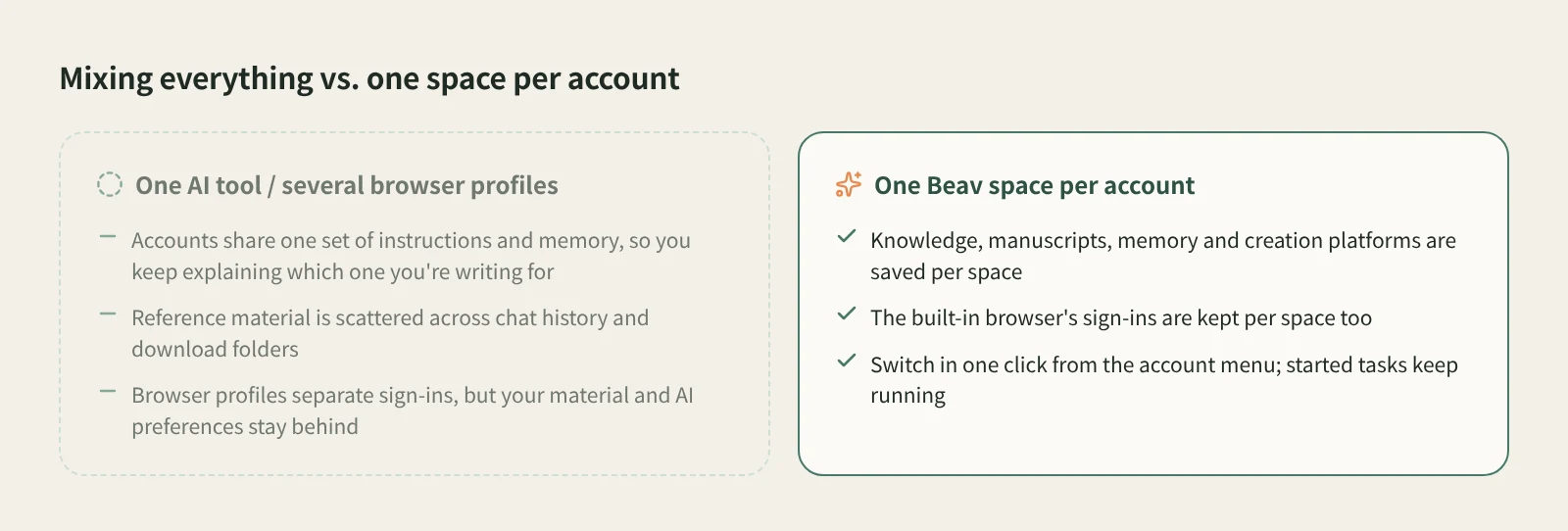
| Where material lives | Mixed into chat history and uploads | Bookmarks are separate; downloads still need sorting | Each space has its own Knowledge and Assets |
| AI preferences | One set of custom instructions and memory for all accounts | Not applicable | Memory and writing styles saved per space |
| Site sign-ins | Not applicable | Kept per profile, and very mature at it | Built-in browser sign-ins kept per space |
| Changing accounts | Re-explain which account you're writing for | Switch browser windows | One click in the account menu |
| Tasks in progress | Depends on the tool | Not applicable | Keep running; results go back to the original space |
| Where it shines | No install, start chatting anywhere, across devices | Free, universal, works with any site | Material, preferences and sign-ins live together |
A general AI tool is the fastest way to start, many offer project folders, and for the occasional post it is plenty. Browser profiles are excellent at keeping site sign-ins apart and need no extra software. Beav fits a different situation: you build up material, preferences and finished work for several accounts over time and want all of it to switch when you switch accounts.
Limits and notes
- This is not an anti-detection tool. Spaces keep your own material, preferences and sign-ins organized. They don't change how platforms identify accounts, and Beav makes no promise that a platform can't link your accounts. Follow each platform's rules for signing in to and running multiple accounts.
- What's kept per space is the sign-in state of Beav's built-in browser. The browser extension runs in your own Chrome or Edge and uses that browser's sign-ins; it only saves captures to Beav's current space. Sign-ins made after Open in system browser also live in your system browser.
- If you can't find material or a task result, first check that you're in the space where you started it.
- You can rename a space without moving its files. Removing a space stored in a folder you chose leaves the folder in place, and on another computer you can add it back with "Open existing space…", but chat history doesn't travel with the folder. Beav has no backup or restore feature, so keep your own copies of anything important.
Next steps
- Creating your first space? Follow tutorial 01.
- Write down each account's direction with the account plan.
- Full reference: get to know the workspace.
Applies to Beav desktop 2.9. Checked 2026-10-26.