


Key takeaways
- The Beav browser extension can start a batch capture from Xiaohongshu (RedNote) search results, the feed and creator profiles. Batch tasks share one background queue, and posts go to the current space's knowledge base.
- It works in the browser you are already signed into, with no capture rules to write. What you get are posts with their sources, ready to break down or hand to the AI.
- Keep the volume and intervals reasonable, and do not start large batches from several pages at once. If a verification page appears, stop, complete it, then continue.
Saving reference posts one at a time gets slow. You search a keyword and the first few screens are all worth keeping, or you find a strong creator and want their recent posts to study. That is when a batch capture helps.
The Beav extension puts it on the pages where you already browse RedNote: start it from the search results, the feed or a profile, let it save in the background, and review the results in Beav.
Who it is for
- Creators entering a new niche who want a first batch of benchmark posts to study.
- Marketers who regularly save a few benchmark creators' recent posts to break them down.
- People who do not want to learn a scraping tool or export spreadsheets, and just want material they can use.
How to use it
Install the Beav desktop app and the browser extension, and check that it is connected and the right space is open. Tutorial 02 covers setup.
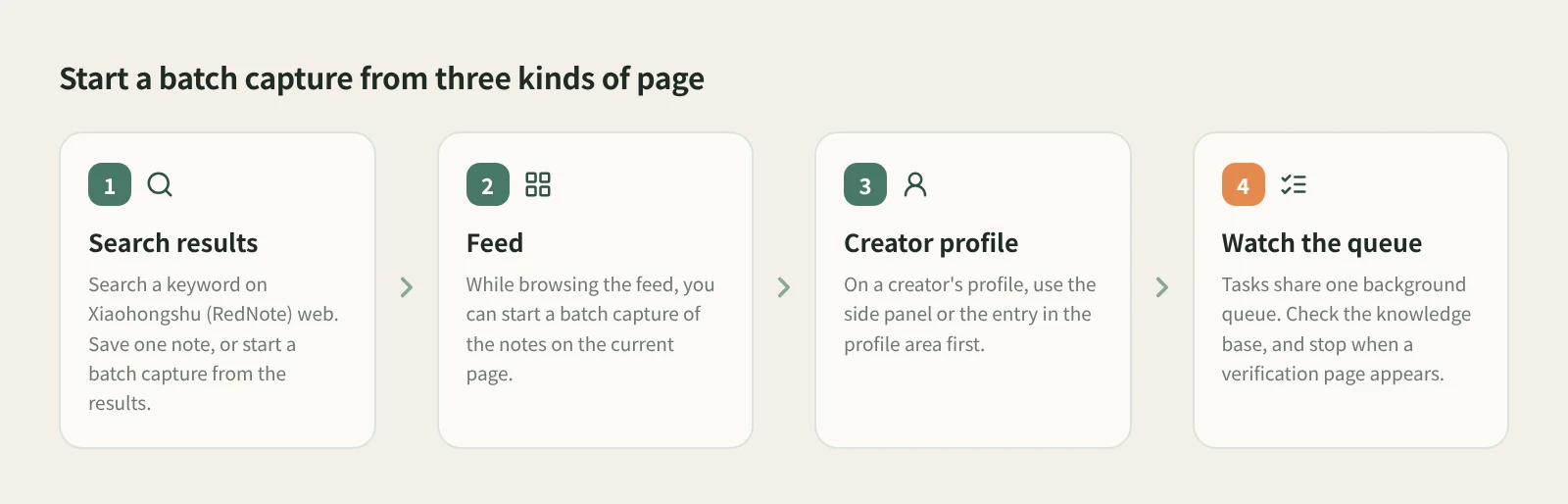
- Check the space. Batch saves go to the workspace currently open in Beav. If you keep one space per account, switch to the right one first.
- Start from the page. Open Xiaohongshu in Chrome or Edge on your computer:
- Search results: search a keyword, then save a single post or start a batch capture from the results.
- Feed: start a batch capture of the posts on the current page.
- Creator profile: open the benchmark creator's profile and use the side panel or the entry in the profile area first.
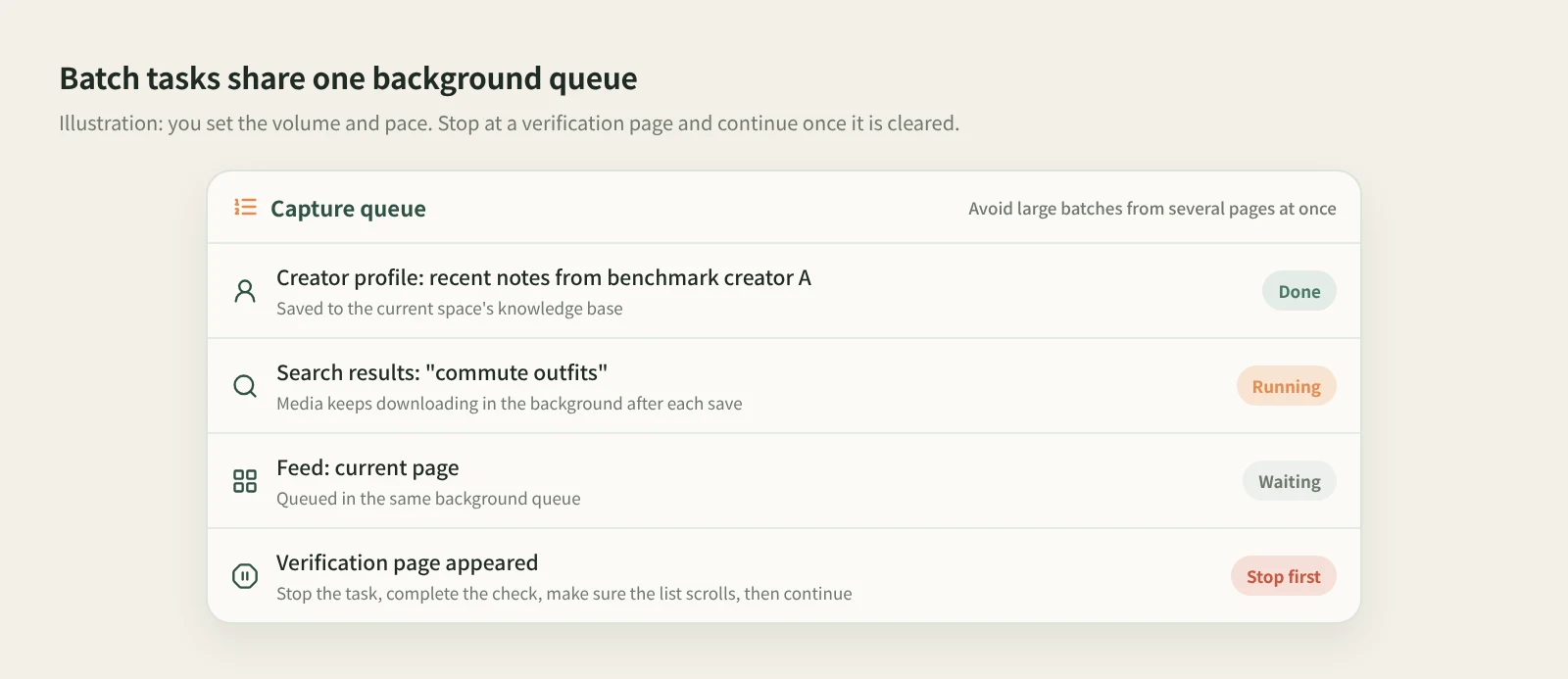
- Watch the queue. All batch tasks share one background queue. You can follow tasks and history in the extension's side panel.
- Check it in Beav. Confirm the source links, text and media in the knowledge base. Media downloads in the background, so "Downloading" on a card is normal.
- Break them down in bulk if you want. Select posts in the knowledge base, right-click and choose to break down the selected items. Up to 100 at a time, after you confirm the count and model usage.
How it compares with scrapers and analytics exports
| General scrapers (e.g. Octoparse) | Analytics platform exports | Beav browser extension | |
|---|---|---|---|
| How you start | Point-and-click rules or ready-made templates | Filter in the platform, then export | Straight from RedNote search, feed or profile pages |
| Where it runs | Locally or in the vendor's cloud | The vendor's service | The browser you are signed into; results stay in Beav on your computer |
| What you get | Fields in a spreadsheet or database | Reports and data tables | Whole posts: text, images or video, source link |
| Strengths | Large scale, custom fields, scheduled runs | Wide coverage, history and rankings | Ready to break down, rewrite and cite with the AI |
| Watch out for | Rules need upkeep when pages change | Usually a paid account | You manage the volume and pace, and stop at verification pages |
If you need thousands of rows for statistics, a general scraper or an analytics platform is the better tool; that is what they are built for. Beav's batch capture serves content work: you pick a set of posts you actually want to study and keep them as material you can reuse. The volume does not need to be large.
Limits and notes
- Keep the volume and pace sensible. Capture a batch you will actually use, and avoid large batches from several pages at once. This runs in your own account and browser, and unusual activity can trigger the platform's verification.
- Stop at verification pages. Site checks, page refreshes, network drops or access limits can interrupt a task. Stop it, complete the check on the page, make sure the list scrolls normally, then continue. See a Xiaohongshu batch capture stops.
- You get what the page provides. Saved posts are for your own research; ask the author before republishing or commercial use.
- Breakdowns use models and consume quota. Pick the posts that matter rather than breaking down everything.
Next steps
- For single saves and what gets kept, read how to save a whole RedNote post to your computer.
- Posts saved with comments can go through Comment insights to see what readers are asking.
- To build a long-term pool of benchmark posts, read build a benchmark capture pool with the browser extension or see the RedNote extension.
Applies to Beav desktop 2.9 and browser extension 2.7. Checked 2026-10-21.