
Key takeaways
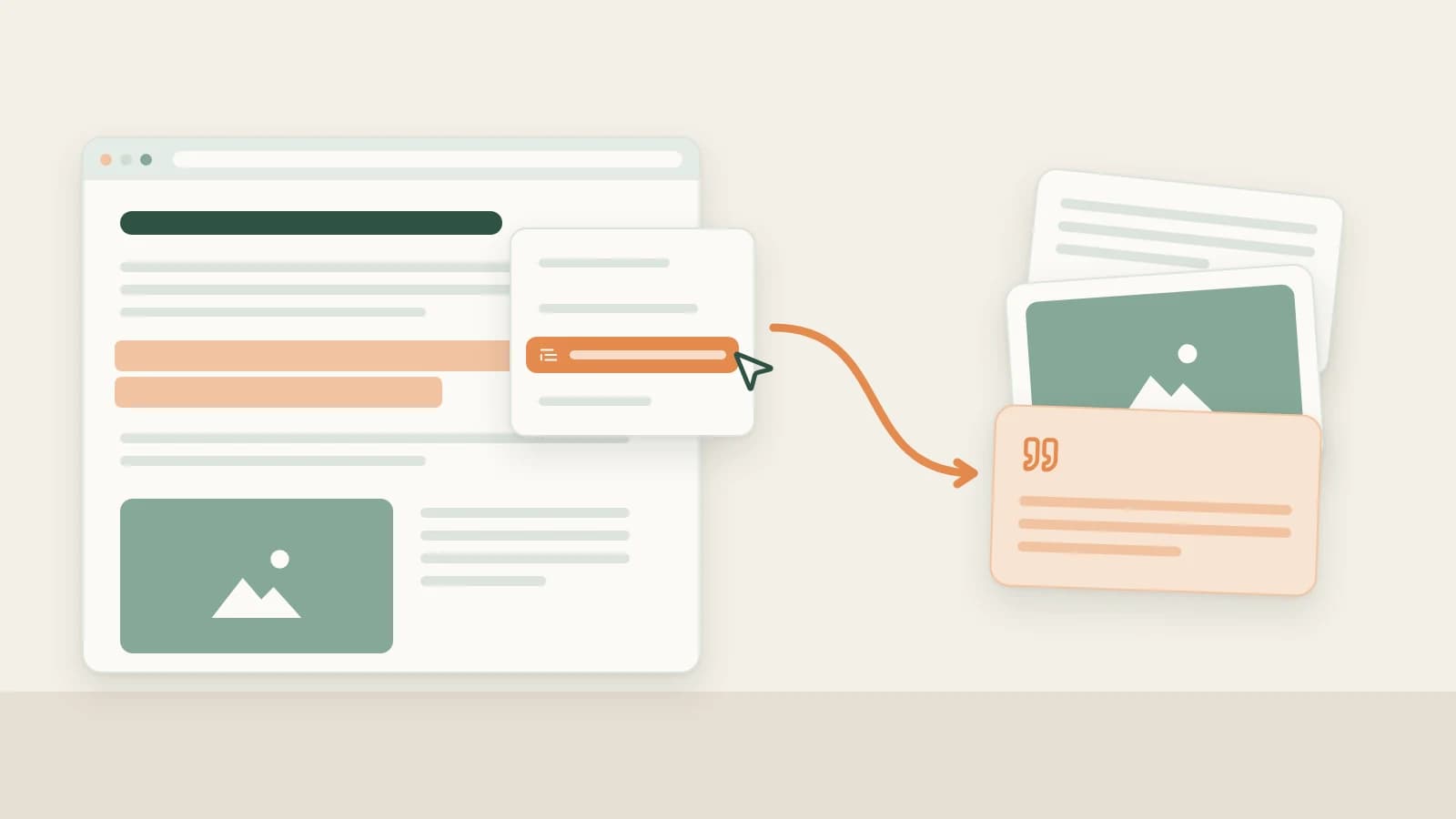
- Paste a link into a Beav chat and say "save to the knowledge base". The AI reads the text and media and files them, with no browser involved.
- Exact links to Zhihu questions, answers and columns and to single Weibo posts can be read directly, with public comments when you ask. Public WeChat Official Account articles are read by a local parser, images included.
- The difference from pasting a link into ChatGPT or Kimi: what the AI reads stays. The saved entry can be dragged into a later chat and cited.
You are halfway through a draft when a colleague sends a Zhihu answer, or a WeChat article in a group chat looks worth keeping. Switching to the browser, waiting for the page and finding somewhere to save it breaks your flow.
In Beav you can hand the link to the AI in the chat you are already in. It can discuss the piece with you right away, and it also files the content in the current workspace's knowledge base, so you can find it and cite it later.
Who it is for
- Creators who spend most of their time drafting and planning topics in Beav chats.
- Social media managers who get links in group chats and DMs and want to keep them without extra steps.
- Anyone researching a topic on Zhihu or Weibo who needs the comments as well as the post.
How to use it
Make sure the Beav desktop app is signed in and the workspace you want to save into is open. If you keep one workspace per account, links go to the one that is open.
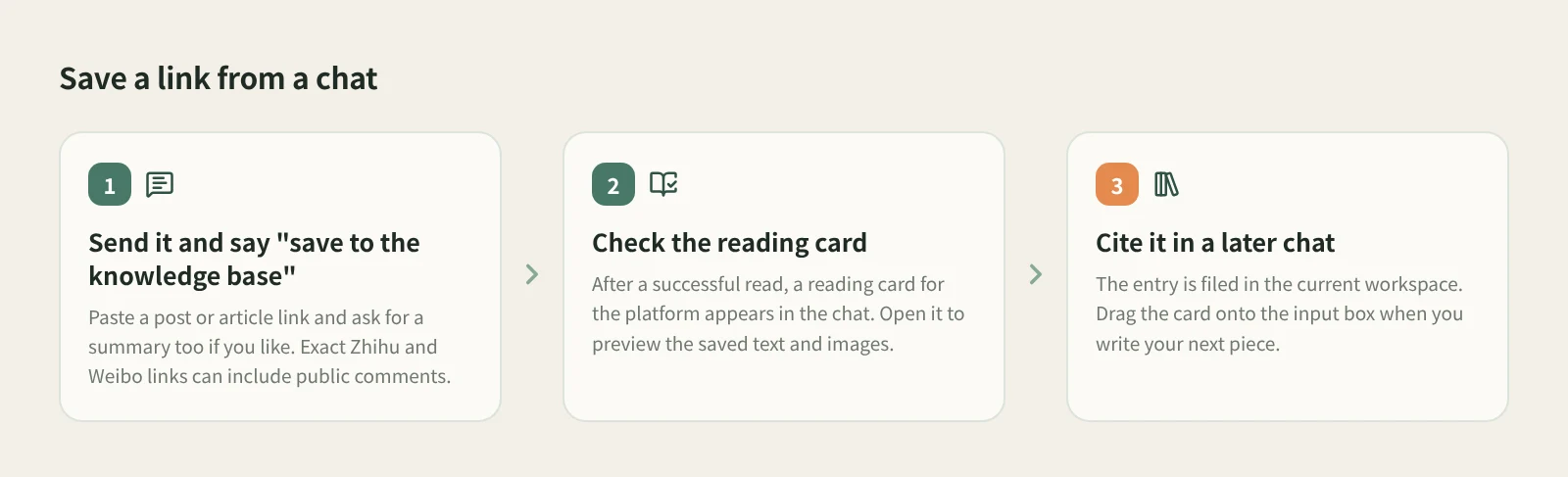
- Send the link and say what you want. Paste a post or article link into the chat and add "save to the knowledge base". You can ask for more in the same message, such as "save to the knowledge base, then summarize the argument".
- Ask for comments when you need them. With exact links to Zhihu questions, answers and columns or to single Weibo posts, the AI can read public comments on request, for example "read the comments too and tell me what people disagree about". Weibo trending terms can also be used to search for related posts.
- Check the reading card. After a successful read, a reading card for that platform appears in the chat. Open it to preview the saved content and confirm the text and images are there.
- Use it later. The saved entry sits in the same knowledge base as everything else you collect. When you write your next piece, drag the card from the workspace panel onto the input box and the AI uses it as a reference.
Reading one specific link does not ask you to confirm points. If you ask for research instead, such as "search this topic and read the top few posts in depth" or "sample this account's recent posts", the AI tells you the points cost before the first batch call and waits for your confirmation.
How it compares with pasting a link into ChatGPT or Kimi
| Pasting into ChatGPT or Kimi | Sending the link in a Beav chat | |
|---|---|---|
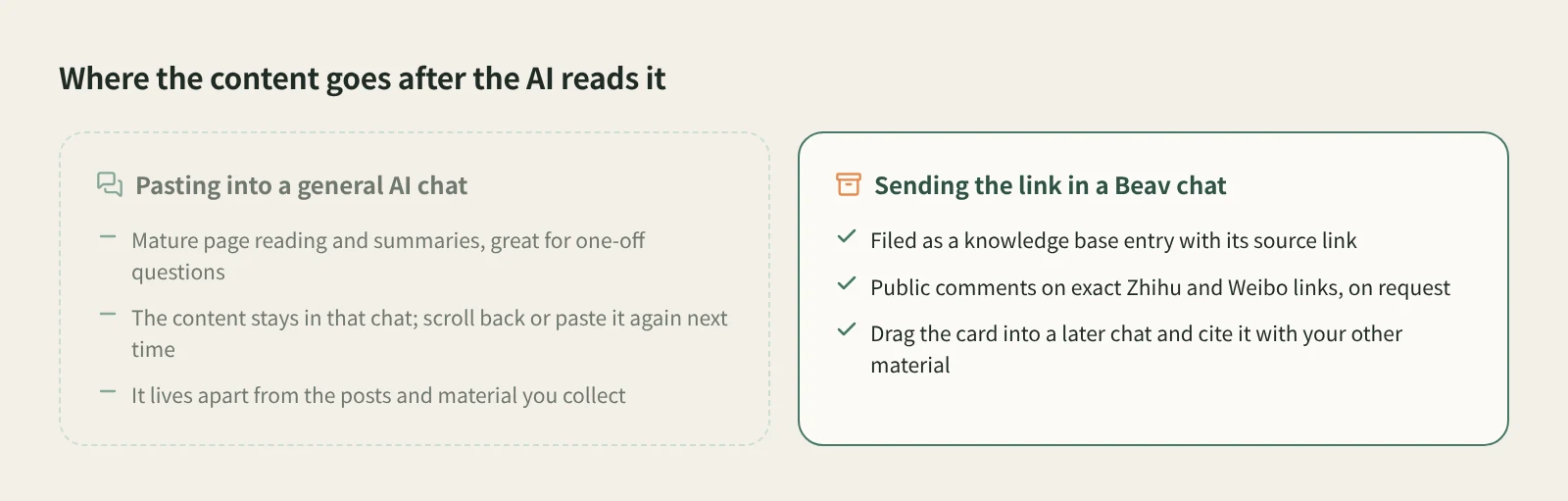
| After the read | The content lives in that chat history | Filed as a knowledge base entry with its source |
| Using it again | Scroll back, or paste the link again | Find the card and drag it into a new chat |
| Comments | Depends on whether the tool can open the page | Public comments on exact Zhihu and Weibo links, on request |
| Strengths | Mature web reading, search and summaries, on phone and desktop | What you read sits next to your topics and drafts in one workspace |
| Cost | Each service's own plan | No points prompt for a single link; batch research shows the cost first |
ChatGPT and Kimi are very good at reading pages and summarizing them. For a one-off question they are all you need, and ChatGPT's projects can keep related chats and files together. Beav differs in where the content ends up: in a knowledge base on your computer, alongside your saved RedNote posts, WeChat articles and breakdowns, so they can all be cited when you write. The RedNote tools page shows the rest of that workflow.
Limits and notes
- What can be read depends on the link. Zhihu and Weibo need exact links to a question, answer or post. WeChat articles must be publicly accessible; ones behind verification fail to load.
- Comments are read on request, and you get what is actually returned, which may be fewer than the platform's count.
- To save a Douyin video, click "+" in the knowledge base, choose Add link and paste it; see paste a link and Beav saves it.
- Saved content is for your own reference and research. Get the author's permission before republishing or commercial use.
Next steps
- To paste links one at a time without a chat, see one box for links from any platform.
- To break a saved video into shots and a shooting script, see break down a viral short video.
- Full reference: have AI read and save in a chat.
Applies to Beav desktop 2.9. Checked 2026-10-21.