


Key takeaways
- Say "do this by default from now on" in a chat and state the scope. It is truly saved only when the chat shows Remembered or Already remembered, and you can click Undo if something changed.
- Each space can hold several ways of writing: shared principles, rules for different series or formats, and examples you approve. The AI picks the one that fits the request instead of writing everything in one voice.
- Memory is separated by space, preferences can apply to one platform or one account, and "write it differently this time" or "try this for this piece" never turns into a long-term rule.
The tiring part of writing with AI is re-explaining yourself every time: no exclamation marks, don't open like an ad, no emoji on this account. You say it ten times, open a new chat, and it is gone. The opposite happens too: you ask for "a bit more playful, just this once", and every draft after that is playful.
Beav's memory and creative styles handle both ends: long-term preferences you state clearly are kept, one-off experiments are not taken as rules, and you can see what was saved and where.
Who it is for
- Creators with a settled way of writing who are tired of re-training the AI.
- Anyone running several series on one account, where talking-head scripts and image posts are written differently.
- People working across several platforms or accounts who don't want one account's habits leaking into another.
How to use it
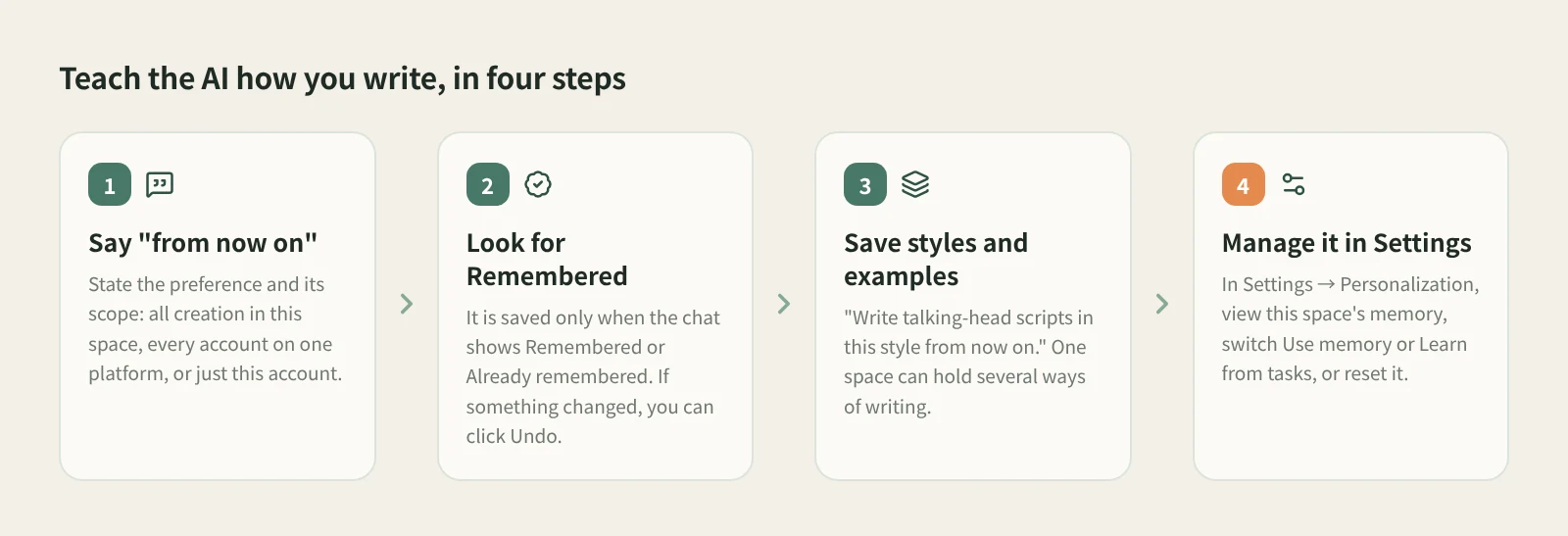
- Say "do this by default from now on" and give the scope. There are three: all creation in the current space, every account on one platform, or only the current account. For example: "From now on, use emoji in moderation in Xiaohongshu (RedNote) post bodies, but no emoji for this account."
- Wait for the save receipt. When the AI decides something should be saved and the write succeeds, the chat shows Remembered or Already remembered. Only that receipt counts; the AI writing "got it" in its reply does not. If it saved the wrong thing, click Undo, which appears when something changed.
- Save styles and examples. Describe the narrative stance, sentence rhythm, rhetoric, openings and endings you like, or hand it a piece you approve. It doesn't need to be a hit first. Useful phrasings: "Write talking-head scripts in this style from now on", "Use this piece as a long-term reference example", "This kind of opening sounds too much like an ad. Don't do it again."
- Mark one-off requests as one-off. "Write it differently this time" applies to the current task and overrides long-term defaults, but leaves future preferences alone. Asking only to "try this for this piece" does not become a long-term style either.
- Review it in Settings. Open Settings → Personalization and look under What AI knows about you in the Memory section to see this space's memory. Below it you can switch Use memory and Learn from tasks on or off, or Reset memory. Custom instructions at the top of the same page apply to all new tasks, up to 1,500 characters; click Save when done.
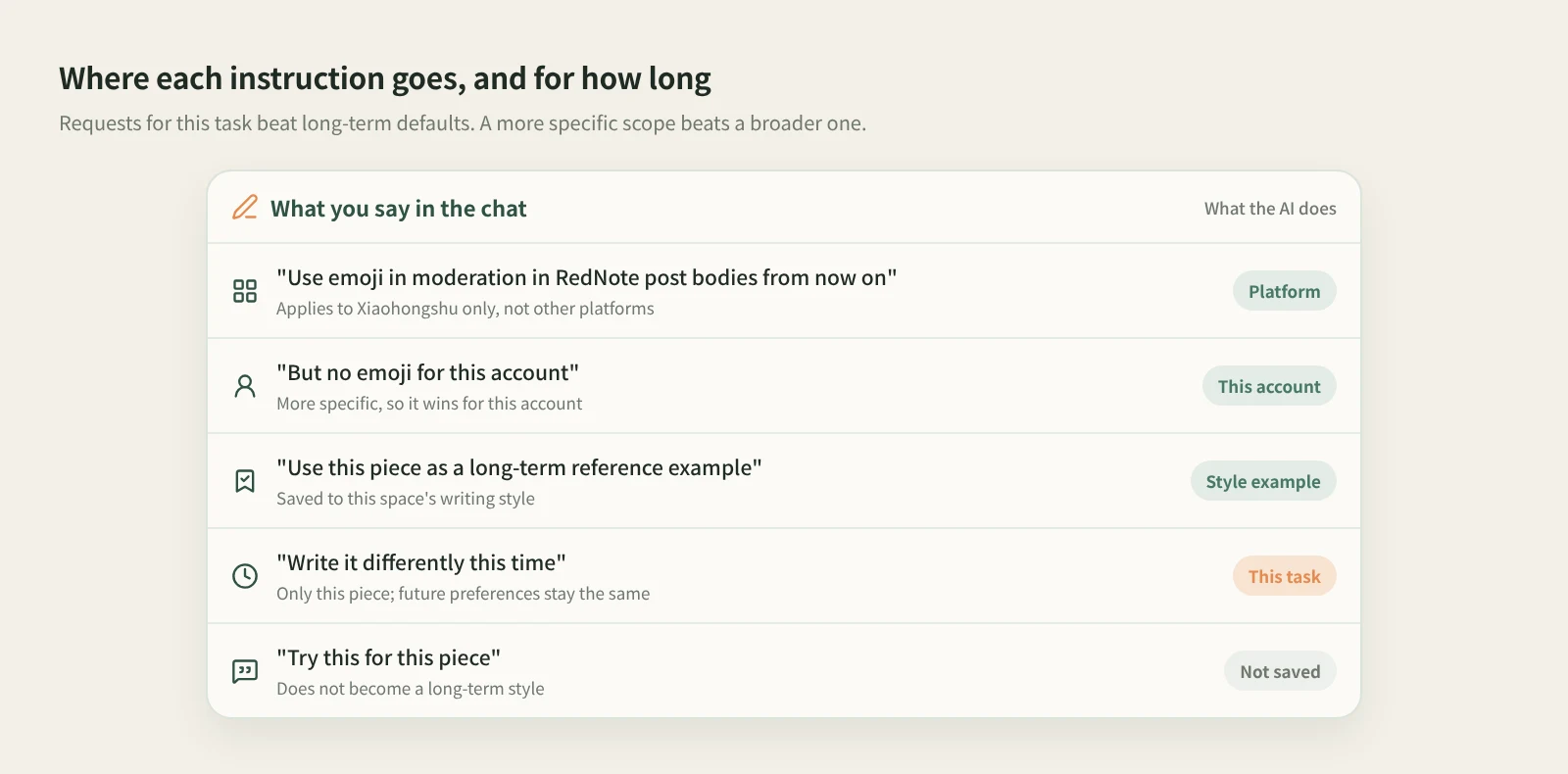
When writing, the AI chooses the relevant style from the request, the series and the format, so talking-head scripts and image posts can each have their own. An account's series direction, posting frequency and goals live in the account operations plan; state a long-term direction in a chat and the AI saves it there and tells you which item it updated.
How it compares
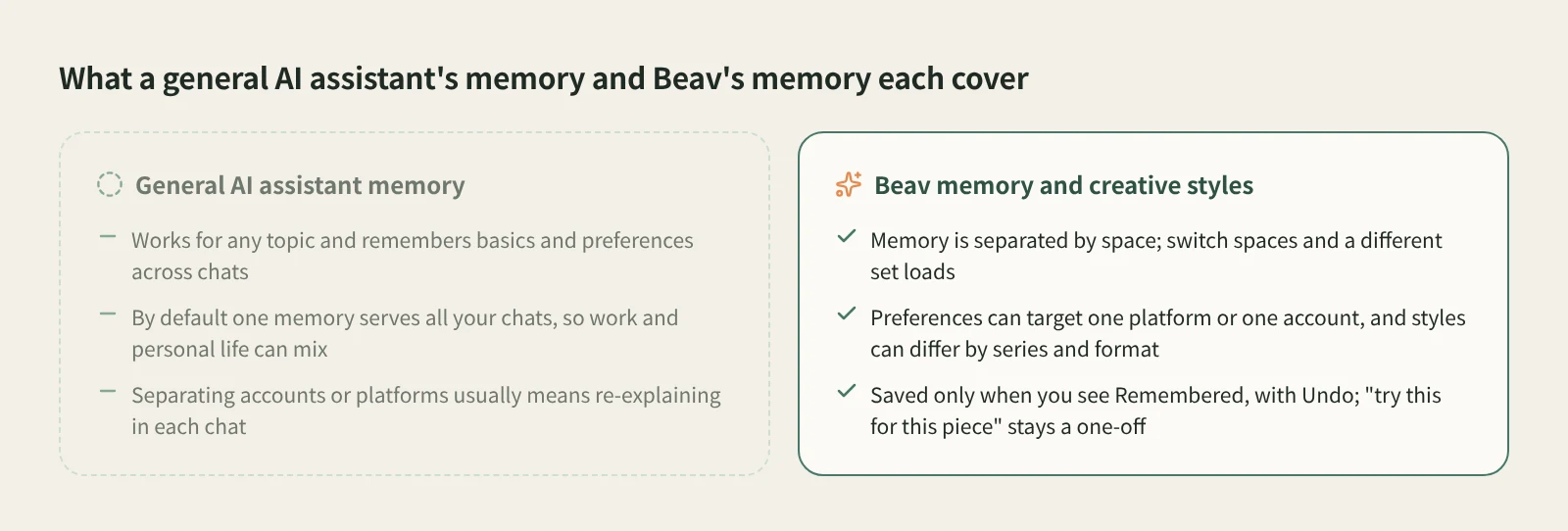
| General assistant memory (e.g. ChatGPT, Kimi) | Beav memory and creative styles | |
|---|---|---|
| What it keeps | Your background and preferences, for any topic | Creative preferences, account positioning, writing style and project decisions |
| Scope | Usually one memory across all chats | Separated by space; preferences can target one platform or one account |
| How you know it saved | Usually also shows that memory was updated | Shows Remembered or Already remembered, with Undo when something changed |
| Writing style | Custom instructions, or pasting examples into each chat | Several styles per space: shared principles, rules per series or format, approved examples |
| One-off experiments | The assistant decides what to keep; delete mistakes in settings | "This time" and "try this for this piece" leave long-term preferences alone |
| Reviewing and clearing | View, delete or turn off in settings | Settings → Personalization shows this space's memory, toggles learning, resets per space |
To be fair, a general assistant's memory reaches further. It uses your background for email, research and everyday questions, it is on your phone, and it takes no setup. If you only ask AI to write now and then, a paragraph of custom instructions is often enough.
Beav is built around making content instead: one space for one operation, memory that stays inside it, platforms and accounts handled separately, and more than one style, with examples. If what you care about is "this account's posts always sound like this account", that saves real effort.
Limits and notes
- Something is saved only when you see Remembered or Already remembered. If you don't, say "do this by default from now on" again, clearly.
- All memory, including general preferences, is used only in the space it belongs to. The same account linked to two spaces keeps separate memory in each.
- Reset memory clears only the space you are in when you confirm.
- With Use memory off, existing preferences are not used. With Learn from tasks off, no new preferences are extracted in the background from saved tasks.
- Background learning does not happen after every message and doesn't guarantee that every task yields something reusable. Directions you are still weighing stay as candidates rather than becoming long-term rules.
- Existing custom styles are not overwritten by upgrades.
Next steps
- Let the AI keep your series, cadence and goals too: the account operations plan.
- With your own style in place, borrow someone else's structure: AI rewriting that keeps the structure.
- Full reference: memory and creative style.
Applies to Beav desktop 2.9. Checked 2026-10-26.