


Key takeaways
- The Content schedule on Home shows what goes out on which day in Month, Week or Year view (Week by default). Give a manuscript a day, and drag it to move it.
- Gray is a draft, orange is final, green is published, and red means the planned day passed without publishing. Each day's packages, manuscripts and holidays sit on the same calendar.
- Click a holiday or marketing date to start a topic conversation about it. Beav never posts on schedule for you; the planned day is a reminder for you.
A lot of content calendars are a spreadsheet: a date column, a title column, a status column. The trouble is that the sheet and the drafts live apart. Which version you are on, whether the final is locked, whether it actually went out: you update all of that by hand, and after one busy week the sheet no longer matches reality.
Beav takes a different approach: the planned publish day is stored on the manuscript itself, so the calendar shows each manuscript's real status. When a draft becomes final or you mark it published, its color on the calendar changes with it. There is no second sheet to maintain.
Who it is for
- Creators who write manuscripts and build packages in Beav and want to see this week's posting plan at a glance.
- Anyone with a backlog of drafts who keeps losing track of what is due and what has slipped.
- Marketers who want holidays and campaign dates on their radar early, instead of scrambling for an idea on the day.
How to use it
Install Beav desktop 2.9, open the workspace you want to plan, and make sure it already has some manuscripts or packages. Older versions keep the calendar under Schedule in the left sidebar; in 2.9 it moved to Home.
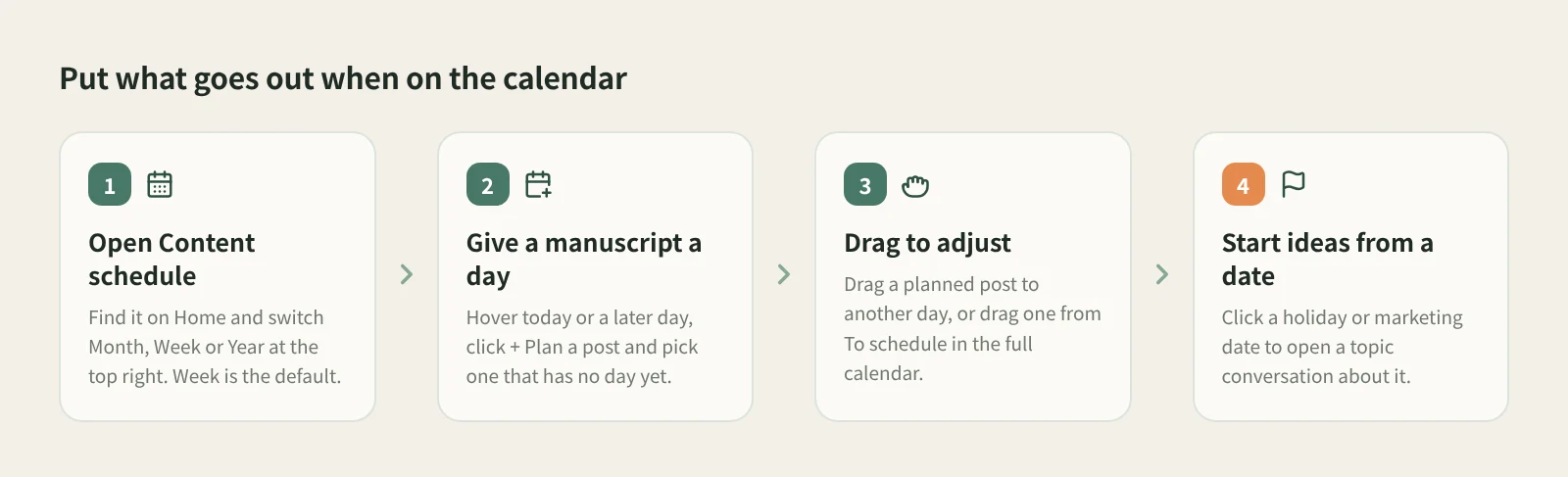
- Open the Content schedule on Home. Switch between Month / Week / Year at the top right. Week is the default, and Beav remembers your last choice. Use the arrows to page and Today to come back. The heading shows how many posts are overdue and how many manuscripts have no day yet.
- Give a manuscript a day. Hover today or a later day and click + Plan a post, then pick a manuscript that is not scheduled yet.
- Drag to reschedule. Drag a planned manuscript onto another day. The expand button at the top right opens the full calendar, where the To schedule sidebar tab lists unpublished manuscripts without a day; drag one onto a day to plan it. Click a day to unschedule a post or plan another one.
- Plan from the manuscript list. In the Manuscripts list of the chat's right workspace, right-click a manuscript and choose Plan to publish on a day, or Remove from schedule. Finish a piece and date it on the spot.
- Start ideas from a holiday. Holiday names appear on the calendar. Click a holiday or marketing date and Beav opens a topic conversation about it. Doing this a week or two ahead beats brainstorming on the day.
- Mark it once it is live. After you post on the platform, open the package details and click Mark published. The post turns green and sits on the day it was actually published. If you skip this, it turns red once the planned day passes.
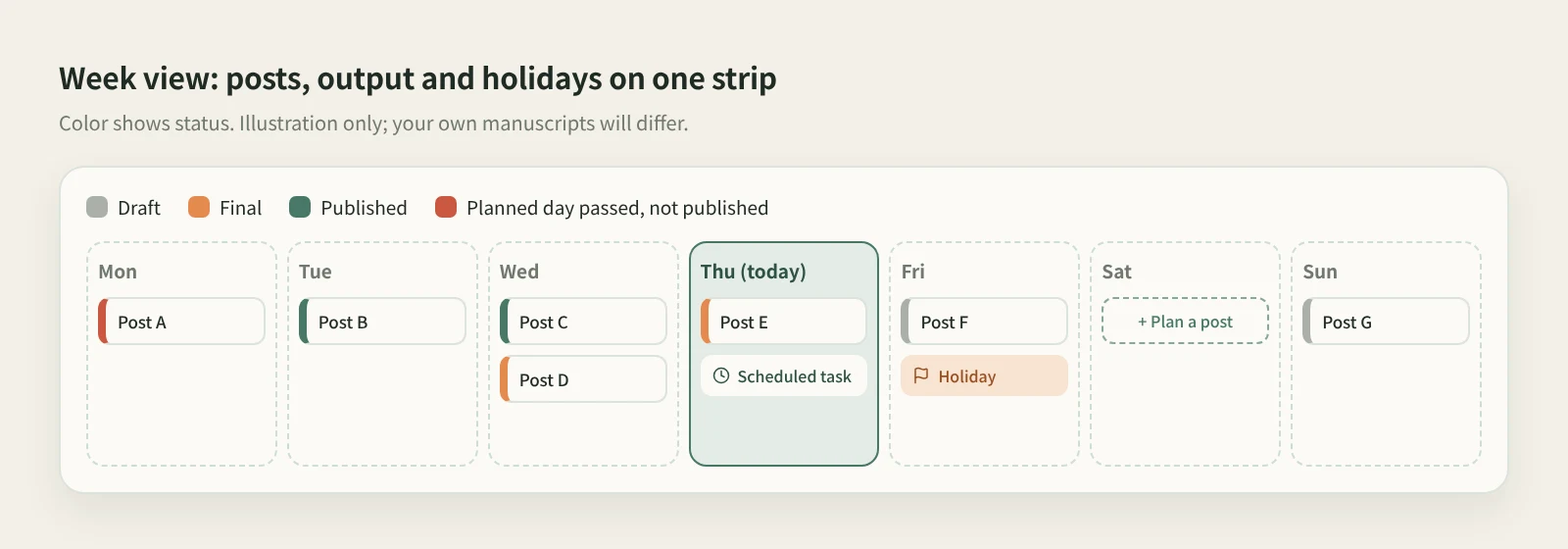
Each view has its job. Week puts seven days side by side with planned posts, what was made that day (packages, manuscripts, images and more), holidays and scheduled tasks. It is a good Monday-morning check. Month is a compact calendar: click a day and the right side lists its posts, everything made that day, holidays and scheduled tasks. Manuscripts and packages open as a preview in the right sidebar without leaving the page. Year shows all twelve months with posting days colored, which makes gaps easy to spot; click a day to jump to that month.
How it compares
| Scheduled posting tools (e.g. Yixiaoer, Xinmeiti Guanjia) | Notion calendar | Beav content schedule | |
|---|---|---|---|
| Main job | Send finished posts out on time | A planning board you build yourself | What goes out when, and how far along it is |
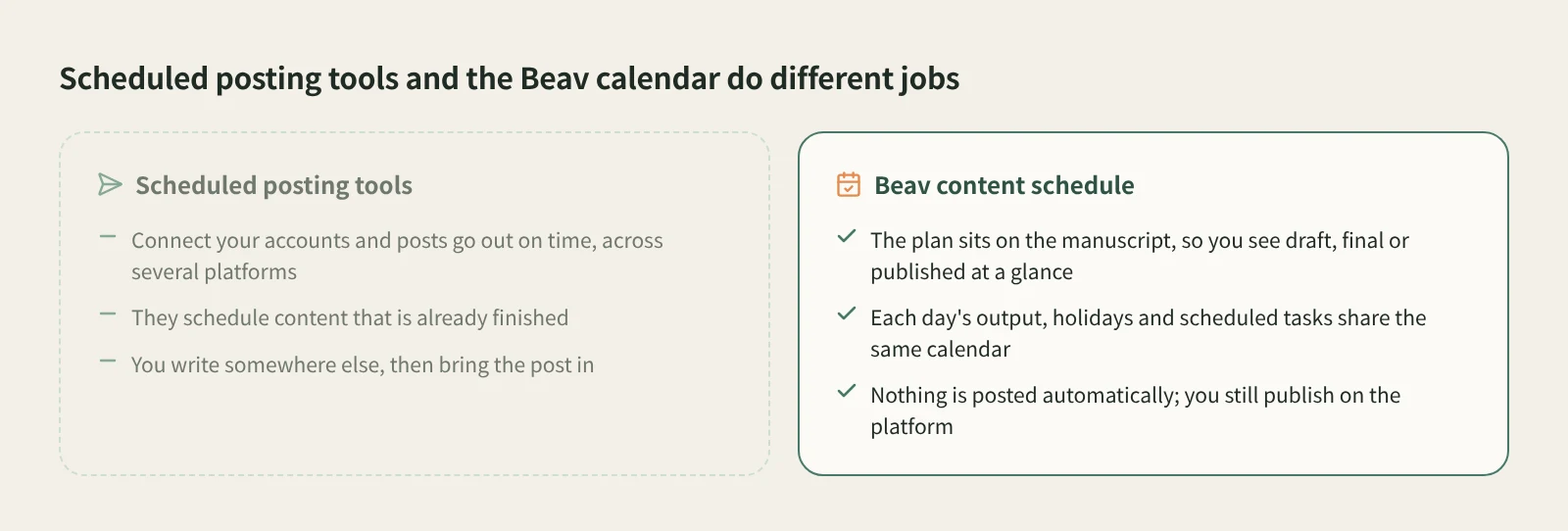
| Posts automatically on schedule | Yes, that is their core feature | No | No; you publish on the platform |
| Post status | Mostly sent or not sent | Status fields you create and update by hand | Follows the manuscript: draft, final, published and overdue are colored for you |
| Where content comes from | Imported or pasted in once written | Written into pages or linked | The manuscripts and packages you made in Beav |
| Holidays and ideas | Depends on the tool | Add them yourself | Holidays are on the calendar; one click starts a topic chat |
| Teamwork | Multi-account and multi-user management are strengths | Mature sharing and custom views | Mainly for you on the desktop, with data on your computer |
If what you need most is posts going out automatically, especially across many platform accounts, a scheduled posting tool is the better fit. Notion wins on flexibility: fields, views and permissions are all yours to design, and it works well for team planning. The Beav content schedule covers the stretch before posting: how far each manuscript has come, which day it is due, and what has slipped. It lives where you write and package content, with output and holidays on the same calendar, so nothing has to be synced.
They also work together: plan, write and package in Beav, then publish on the day with whatever you already use.
Limits and notes
- Beav does not publish on schedule. The planned day is recorded only in the manuscript on your computer. No platform is notified and nothing is posted for you.
- The AI cannot change the schedule yet. Ask it to write as much as you like, but setting and moving dates happens in the calendar or the manuscript list.
- Published is a mark you set. Mark published is stored only on your computer and does not post anything. If you edit and save a package afterwards, it returns to Ready to publish. Each platform is marked separately.
- + Plan a post works on today or later days, and offers manuscripts that are not scheduled yet.
- The schedule belongs to the workspace. If you keep one workspace per account, switching workspaces shows that workspace's schedule.
Next steps
- To keep every day on the calendar stocked, read where to keep content ideas so they don't get lost.
- For topic picks and yesterday's review every morning, read how to run a daily ops report.
- Full reference: Manuscripts, packages, and publishing: Content schedule.
Applies to Beav desktop 2.9. Checked 2026-10-25.